Home
Submit a Ticket ⇱
MyStAndrews ⇱
Apple Resources ⇱
FAQ ⇱

AV

  • Microsoft Teams Rooms
  • Scheduling Meetings for a Microsoft Teams Room
  • Upper Primary Classroom – iPad AV Control
  • Primary Classroom
    • Connecting to an Apple TV using Airplay
    • Lower Primary (Prep-2) Classroom AV
    • Pairing a Redcat Microphone
    • Redcat Soundfield Amplification
    • Upper Primary Classroom – iPad AV Control
  • Secondary Classroom
    • Connecting to an Apple TV using Airplay
    • Flexible Secondary Classroom
    • Secondary School Classroom AV
  • Aquatic Centre
    • Illawong Audio
  • Learning Hub
    • Hive Rooms AV System Guide
  • Video Conferencing
    • BYOD VideoBars (Ideas Room/Secondary Conference Room)
    • Microsoft Teams Rooms
    • Mobile Video Conferencing Trolley
    • Scheduling Meetings for a Microsoft Teams Room
  • Known Issues & Troubleshooting
    • Changing Your Screen Settings for High Resolution Displays.
    • Sound not playing from Display: Changing your audio output settings
    • Video or Audio Plays in Fast Forward or Audio is High Pitched.
    • Videos not streaming smoothly (Airplay)
  • Sporting Venues
    • Portable Scoreboard (LED Wall)

Adobe Creative Cloud

  • Adobe PDF Documents
  • Using Apple Dictation and ‘Read out Loud’ in Adobe Acrobat

Apple

  • Enable Stapling for a Print Job on a Mac
  • How to set up Google Chrome

Connectivity

  • Adding the St Andrew’s Portal to Your Home Screen (iPhone & iPad)
  • Connecting a Personal Phone or Tablet to the College Wi-Fi

Department Software

  • Downloading Media from Pixevety
  • Navigation and Search in Pixevety

General Troubleshooting

  • Clear Your Browsing Data in Google Chrome
  • How to Enable Pop-ups for Google Chrome

General Help Guides

  • Accessing St Andrew’s Network Drives on a Mac
  • Changing your College Account Password
  • Create a Quiz in Google Forms
  • How to Copy a Canva Project to Another Team
  • Printer Troubleshooting

Onedrive and Sharepoint

  • OneDrive Icons
  • Setting up Onedrive

MyStAndrews Portal

  • Co-Curricular Roll Marking
  • Co-Curricular Sign-Up
  • How to Book meeting Rooms and Resources

Microsoft Office 365

  • Adding Shared Mailboxes to Microsoft Outlook
  • PowerPoint – External Media / YouTube
  • Outlook
    • Adding Shared Mailboxes to Microsoft Outlook
    • Adding Users to a Group in Outook Online or Microsoft Teams
    • Create College Email Signature in Outlook
    • Outlook Out of Office Replies – Mac and Windows

Printing

  • Enable Stapling for a Print Job on a Mac
  • How To Set Up Staff ID Card to Print

Teams

  • Auto Launch the Microsoft Teams app
  • Transferring Calls in Microsoft Teams

Tass

  • Viewing the Parent Directory and Sharing Contacts on Teacher Kiosk
  • Home
  • St Andrew’s KB Articles
  • Onedrive and Sharepoint
  • Setting up Onedrive

Setting up Onedrive

OneDrive is a cloud storage service provided by Microsoft that is great for storing, sharing, and syncing files. It offers an easy way to access and back up data from multiple devices. The following are the steps to sign in to Onedrive.

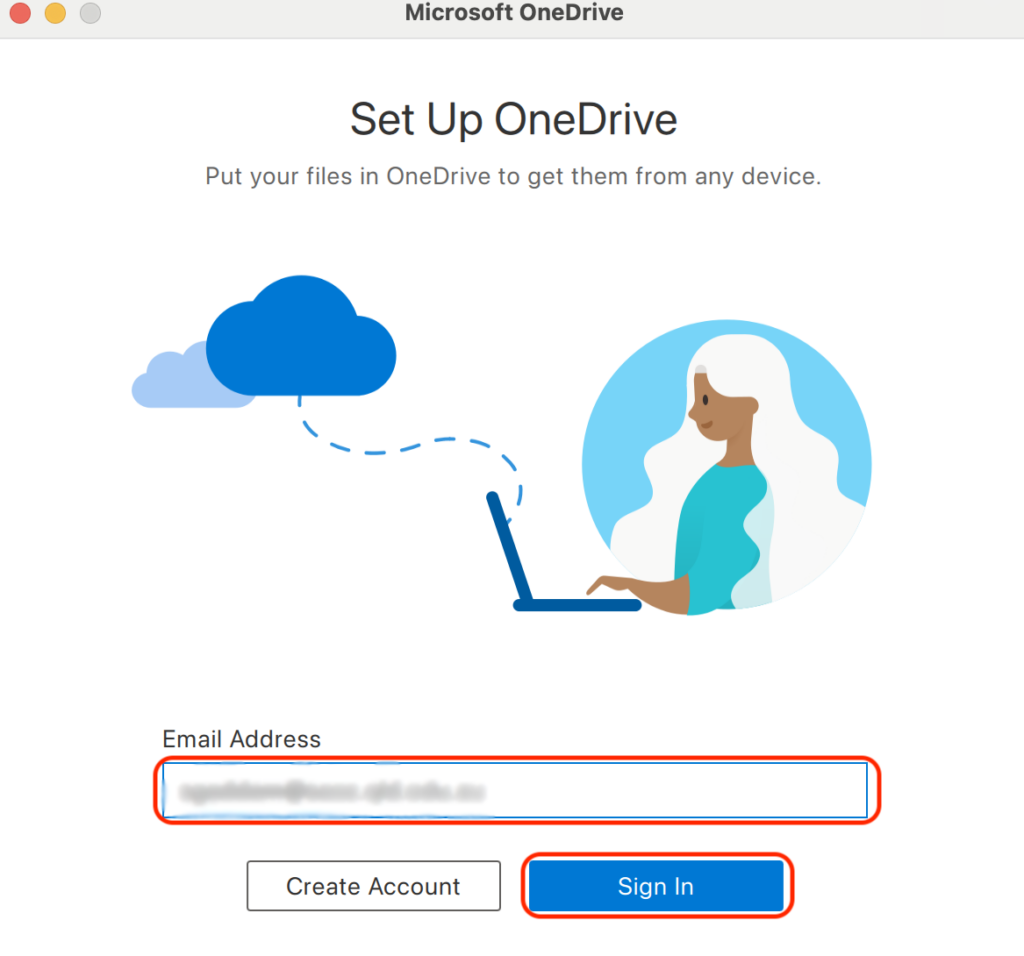
1. Select the onedrive from the dock or taskbar

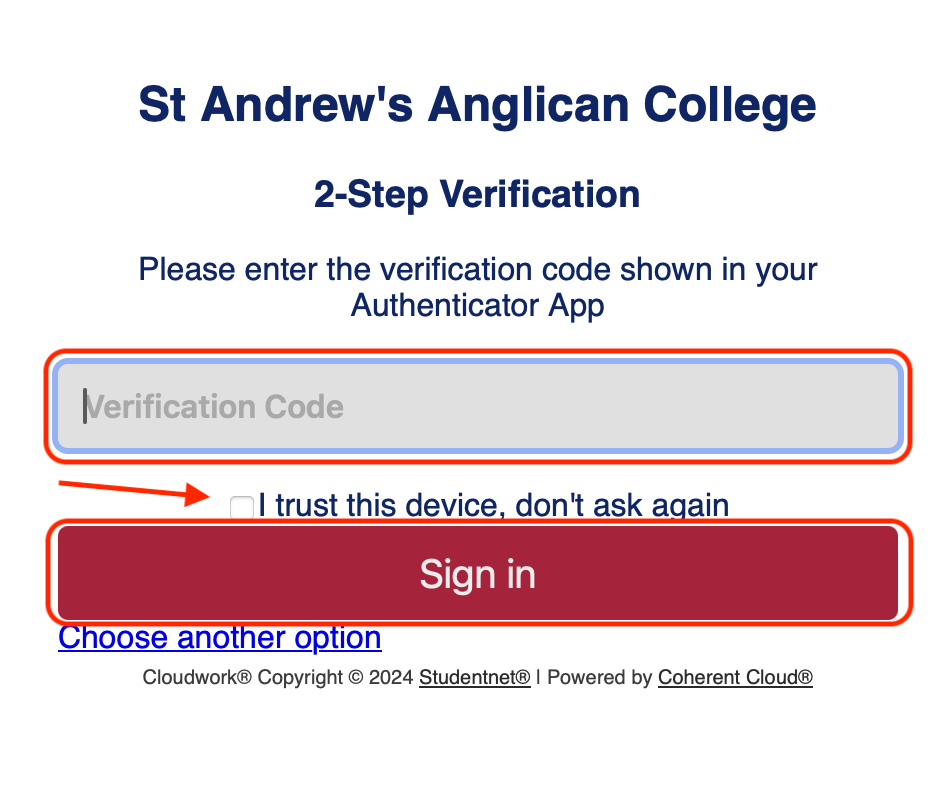
2. Enter your Email ID and follow the prompts until you get to enter the code to sign in.
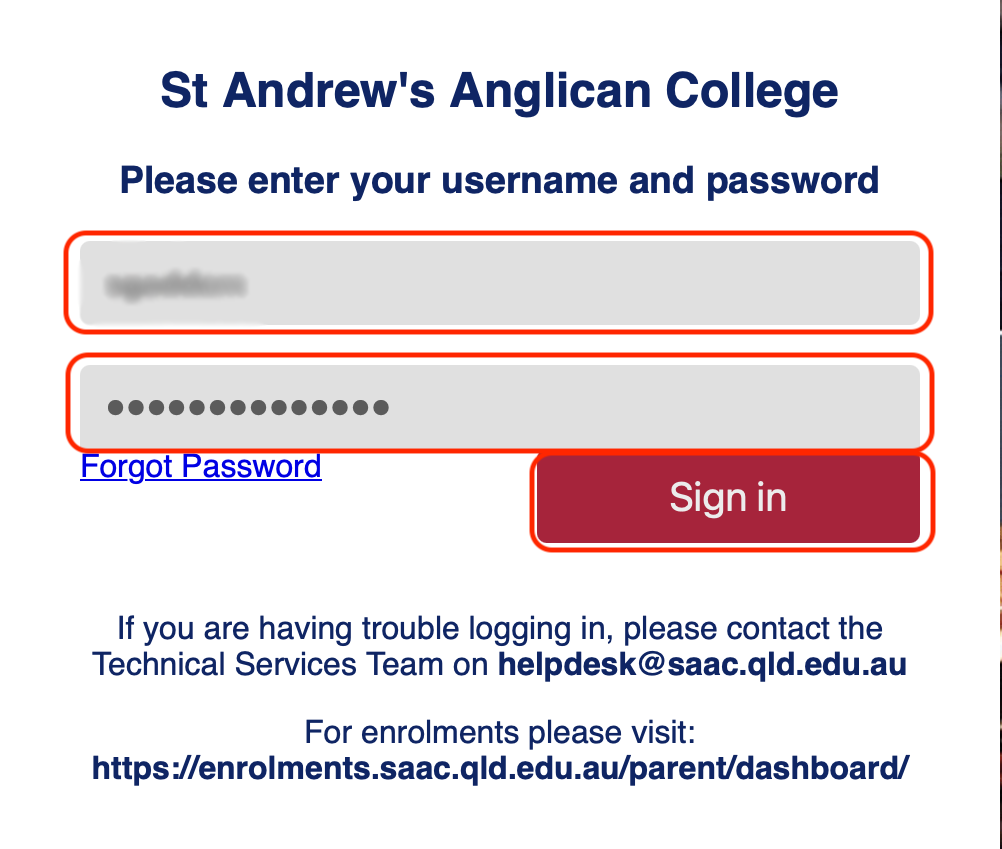
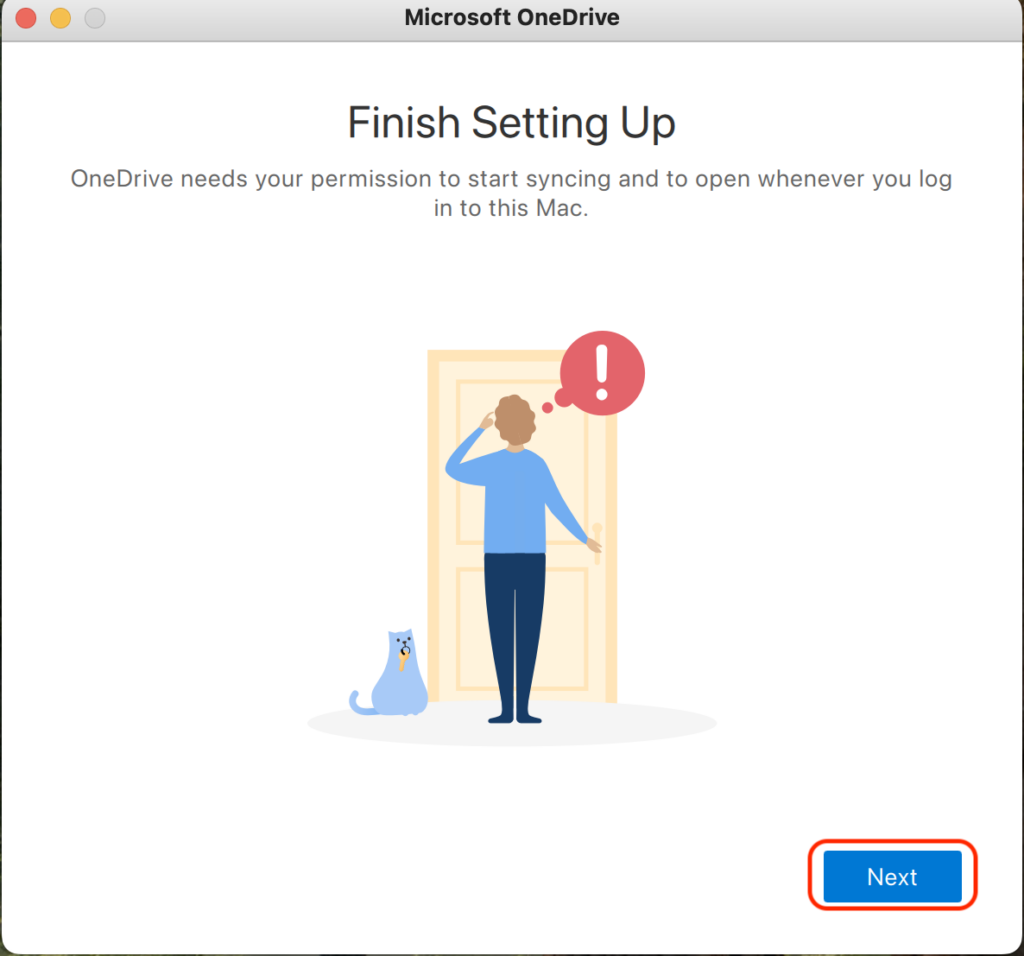
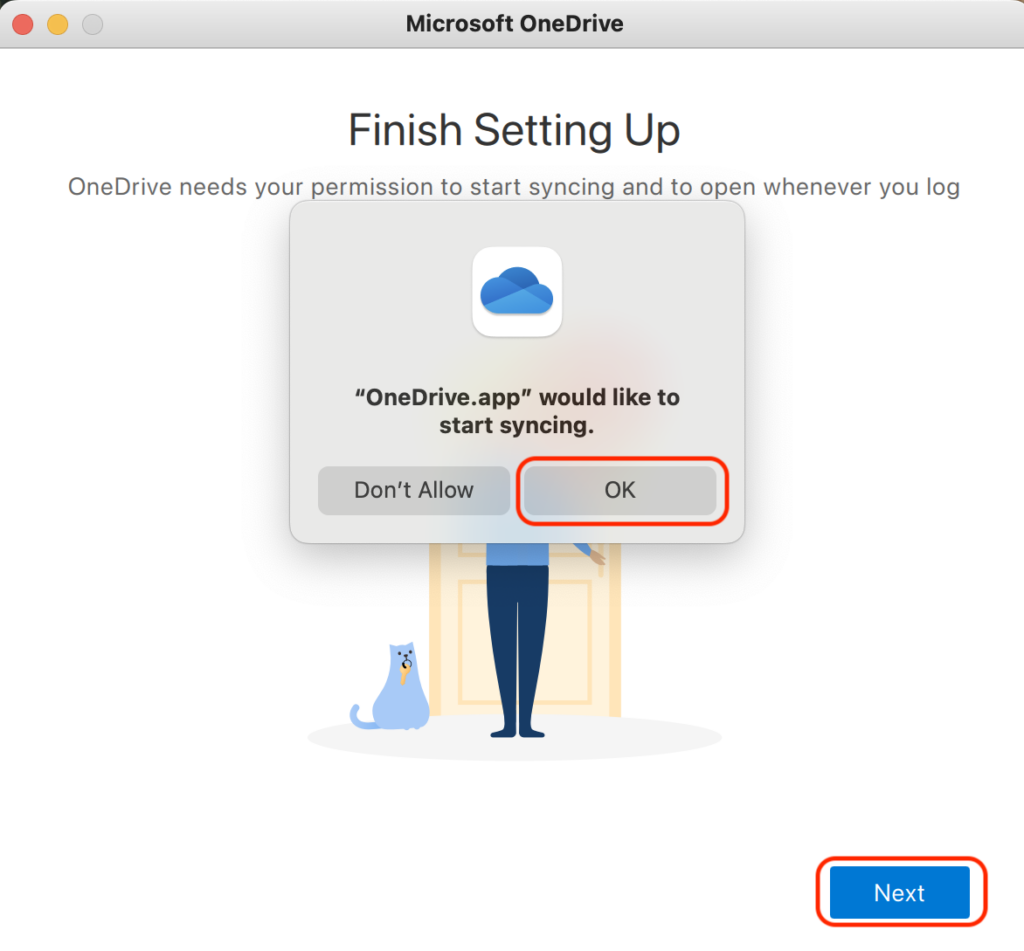
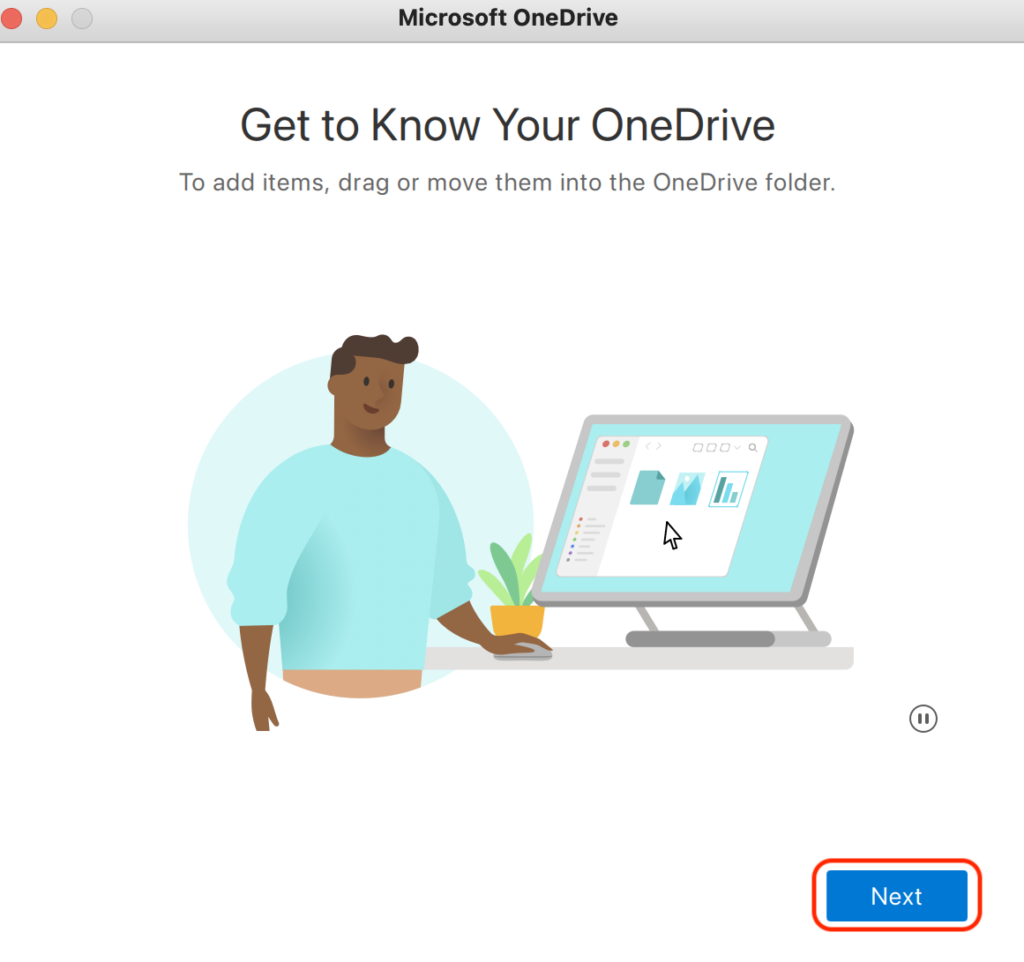
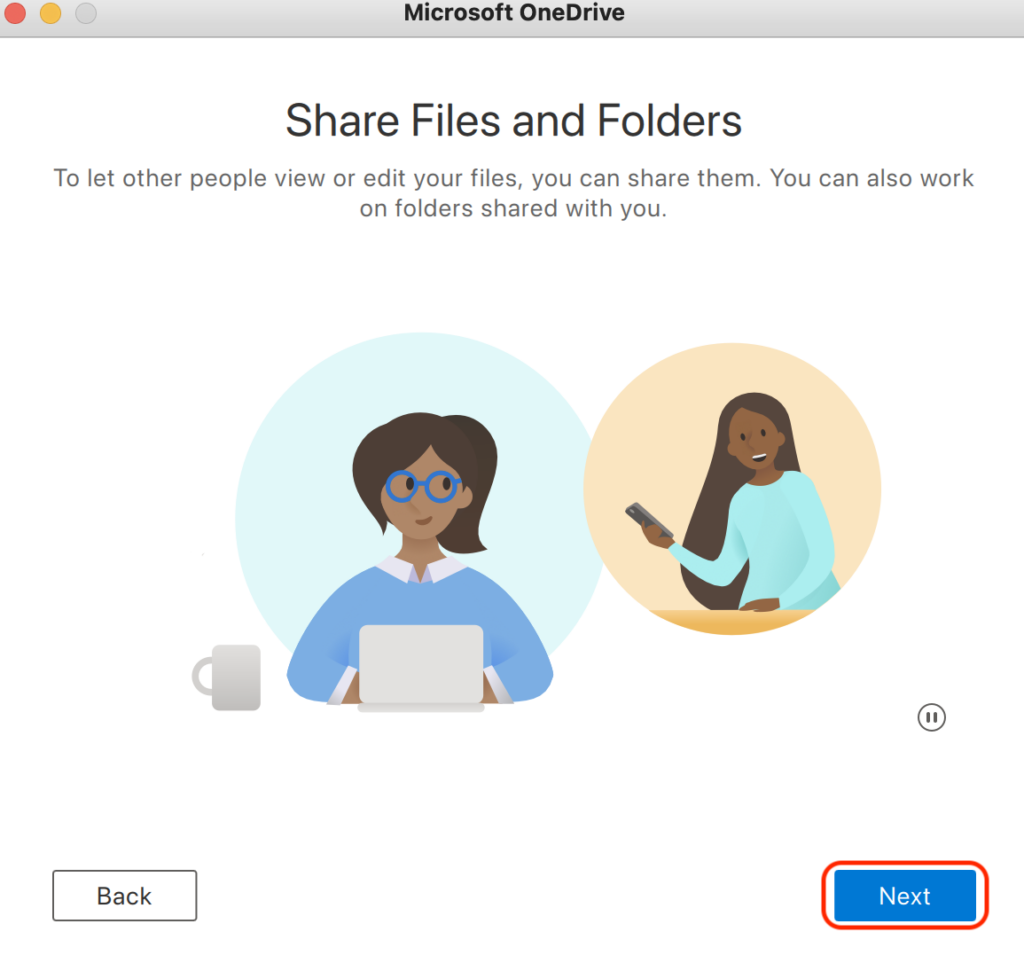
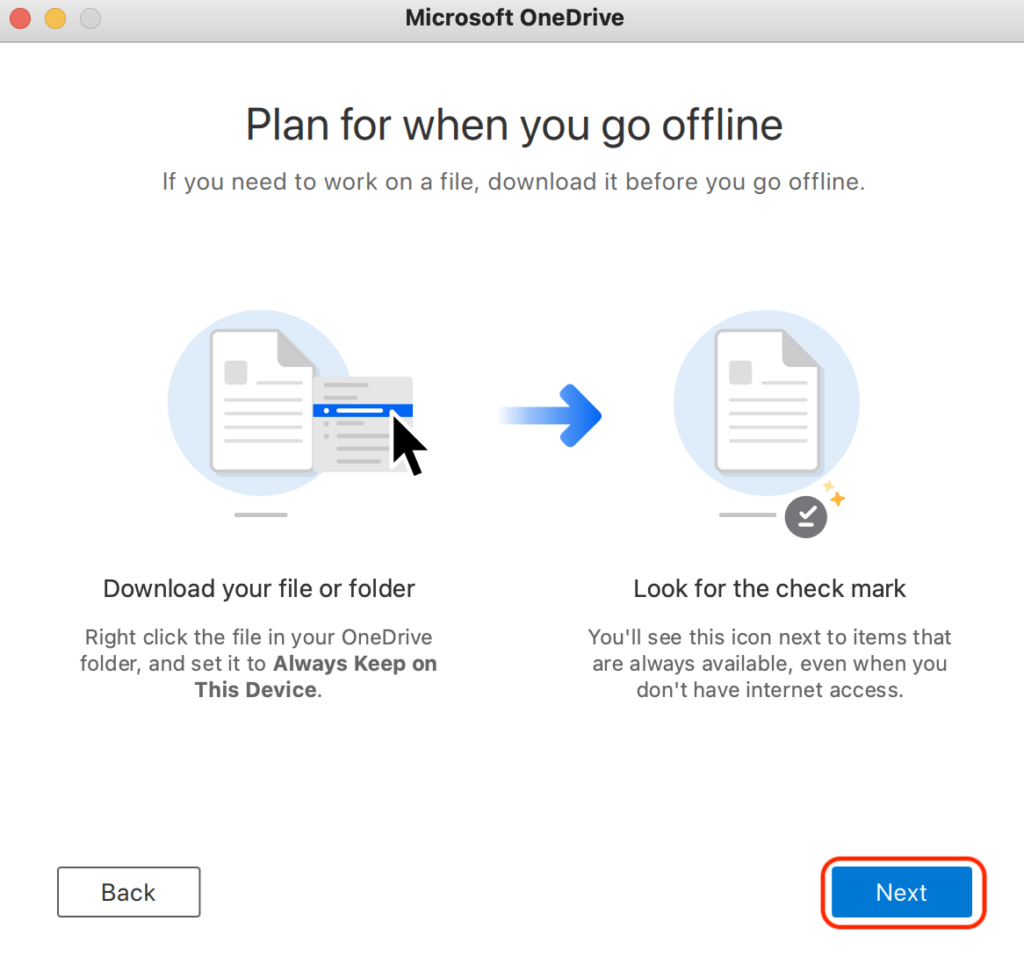
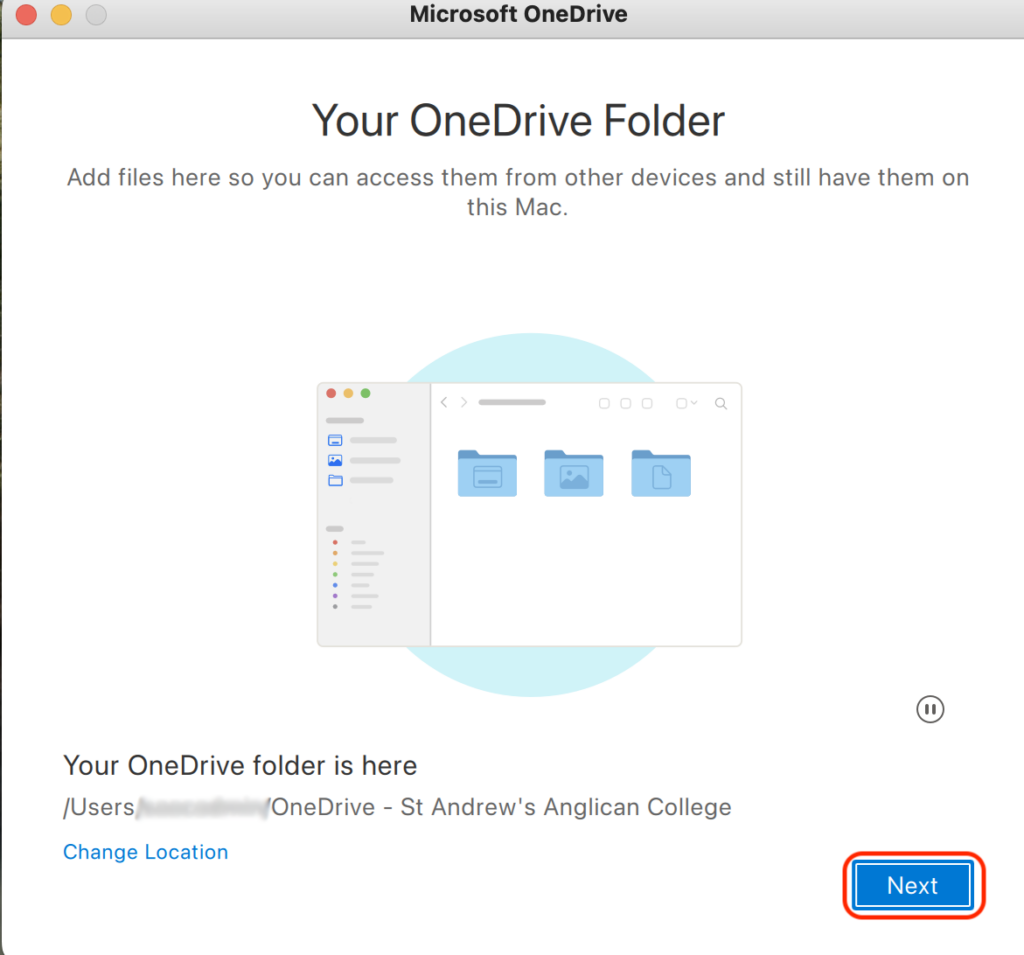
3. Follow the prompts below to go further.
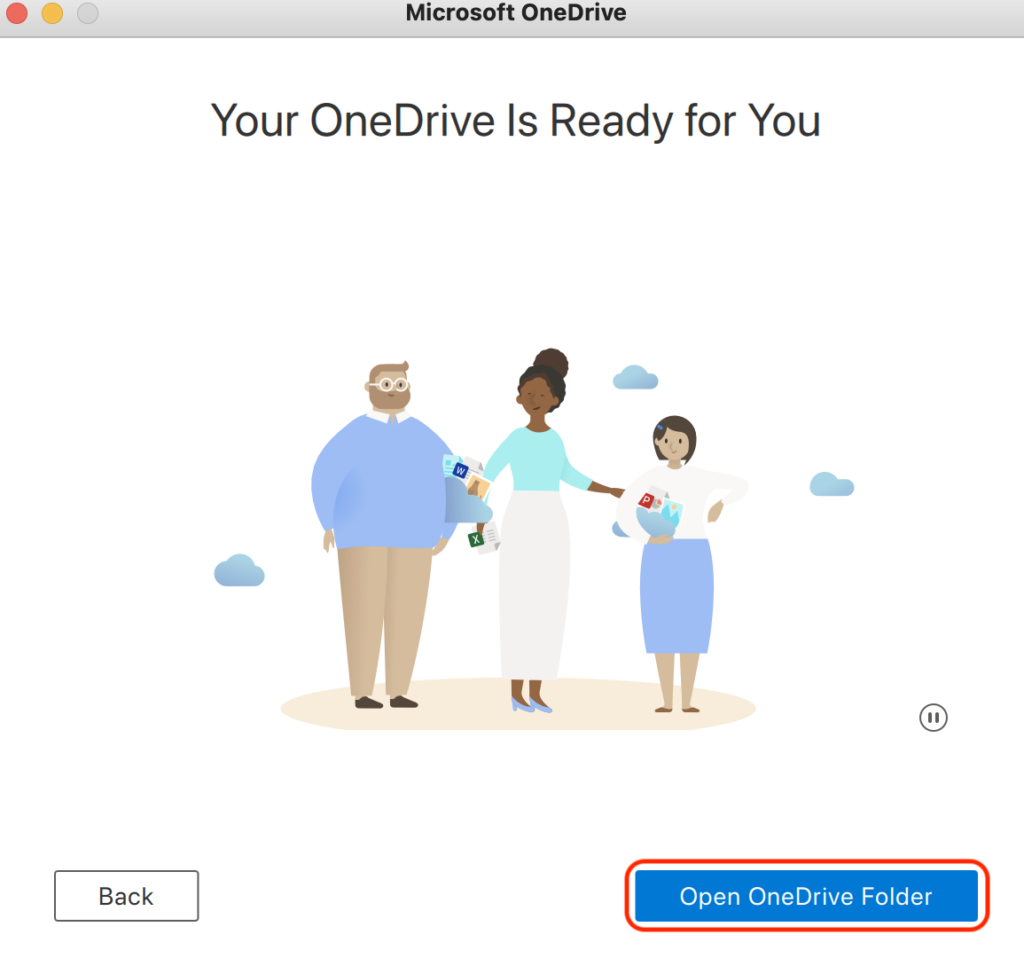
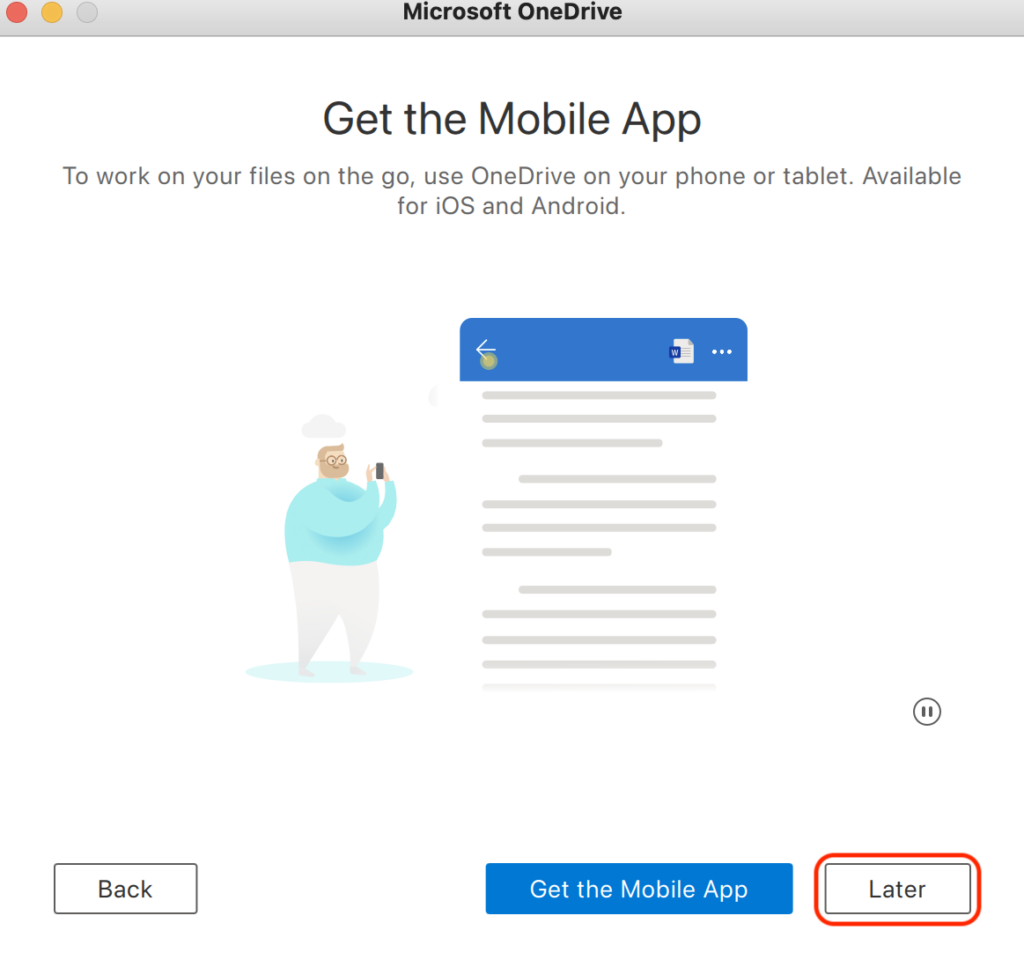
4. Click “Later” and select “Open OneDrive Folder”.
5. You have successfully logged in to Ondrive and will be able to see your files.

Updated on 23 May 2025

SChool resources

  • St Andrew’s Website
    MyStAndrews Portal
  • Canvas

Resources

  • Main Menu
  • Apple Resources

© 2025 ·

St Andrew's Anglican College Knowledge Base

· All rights reserved