The Hive Rooms are equipped with 75″ non-interactive screens on trolleys. Due to the space’s flexible nature, divisible walls, and regular use for meetings and other events, the capacity to share content across all four rooms has been provided.
For reliability, content sharing is enabled only through a wired connection. Currently, it is not possible to mirror AirPlay content across all four rooms.
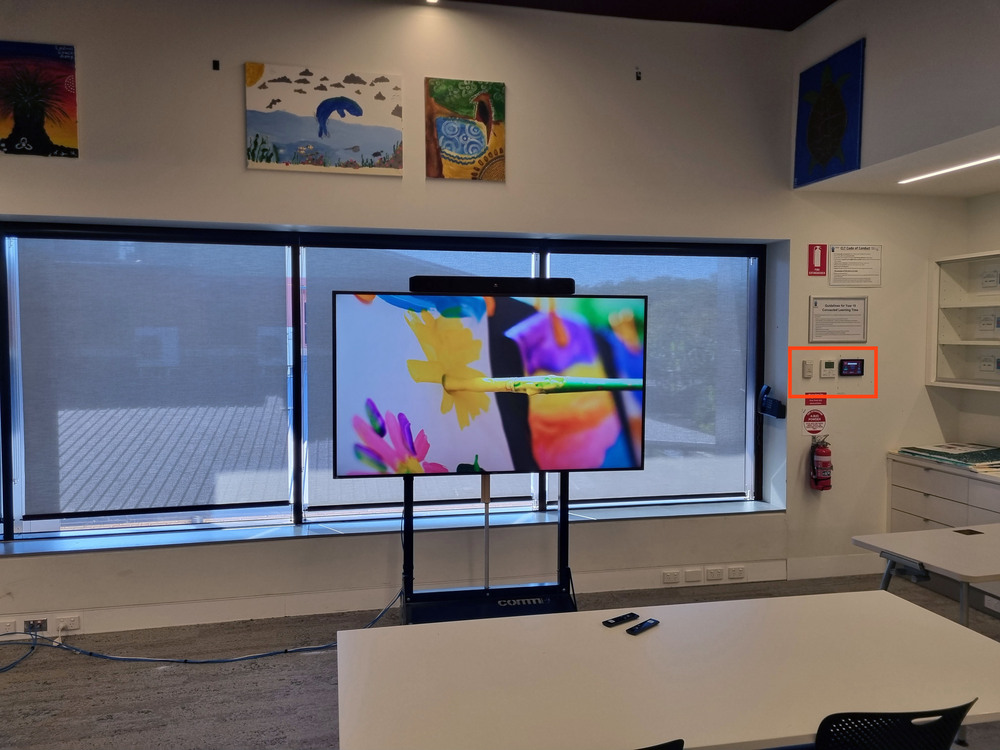
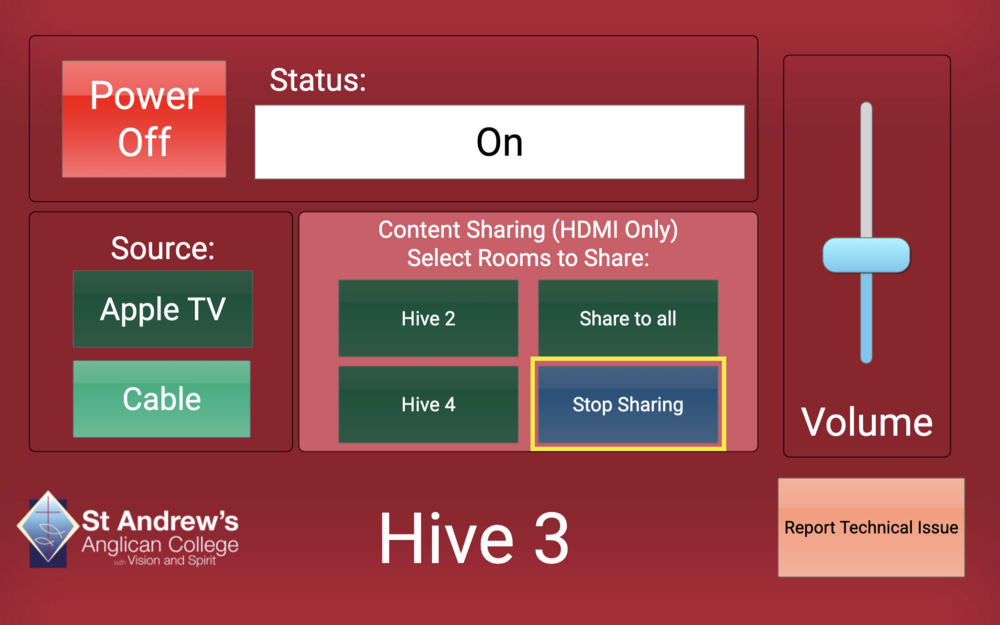
To enable this functionality, a touch screen control panel is provided in the north-west corner of each room, adjacent to the phone and AC controls.
Single Room Control #
Turning the Display on #
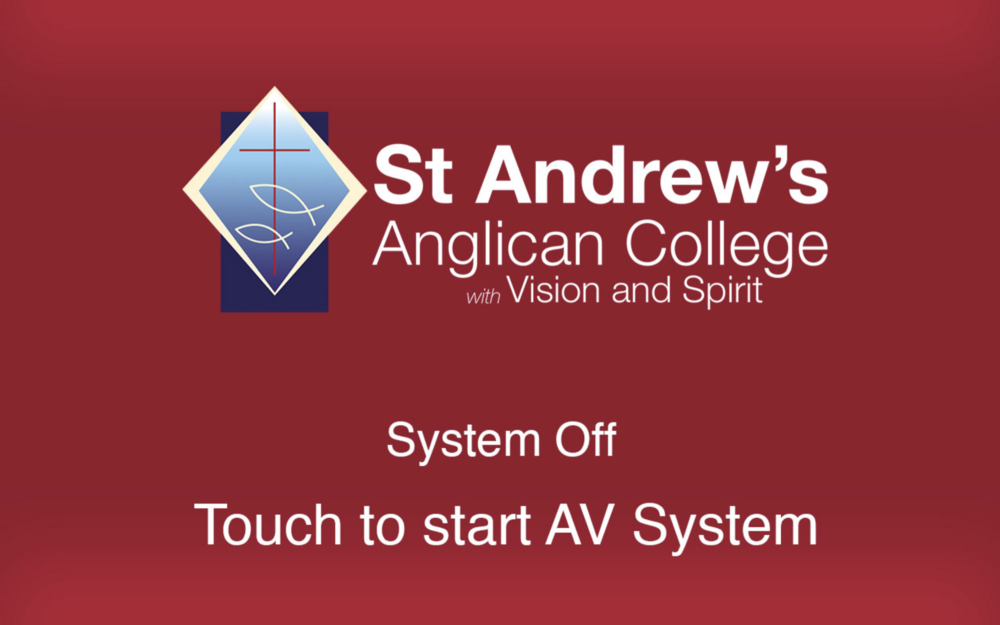
If the display is not already on, proceed to the AV Control Panel. If the control panel is off, press anywhere on the screen to wake it up.
Turning the Display off #
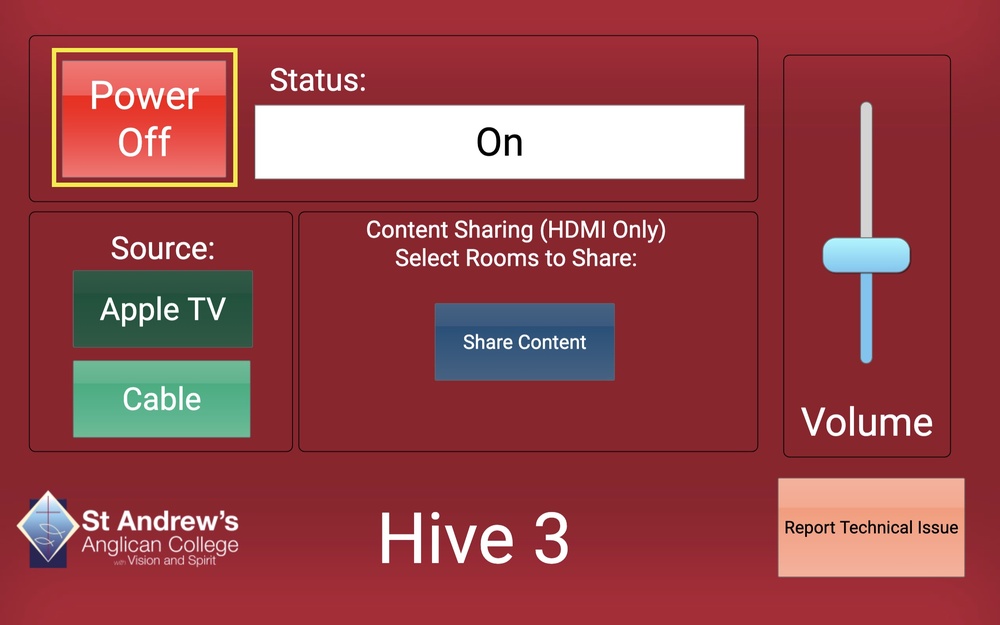
To turn off the display, press the Power Off button on the control panel.
Selecting an Input Source #
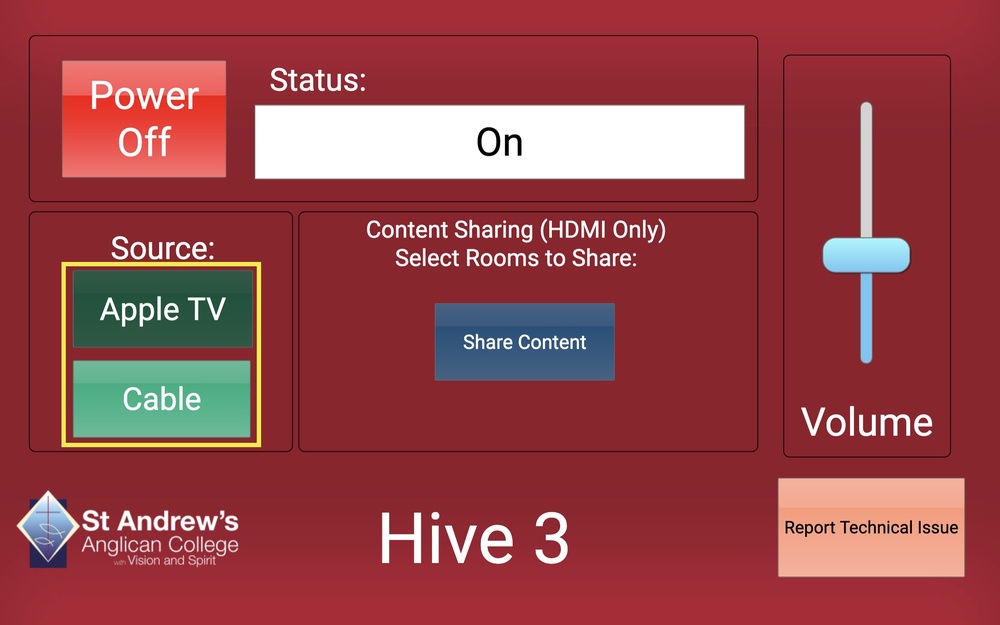
Once the display is on, the control panel will provide options to switch between Apple TV and Cable inputs. Press the button that corresponds to the input source you wish to use.
Adjusting Volume #
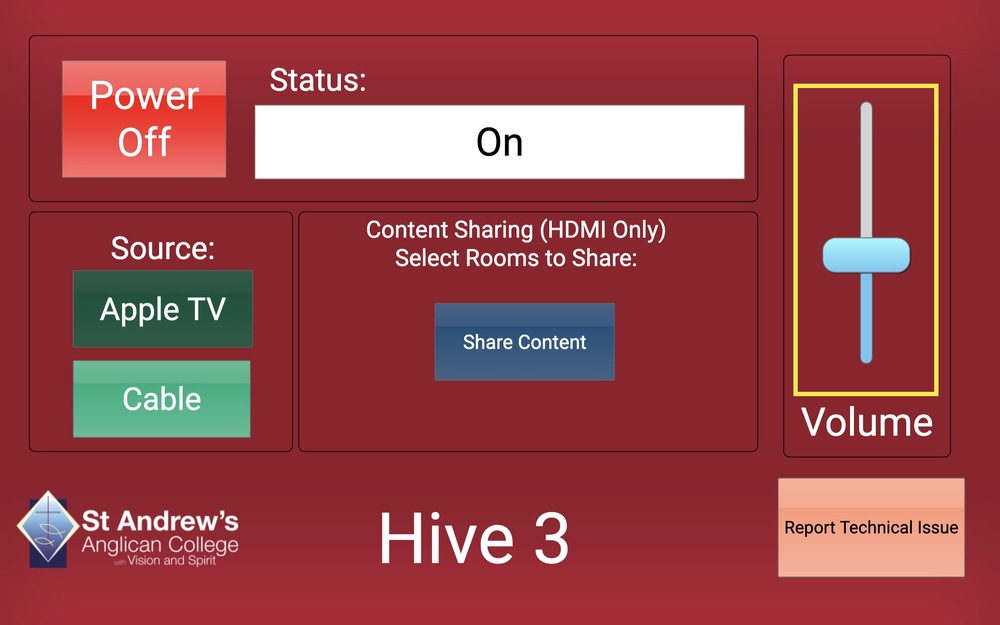
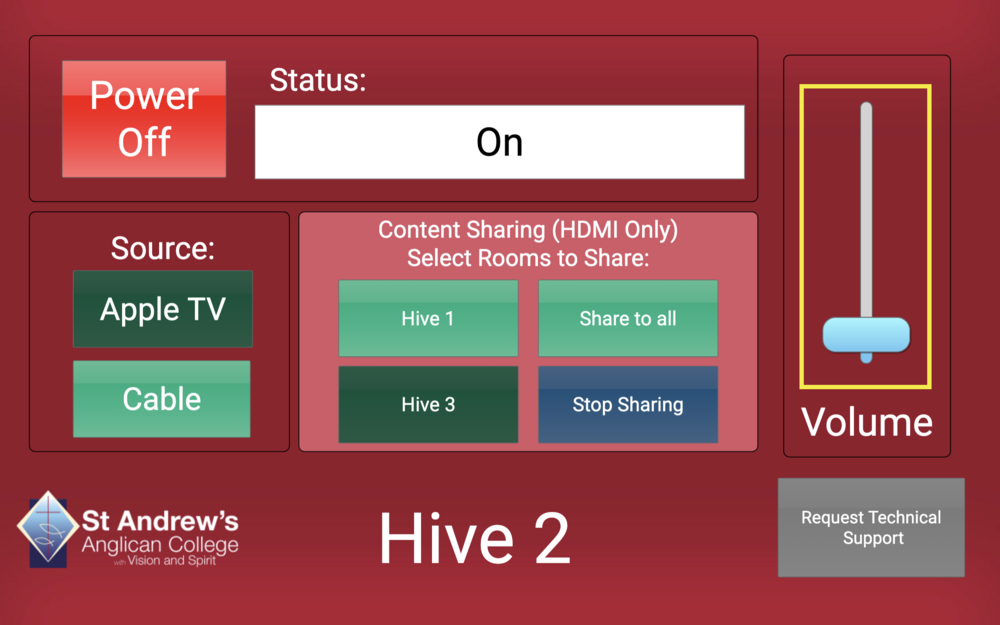
Use the Volume slider to adjust the audio output volume.
Sharing Content to Other Rooms #
Initiating Sharing to All 4 Hive Rooms #
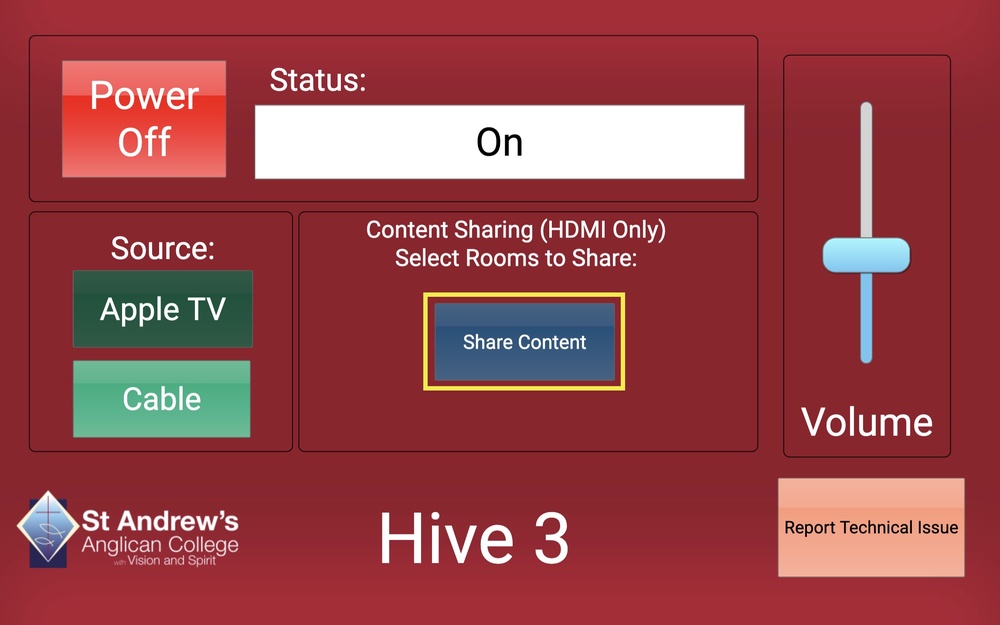
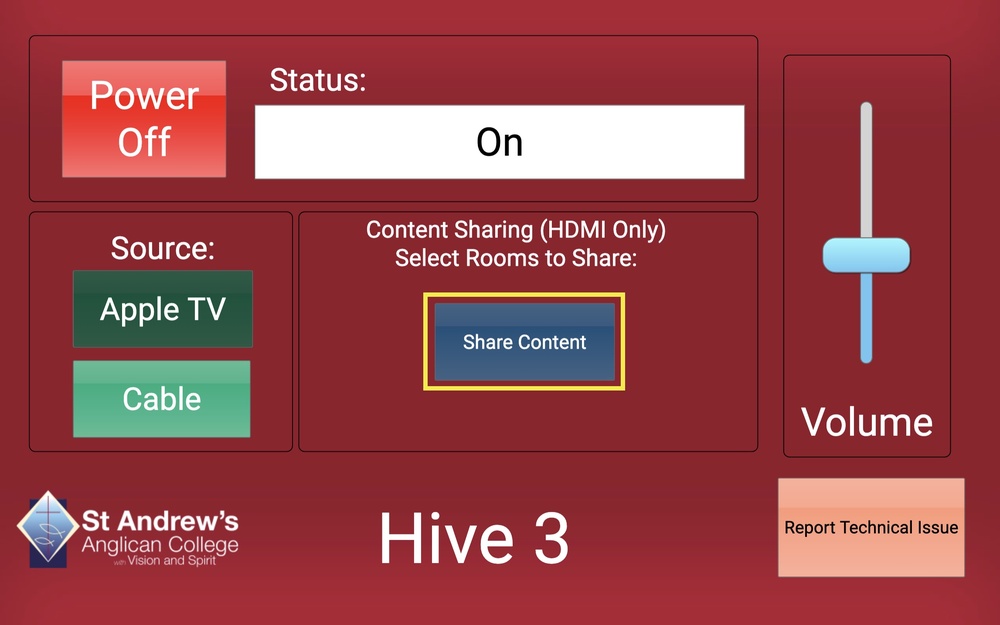
1. Press the Share Content button to switch the display to the HDMI input if it isn’t already.
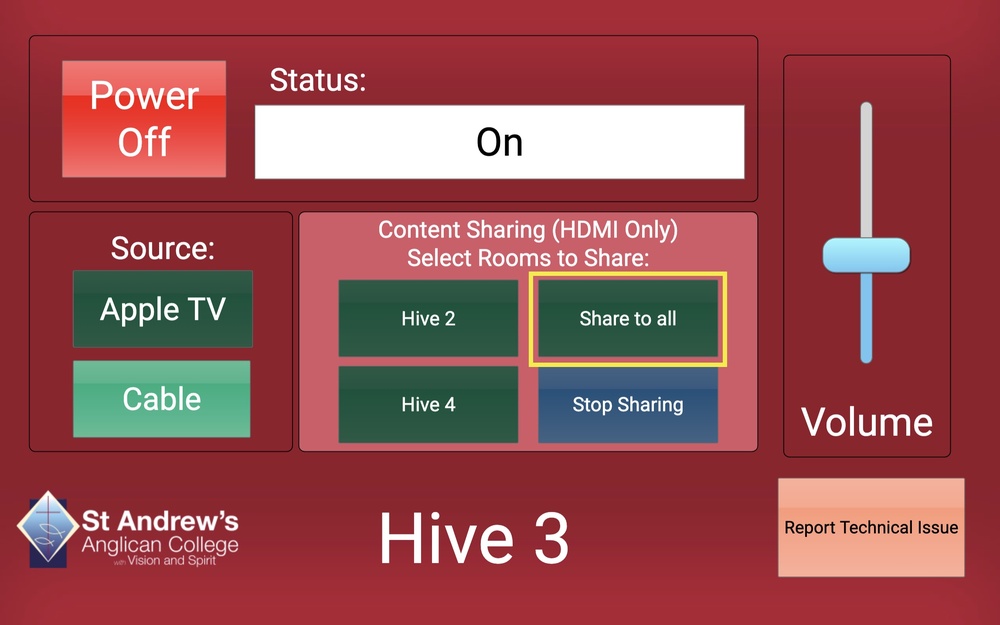
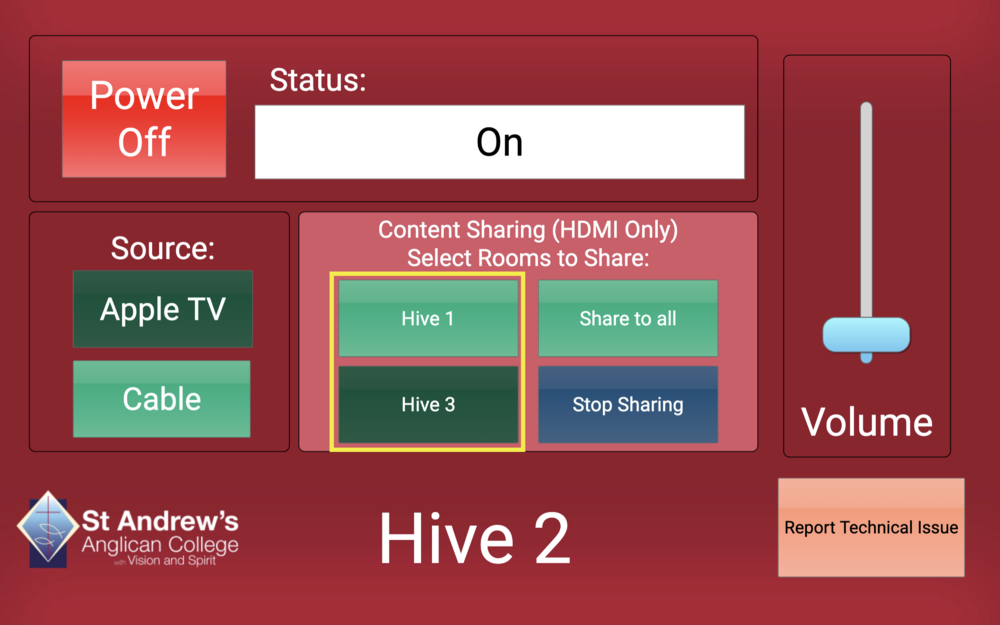
2. Press the Share to All button to begin sharing content across all four rooms.
- This will power on all displays in the Hive Rooms if they are not already on and switch each display to HDMI2.
- Note: It may take 15-30 seconds for all displays to turn on.
Sharing to Adjacent Rooms Only #
Each room also offers the ability to share with adjacent rooms
1. Press the Share Content button to see the sharing options.
2. Select the rooms you would like to share to. For example, the Hive 2 control panel offers the option to share content with Hive 1 and/or Hive 3.
After Sharing has Been Initiated #
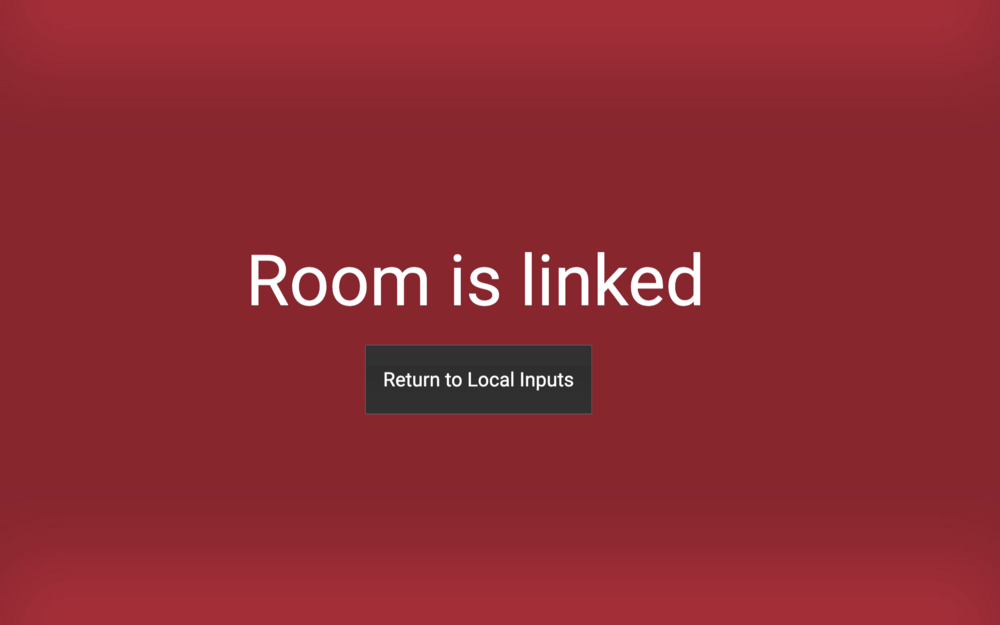
The room where your device is connected and sharing is initiated becomes the Master room. All other linked rooms will have their AV control panels locked.
Adjusting Volume While Sharing to Other Rooms #
To adjust the volume across all linked rooms, use the Volume slider on the Master Room control panel.
The volume level will be replicated in all linked rooms.
Unlinking a Single Room #
Sharing content to other rooms is only possible via an HDMI connection.
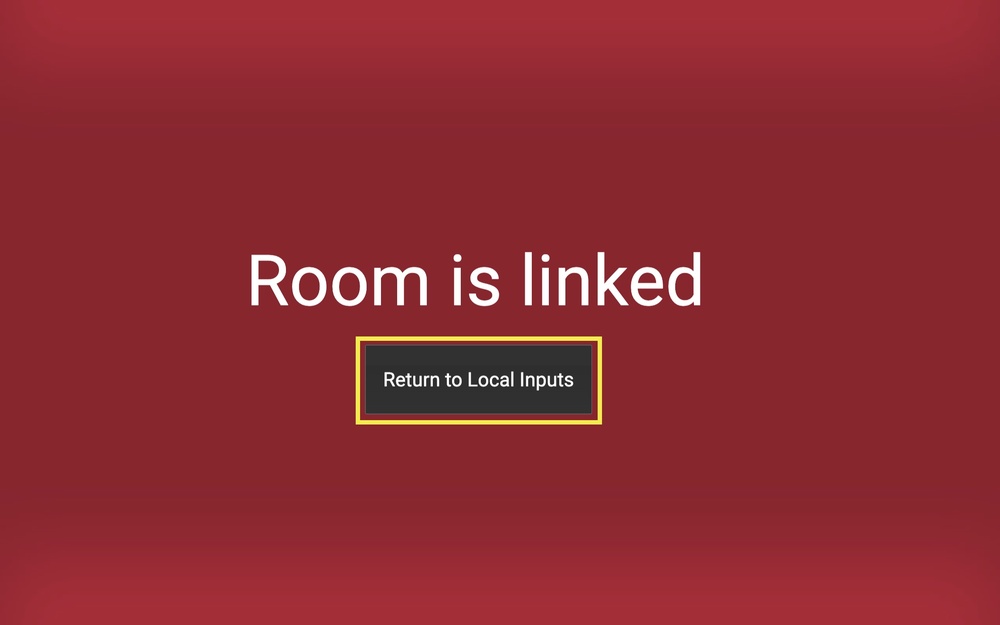
To unlink a single room, press the Return to Local Inputs button on the AV Control Panel in that particular room.
Unlinking all Rooms #
Once sharing to other rooms is no longer required, press the Stop Sharing button on the Master Room control panel. This will stop sharing to any room that is currently linked.
Requesting Technical Support #
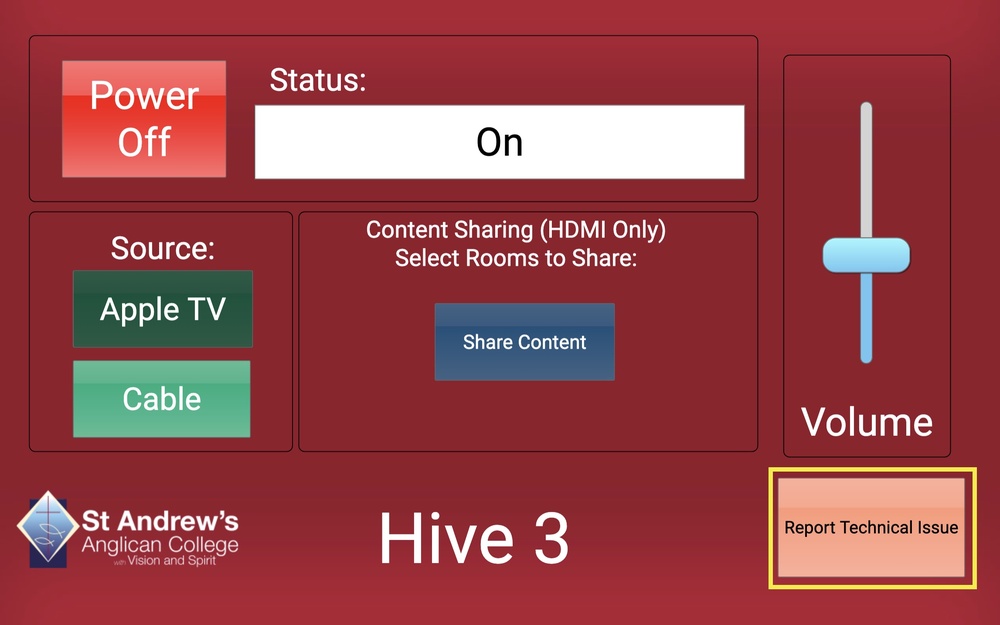
Each Control Panel also offers a button that allows a user to report an issue with the room.
Press the Request Technical Support button to log a Helpdesk request, and technical staff will be notified to attend the room.