Home
Submit a Ticket ⇱
MyStAndrews ⇱
Apple Resources ⇱
FAQ ⇱

AV

  • Microsoft Teams Rooms
  • Scheduling Meetings for a Microsoft Teams Room
  • Upper Primary Classroom – iPad AV Control
  • Primary Classroom
    • Connecting to an Apple TV using Airplay
    • Lower Primary (Prep-2) Classroom AV
    • Pairing a Redcat Microphone
    • Redcat Soundfield Amplification
    • Upper Primary Classroom – iPad AV Control
  • Secondary Classroom
    • Connecting to an Apple TV using Airplay
    • Flexible Secondary Classroom
    • Secondary School Classroom AV
  • Aquatic Centre
    • Illawong Audio
  • Learning Hub
    • Hive Rooms AV System Guide
  • Video Conferencing
    • BYOD VideoBars (Ideas Room/Secondary Conference Room)
    • Microsoft Teams Rooms
    • Mobile Video Conferencing Trolley
    • Scheduling Meetings for a Microsoft Teams Room
  • Known Issues & Troubleshooting
    • Changing Your Screen Settings for High Resolution Displays.
    • Sound not playing from Display: Changing your audio output settings
    • Video or Audio Plays in Fast Forward or Audio is High Pitched.
    • Videos not streaming smoothly (Airplay)
  • Sporting Venues
    • Portable Scoreboard (LED Wall)

Adobe Creative Cloud

  • Adobe PDF Documents
  • Using Apple Dictation and ‘Read out Loud’ in Adobe Acrobat

Apple

  • Enable Stapling for a Print Job on a Mac
  • How to set up Google Chrome

Connectivity

  • Adding the St Andrew’s Portal to Your Home Screen (iPhone & iPad)
  • Connecting a Personal Phone or Tablet to the College Wi-Fi

Department Software

  • Downloading Media from Pixevety
  • Navigation and Search in Pixevety

General Troubleshooting

  • Clear Your Browsing Data in Google Chrome
  • How to Enable Pop-ups for Google Chrome

General Help Guides

  • Accessing St Andrew’s Network Drives on a Mac
  • Changing your College Account Password
  • Create a Quiz in Google Forms
  • How to Copy a Canva Project to Another Team
  • Printer Troubleshooting

Onedrive and Sharepoint

  • OneDrive Icons
  • Setting up Onedrive

MyStAndrews Portal

  • Co-Curricular Roll Marking
  • Co-Curricular Sign-Up
  • How to Book meeting Rooms and Resources

Microsoft Office 365

  • Adding Shared Mailboxes to Microsoft Outlook
  • PowerPoint – External Media / YouTube
  • Outlook
    • Adding Shared Mailboxes to Microsoft Outlook
    • Adding Users to a Group in Outook Online or Microsoft Teams
    • Create College Email Signature in Outlook
    • Outlook Out of Office Replies – Mac and Windows

Printing

  • Enable Stapling for a Print Job on a Mac
  • How To Set Up Staff ID Card to Print

Teams

  • Auto Launch the Microsoft Teams app
  • Transferring Calls in Microsoft Teams

Tass

  • Viewing the Parent Directory and Sharing Contacts on Teacher Kiosk
  • Home
  • St Andrew’s KB Articles
  • General Troubleshooting
  • How to Enable Pop-ups for Google Chrome

How to Enable Pop-ups for Google Chrome

Pop-ups are required for any materials provided from the Anglican Schools Commission. If you find that the required courses aren’t loading, follow these steps to check if pop-ups are enabled:

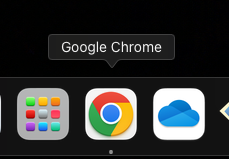
1. Open Google Chrome from the bottom dock
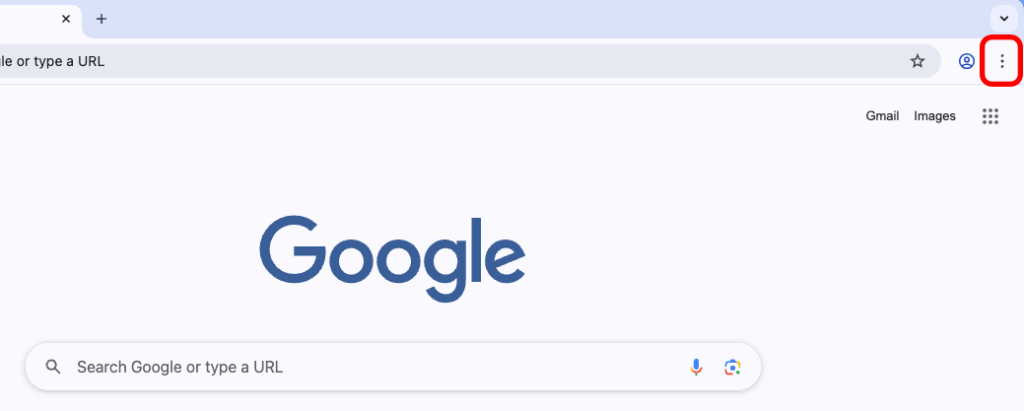
2. Select the 3 dots in the top right of the screen
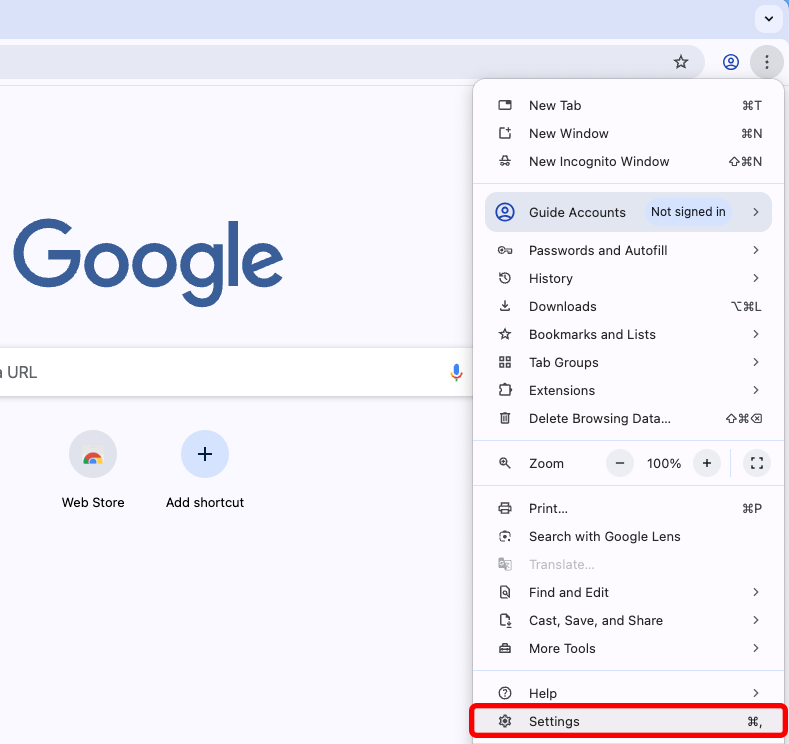
3. Select Settings at the bottom on the list
4. Search ‘pop-up’ and select Site Settings
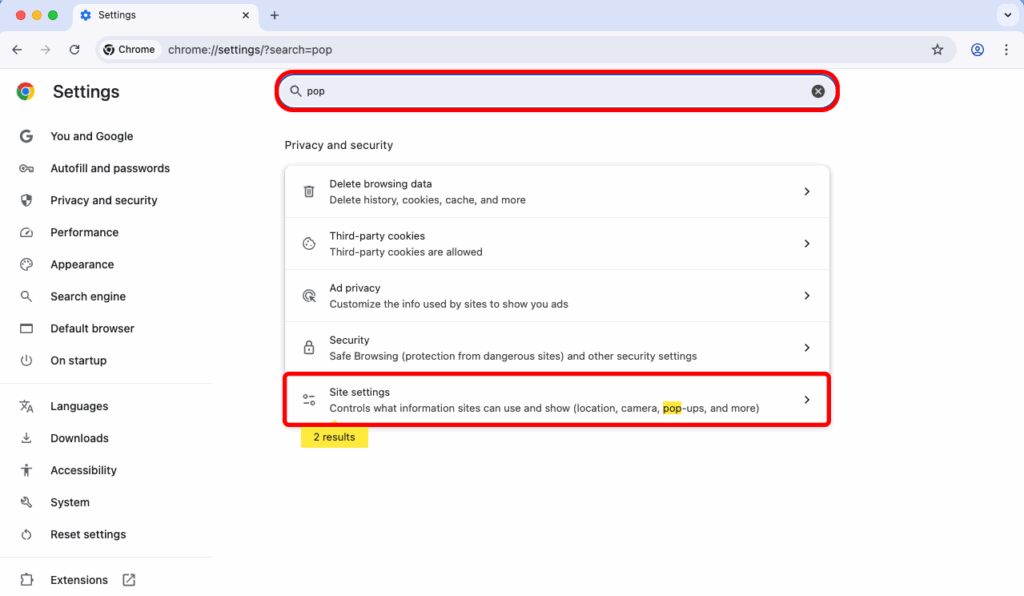
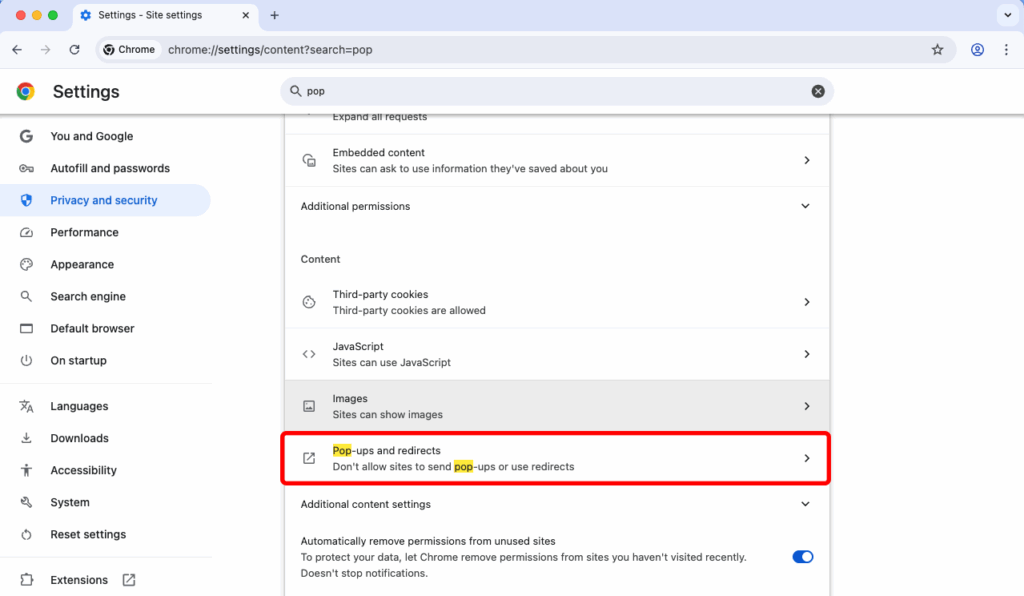
5. Select Pop-ups and redirects
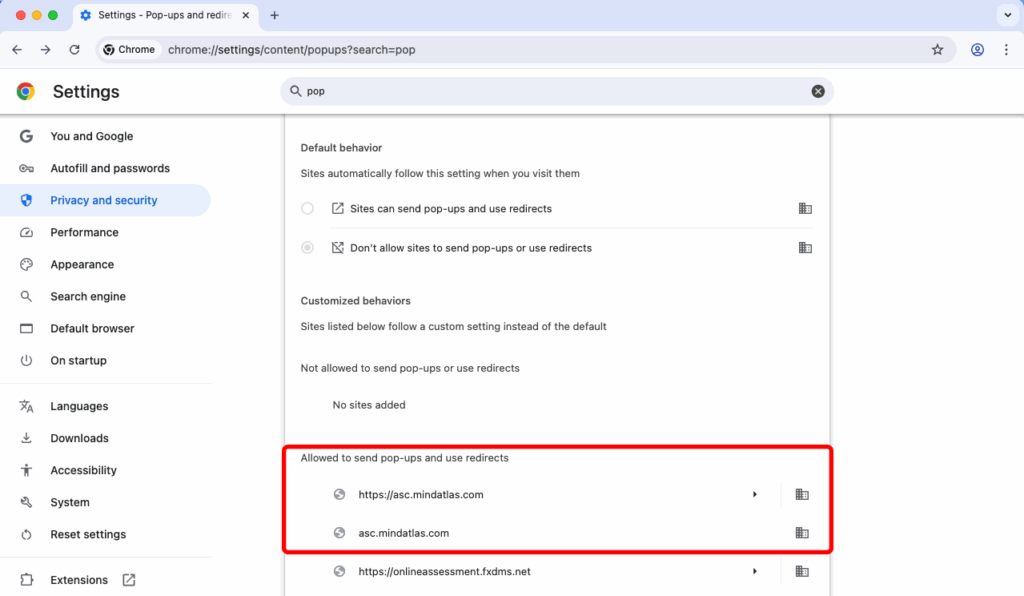
6. Under ‘Allowed to send pop-ups and use redirects’, there should be 2 links added for the Anglican Schools Commission. If you do not see these links, please submit IT a ticket or come to the front desk in lower learning hub.
NOTE: If you’re using Microsoft Edge, or Safari to do the training with Anglican Schools Commission. Please refer to the links below:

https://support.microsoft.com/en-au/microsoft-edge/block-pop-ups-in-microsoft-edge-1d8ba4f8-f385-9a0b-e944-aa47339b6bb5

https://support.apple.com/en-gb/guide/safari/sfri40696/mac

Updated on 1 September 2025

SChool resources

  • St Andrew’s Website
    MyStAndrews Portal
  • Canvas

Resources

  • Main Menu
  • Apple Resources

© 2025 ·

St Andrew's Anglican College Knowledge Base

· All rights reserved