Home
Submit a Ticket ⇱
MyStAndrews ⇱
Apple Resources ⇱
FAQ ⇱

AV

  • Microsoft Teams Rooms
  • Scheduling Meetings for a Microsoft Teams Room
  • Upper Primary Classroom – iPad AV Control
  • Primary Classroom
    • Connecting to an Apple TV using Airplay
    • Lower Primary (Prep-2) Classroom AV
    • Pairing a Redcat Microphone
    • Redcat Soundfield Amplification
    • Upper Primary Classroom – iPad AV Control
  • Secondary Classroom
    • Connecting to an Apple TV using Airplay
    • Flexible Secondary Classroom
    • Secondary School Classroom AV
  • Aquatic Centre
    • Illawong Audio
  • Learning Hub
    • Hive Rooms AV System Guide
  • Video Conferencing
    • BYOD VideoBars (Ideas Room/Secondary Conference Room)
    • Microsoft Teams Rooms
    • Mobile Video Conferencing Trolley
    • Scheduling Meetings for a Microsoft Teams Room
  • Known Issues & Troubleshooting
    • Changing Your Screen Settings for High Resolution Displays.
    • Sound not playing from Display: Changing your audio output settings
    • Video or Audio Plays in Fast Forward or Audio is High Pitched.
    • Videos not streaming smoothly (Airplay)
  • Sporting Venues
    • Portable Scoreboard (LED Wall)

Adobe Creative Cloud

  • Adobe PDF Documents
  • Using Apple Dictation and ‘Read out Loud’ in Adobe Acrobat

Apple

  • Enable Stapling for a Print Job on a Mac
  • How to set up Google Chrome

Connectivity

  • Adding the St Andrew’s Portal to Your Home Screen (iPhone & iPad)
  • Connecting a Personal Phone or Tablet to the College Wi-Fi

Department Software

  • Downloading Media from Pixevety
  • Navigation and Search in Pixevety

General Troubleshooting

  • Clear Your Browsing Data in Google Chrome
  • How to Enable Pop-ups for Google Chrome

General Help Guides

  • Accessing St Andrew’s Network Drives on a Mac
  • Changing your College Account Password
  • Create a Quiz in Google Forms
  • How to Copy a Canva Project to Another Team
  • Printer Troubleshooting

Onedrive and Sharepoint

  • OneDrive Icons
  • Setting up Onedrive

MyStAndrews Portal

  • Co-Curricular Roll Marking
  • Co-Curricular Sign-Up
  • How to Book meeting Rooms and Resources

Microsoft Office 365

  • Adding Shared Mailboxes to Microsoft Outlook
  • PowerPoint – External Media / YouTube
  • Outlook
    • Adding Shared Mailboxes to Microsoft Outlook
    • Adding Users to a Group in Outook Online or Microsoft Teams
    • Create College Email Signature in Outlook
    • Outlook Out of Office Replies – Mac and Windows

Printing

  • Enable Stapling for a Print Job on a Mac
  • How To Set Up Staff ID Card to Print

Teams

  • Auto Launch the Microsoft Teams app
  • Transferring Calls in Microsoft Teams

Tass

  • Viewing the Parent Directory and Sharing Contacts on Teacher Kiosk
  • Home
  • St Andrew’s KB Articles
  • AV
  • Microsoft Teams Rooms

Microsoft Teams Rooms

Table Of Contents
  • Connecting a laptop to share content
  • Starting a Teams Meeting on an MTR
    • One Touch Meetings
    • Impromptu Meetings

The Illawong Room and Main Admin Conference Room are fitted with a Microsoft Teams Room (MTR) solution that allows for Video Conferencing with remote participants, but also serves as the user interface for connecting to the room display.

A MTR solution consists of:

  • Compute device (the computer that is installed in the room to run the system)
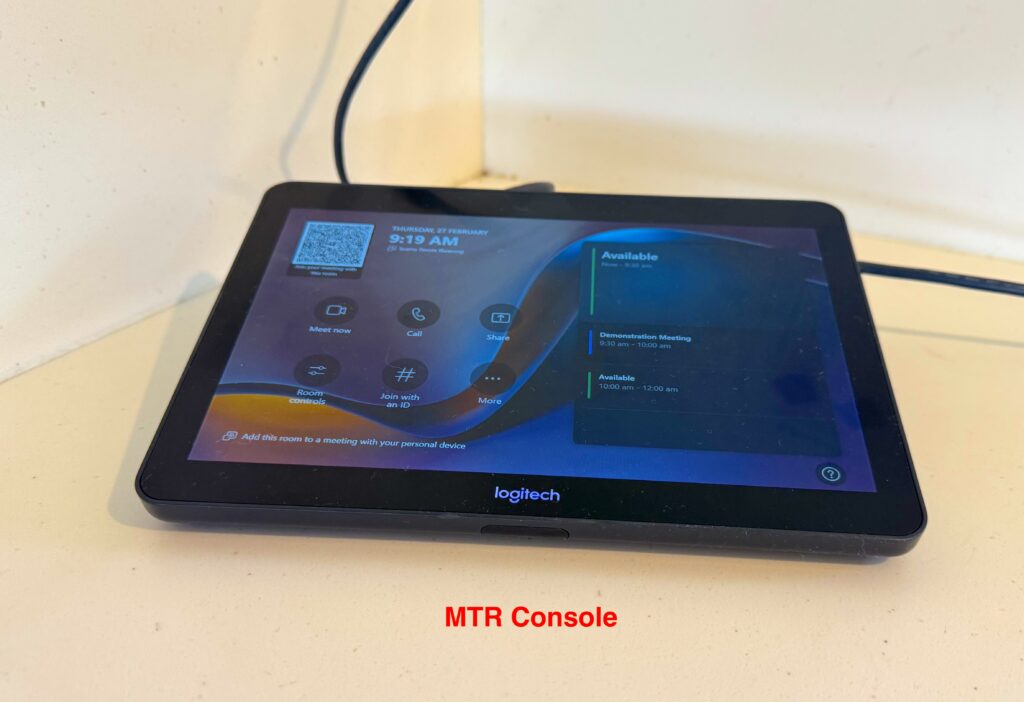
  • Console (touch screen control panel)
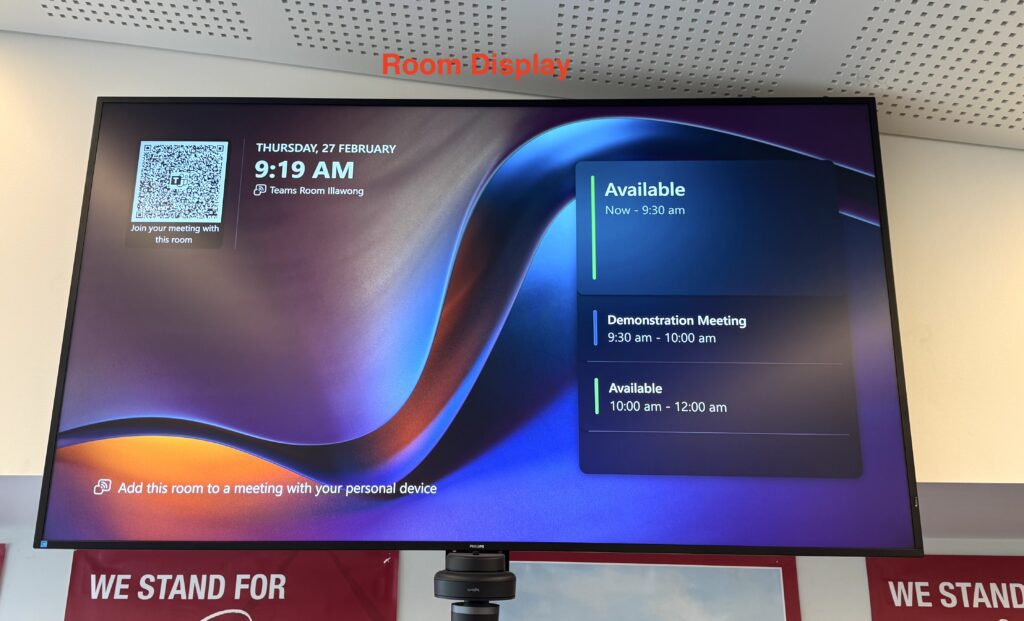
  • Room Display (local TV)
  • Microphone
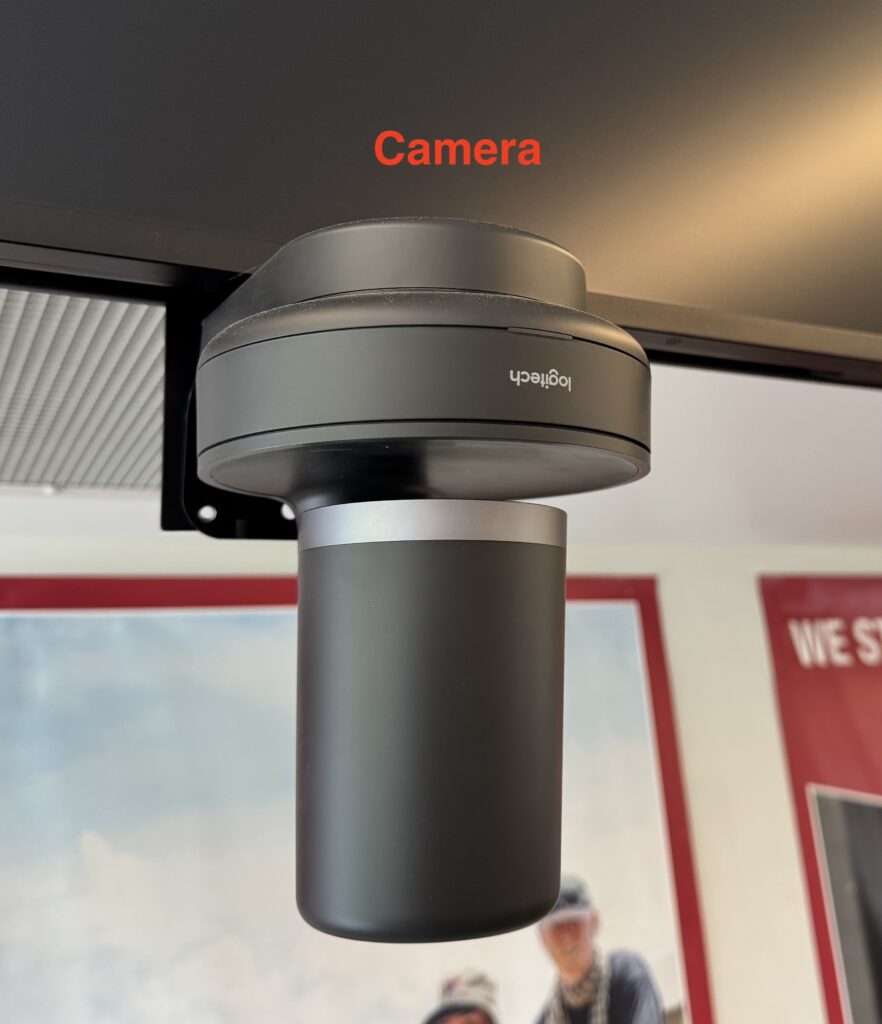
  • Camera

The MTR Console has a motion sensor and will wake up when approached. This will also power on the display.

Connecting a laptop to share content #

Each of our MTR solutions provides a HDMI cable connection that provides a simple way for a user to share content to the display, and into any Teams Meeting the room is participating in.
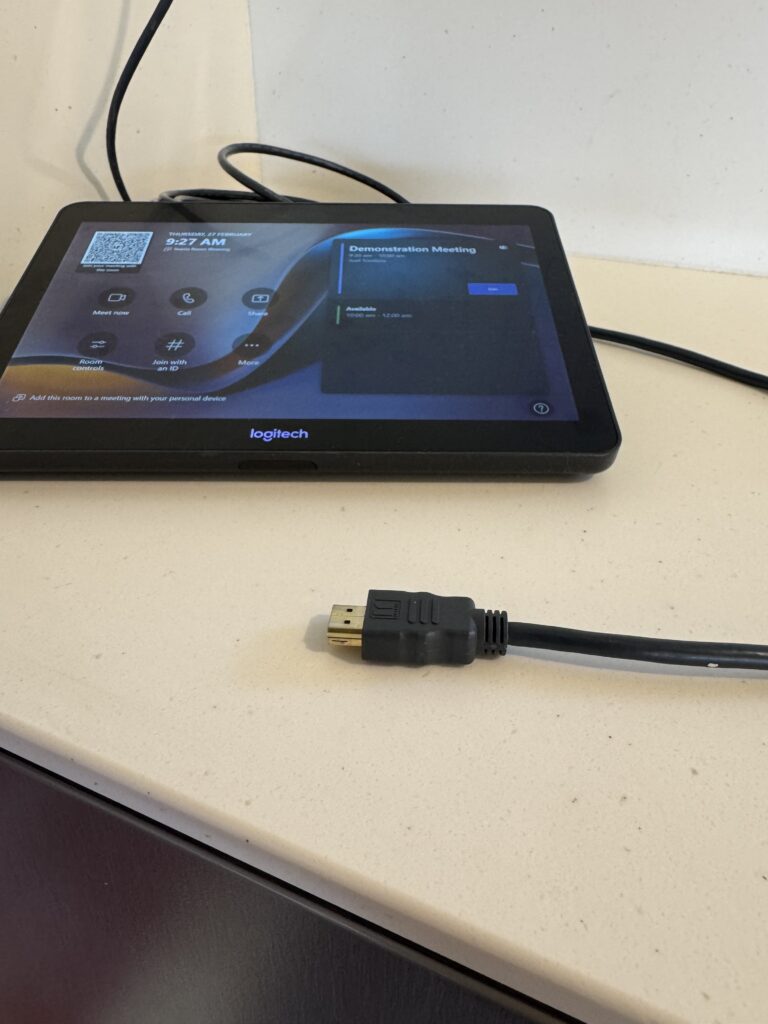
The HDMI cable is found connected to the MTR Console. To connect a laptop to the display, simply connect the other end of the HDMI cable to the laptops HDMI port.
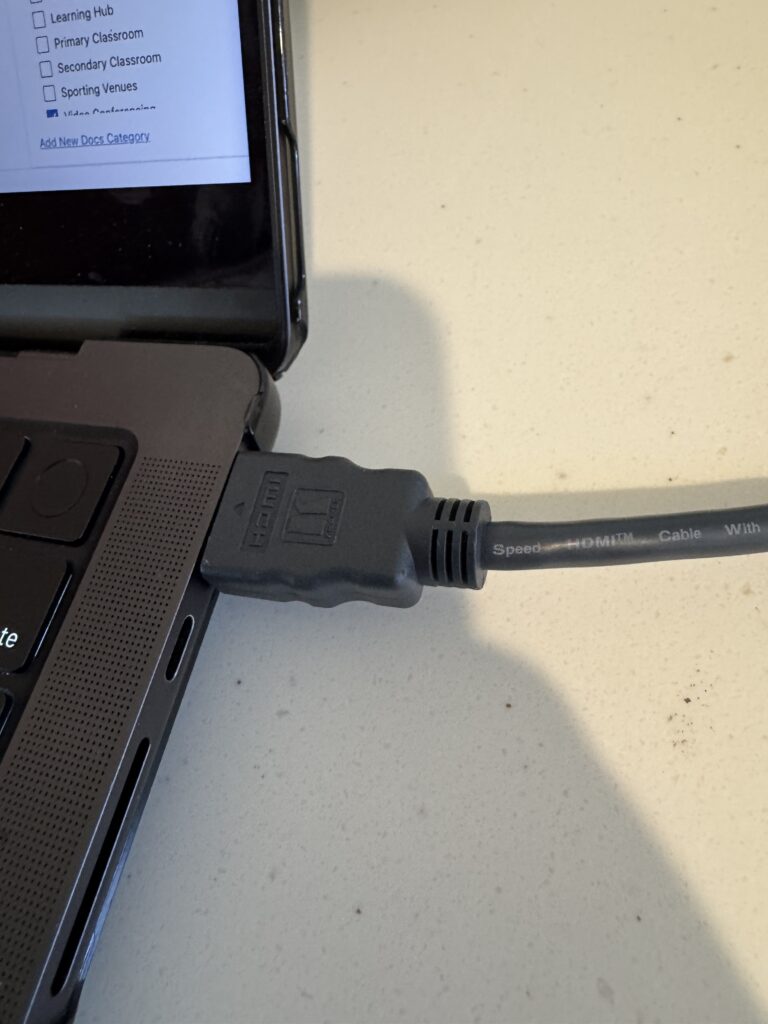
The display will automatically begin to display the content from the laptop. If the room display was not already on, it should begin to power on automatically.

If the MTR is participating in a Teams Meeting, the content will be displayed on the room display, however the MTR account will only be able to share content to remote participants if it is was/is granted permission by the Meeting organiser.

Starting a Teams Meeting on an MTR #

There are a few ways to start a meeting on the MTR depending on the situation.

One Touch Meetings #

If the meeting is scheduled in advance, the meeting can be started with a single touch of the MTR Console.
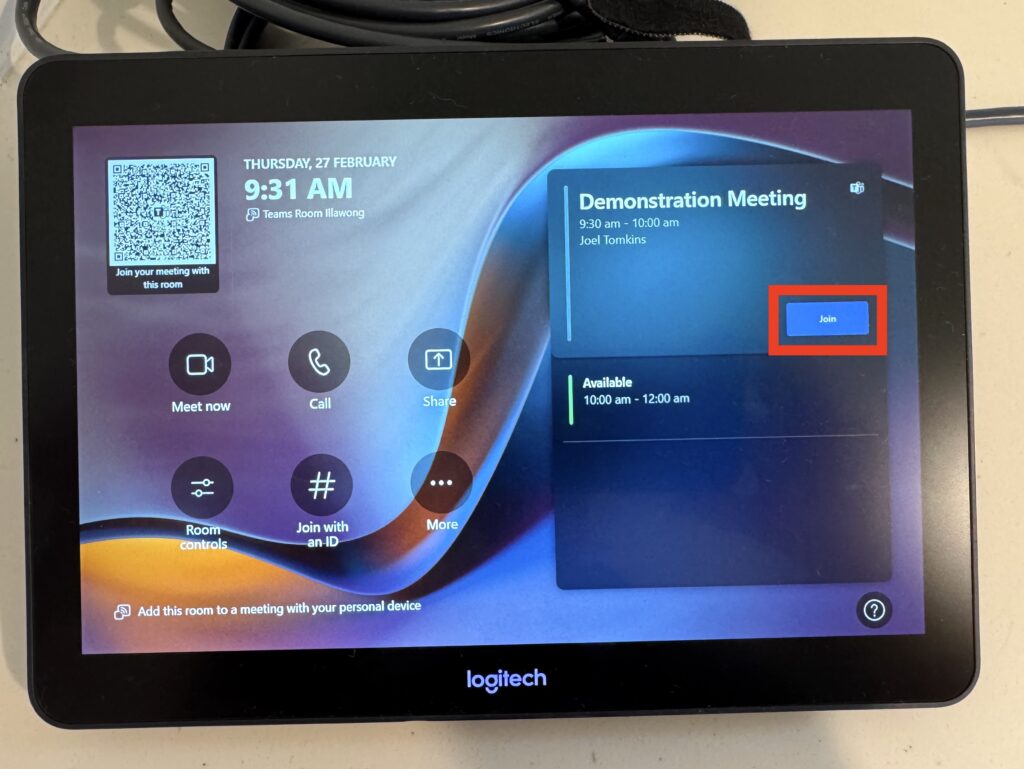
The MTR will show meetings scheduled for the day on the room display and on the MTR console. If your meeting is on the list, press the Join button to begin the meeting.

Please see the related document “Scheduling a Teams Meeting for a Microsoft Teams Room” to see instructions for setting up meetings in this way.

Impromptu Meetings #

If the MTR has not been invited to the Teams Meeting in advance getting your meeting underway is still a simple process.

On your laptop, join the meeting from your Outlook or Teams calendar.

On the first screen after joining you will be given options to select your microphone, camera and speaker settings. Select Room Audio from the options and your laptop will search for nearby MTR.
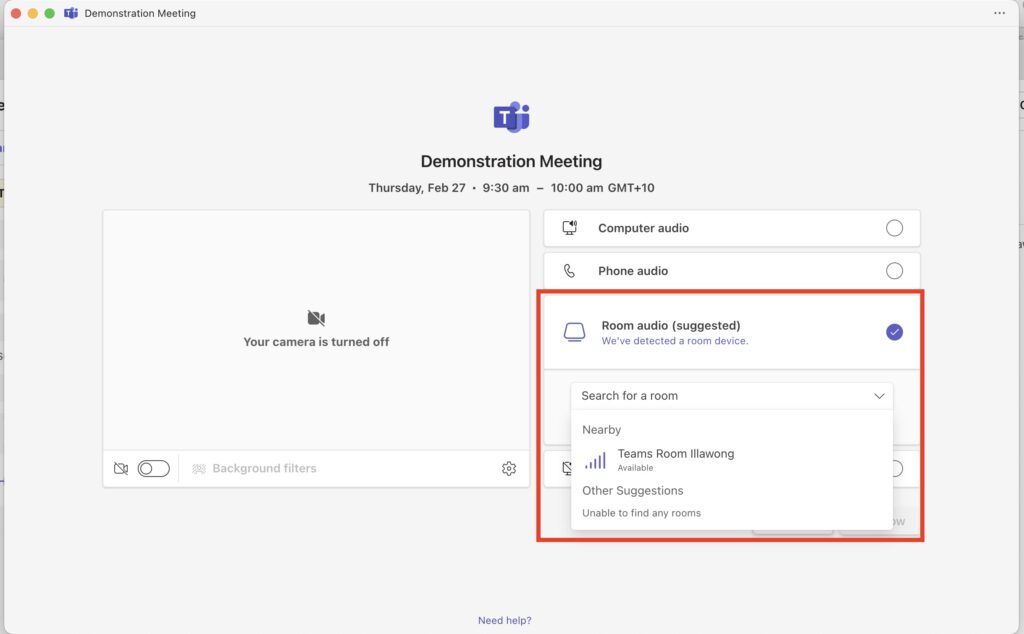
Screenshot

Select the MTR you would like to utilise for your meeting and press the Join button.

The Teams Meeting will begin on your device and on the MTR simultaneously. Importantly your laptop microphone and speakers will be turned off to ensure echo and/or feedback does not occur.

With the Teams Meeting now running on the MTR, the meeting could be closed on the laptop that started the meeting. Alternately, keep the meeting open on your laptop to manage the meeting from your seat, or to share content into the meeting without connecting a cable.

Note that the Teams Room will have joined the meeting with standard privileges and may not be able to admit guests or share content without being made a presenter or co-organiser by the meeting organiser.

To make the MTR (or any meeting participant) a presenter from within the call, open the People tab.
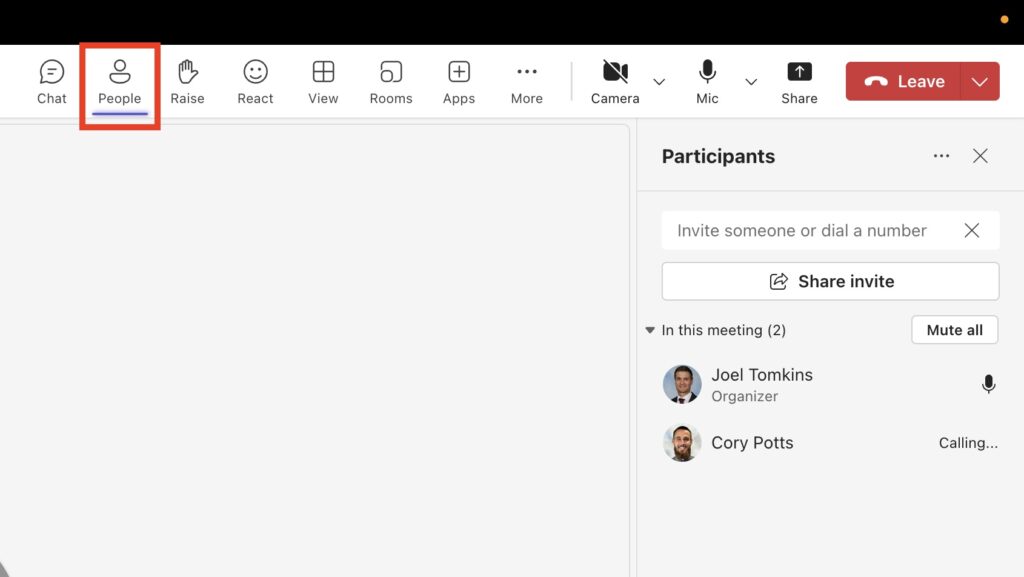
Screenshot

Right click the user you would like to make a presenter and click the Make a Presenter option from the menu.
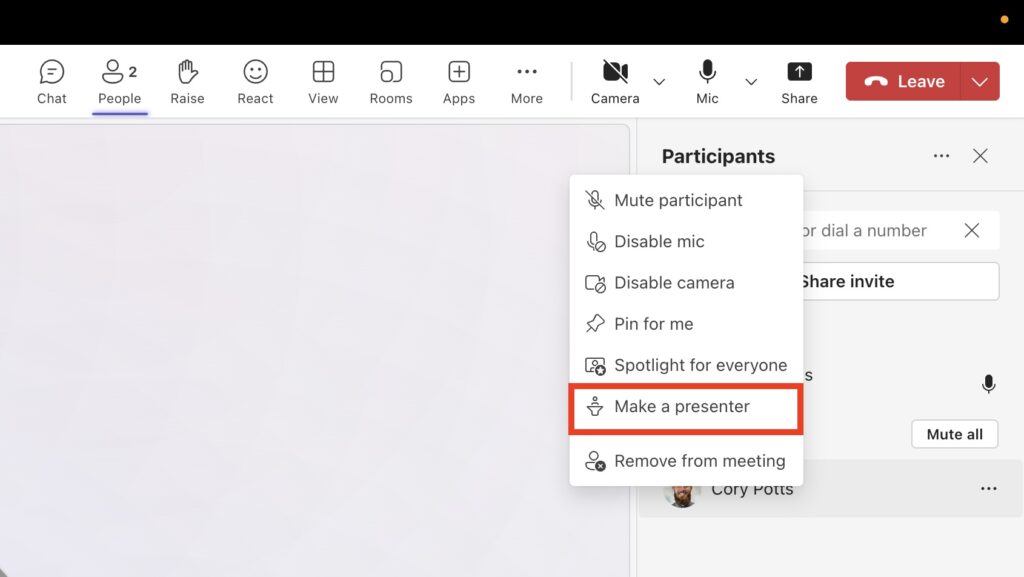
Screenshot

Updated on 28 February 2025

SChool resources

  • St Andrew’s Website
    MyStAndrews Portal
  • Canvas

Resources

  • Main Menu
  • Apple Resources

© 2025 ·

St Andrew's Anglican College Knowledge Base

· All rights reserved