
Clearing browsing data, which includes cached items, in Google Chrome can resolve issues caused by outdated or corrupted website data. For instance, it has been known to fix problems such as Canvas preventing students and staff from attaching documents from their devices.
Note: The following instructions are for both Windows and Mac Devices
To clear the browsing data in Google Chrome, follow these steps:
1. Open Google Chrome
2. Click the three dots in the top right

3. Click on Delete browsing data…

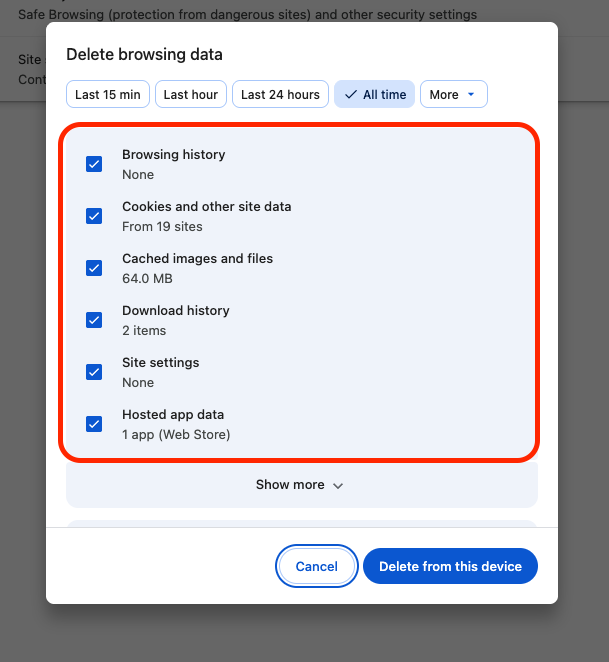
5. In the popup window, make sure the following tick boxes are selected
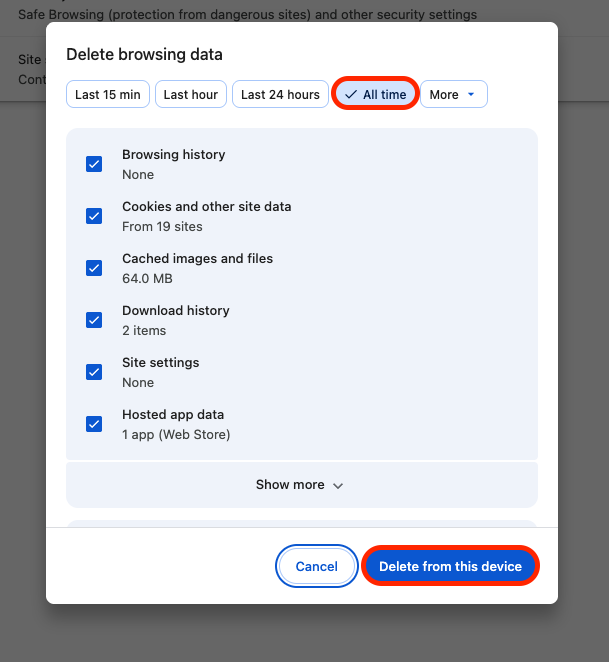
6. Change the time range to All Time and select Delete from This Device
7. Now close Chrome by right-clicking on Chrome in the dock and select Quit.
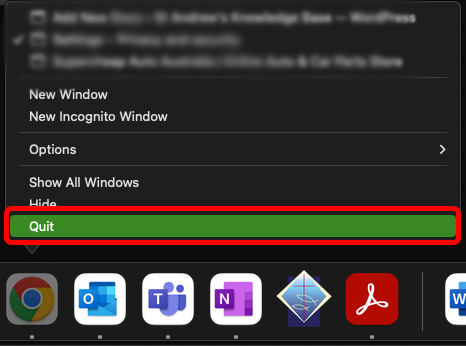
On Windows: Right-click Chrome in the taskbar and select Close window.
