
1. Launch your web browser (Google Chrome or Safari)
2. In the search bar, type Google Forms and navigate to the website or click on this link.
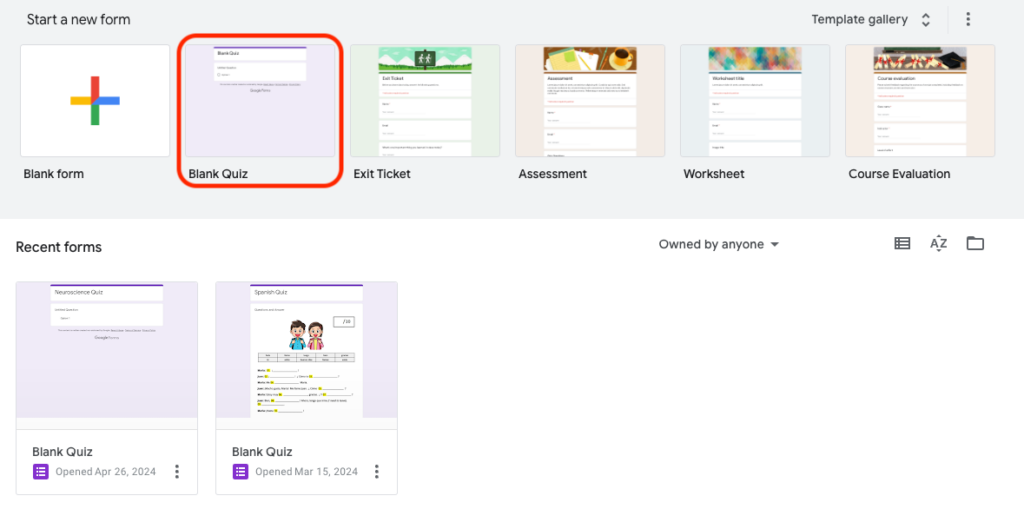
3. Once on the Google Forms homepage, select Blank Quiz to start creating your quiz.
Quiz Customisation – Basic Navigation #
- Click on the title or Form Description area to edit the name of the quiz or provide a description. This is indicated by the number 1 in the image.
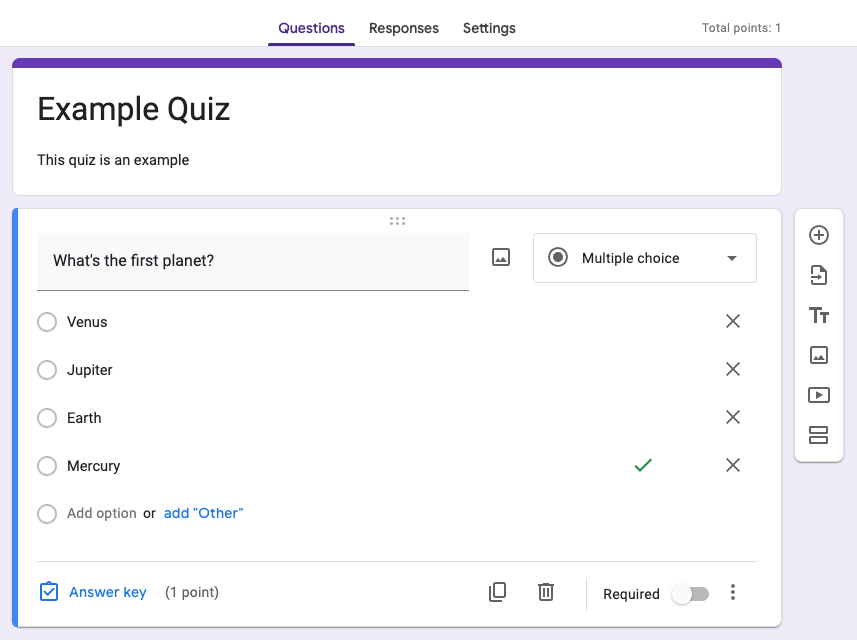
- Use the plus button (+) on the right-hand side to add a new question to the quiz.This is indicated by the number 2 in the image.
- Select Answer Key to assign the correct answers. Depending on the question format (e.g., multiple choice or checkboxes), you may need to select multiple correct answers. This is indicated by the number 3 in the image.

- Change Question Format: Click the drop-down menu next to the question to change its format (e.g., Multiple Choice, Checkboxes, or Paragraph).

Creating Questions #
- Select the box labelled Untitled Question to modify the question text.
- Underneath the question, click Add Option or Add “Other” to provide multiple answer choices.
- Once you’ve added your options, click Answer Key to select the correct answer(s).
- Choose the correct option(s) by ticking the checkbox next to the correct answer. A tick mark will indicate the correct answer.
Sharing the Quiz #
- Once your quiz is complete, select Send in the top-right corner. Choose how you want to send the quiz:
- Enter the recipient’s email address to send it directly, or
- Copy the link to the quiz and share it manually.
