
The Microsoft OneDrive icons in the File Explorer indicates the sync state of the file or folder. By referring to these icons you can better manage and maintain your OneDrive to prevent and resolve syncing Issues. (Note: OneDrive icons are found on both Windows and Mac devices)
Figure 1 Example of OneDrive icons in the Finder (Mac)
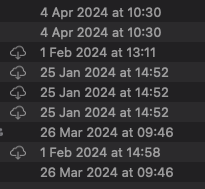
Figure 2 Example of OneDrive icons in the Finder (Windows)
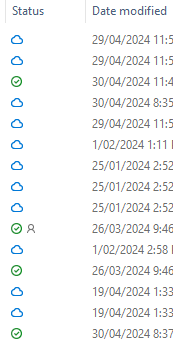

A blue cloud next to OneDrive files or folders indicates that the file is only available online. Online-only files do not take up space on your computer. Once you open the file, OneDrive then downloads a copy and displays this green tick next to the file

The “people” icon next to your OneDrive files or folders, indicates the file or folder has been shared with other people.

When you open an online-only file, it downloads to your device and becomes a locally available file

Files that you mark as “Always keep on this device” have a green circle with a white check mark. These files take up space on your device, but they’re always there for you even when offline.

OneDrive is syncing new files from the cloud to your PC

A black circle with a white cross means that a file or folder cannot be synced. Mac users will see this in Finder or on the OneDrive menu bar icons.
For more information go to: https://support.microsoft.com/en-us/office/what-do-the-onedrive-icons-mean
#Red X #Cloud Icon #Onedrive #Microsoft #365 #Microsoft 365