
Signing into Google Chrome allows users to experience a more personalized, secure, and streamlined browsing experience across all their devices. This feature also adds the convenience of syncing data, accessing Google services, and having preferences automatically set up wherever they go.
Please follow the following steps to sign in to Chrome and turn on sync:
1. Open Google Chrome by clicking its icon on your dock or taskbar.

2. Select the “Sign in” option, enter your Email ID, and click “Next”.
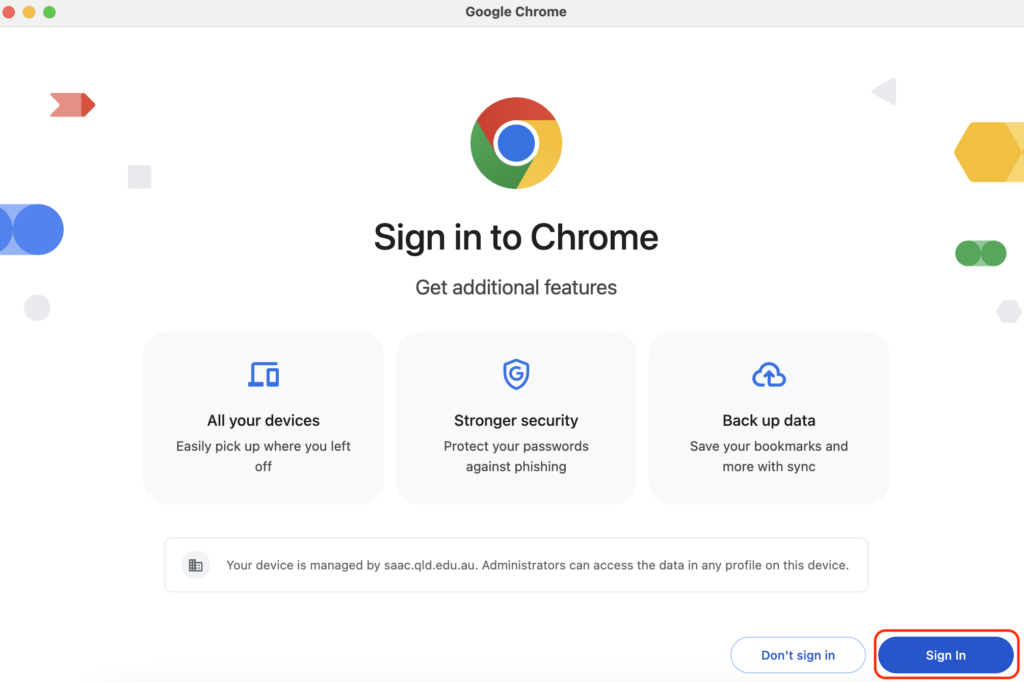
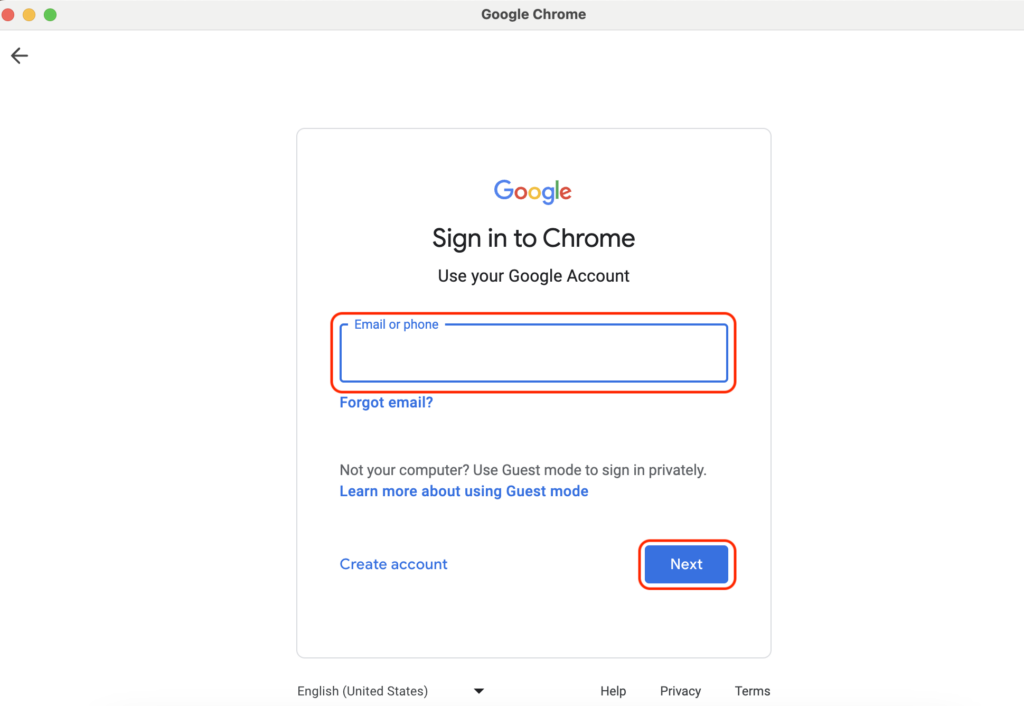
3. Fill in your Full email address again and follow the prompts below.
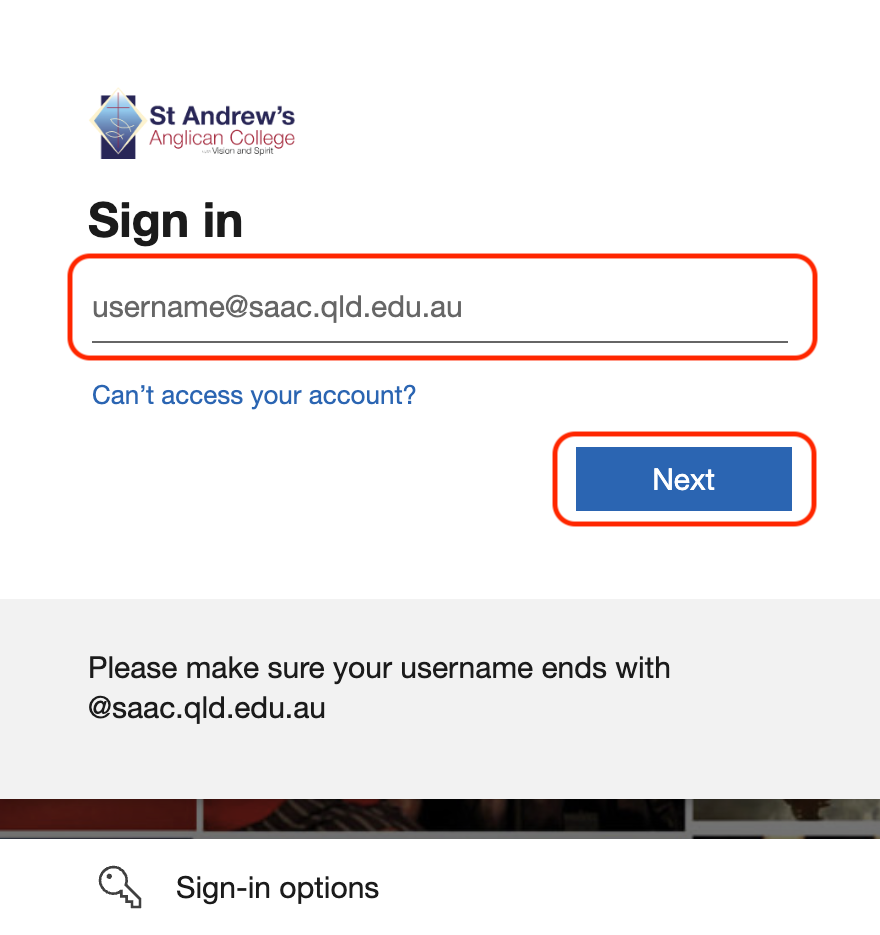
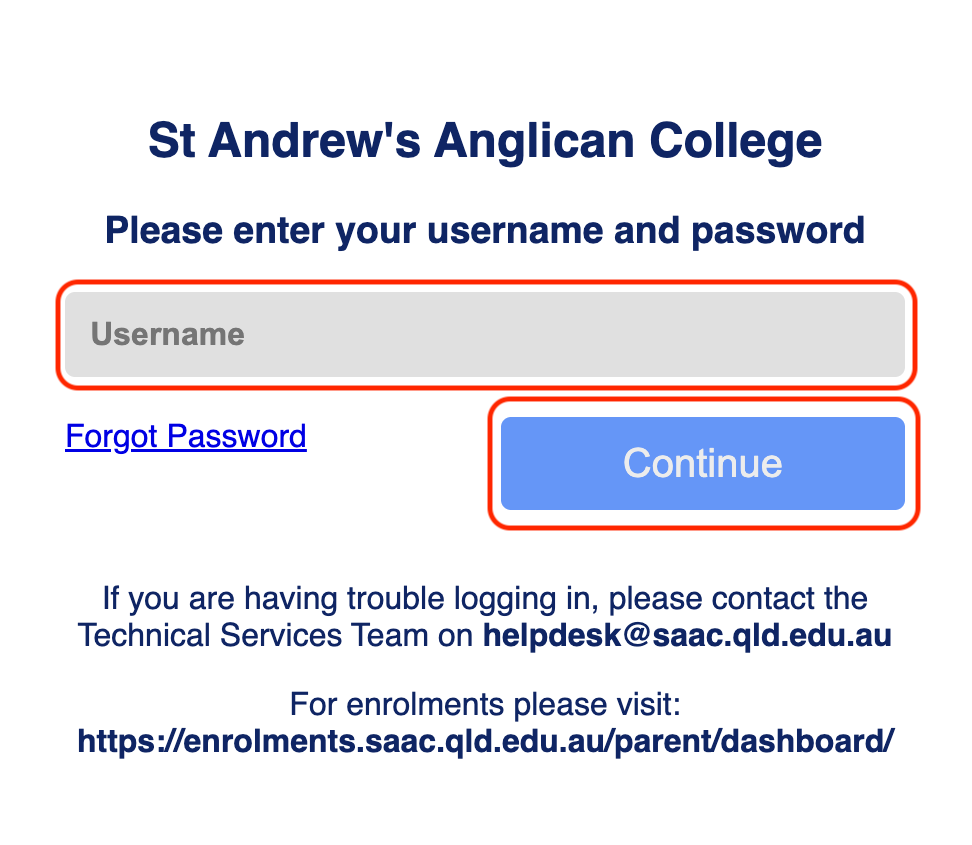
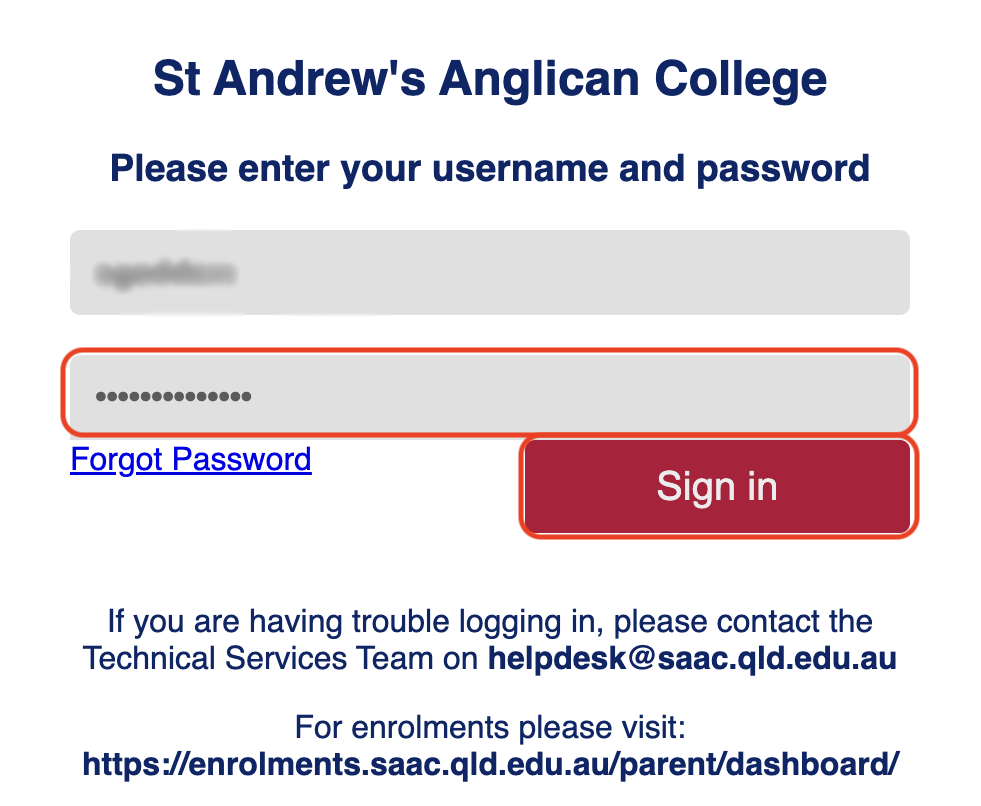
4. Enter the verification code sent to you by selecting “I trust this device” and follow the prompts below until you are ready to continue.
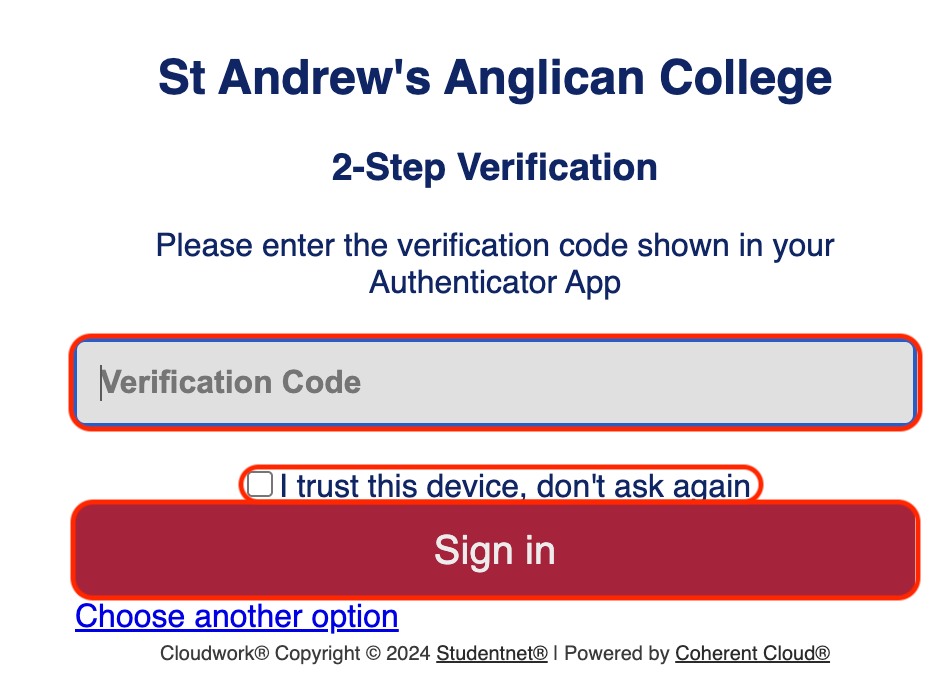
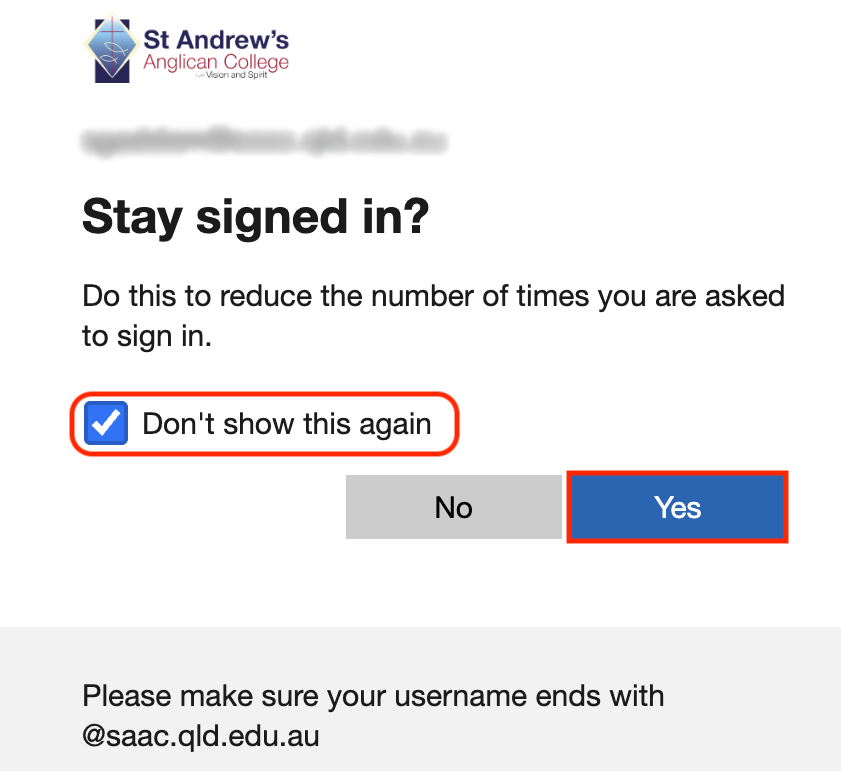
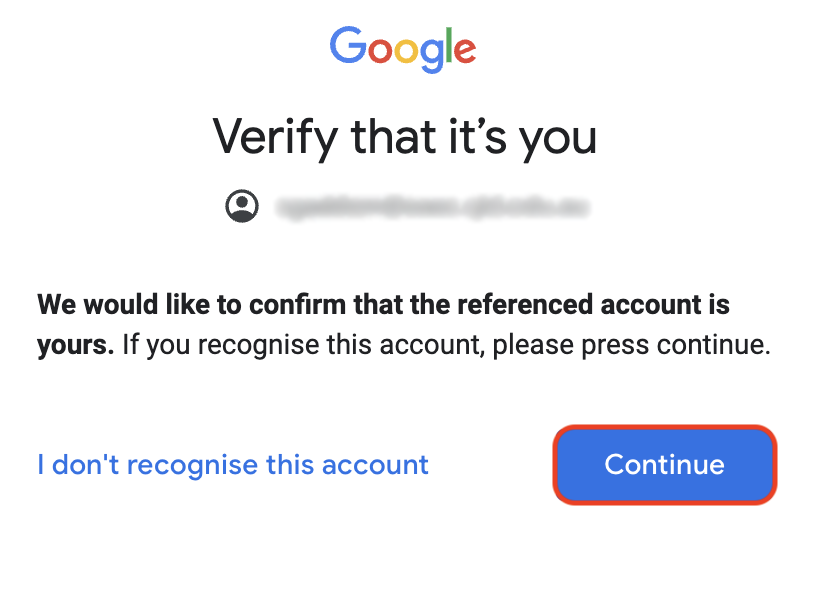
5. Select the options as shown in the below pictures.
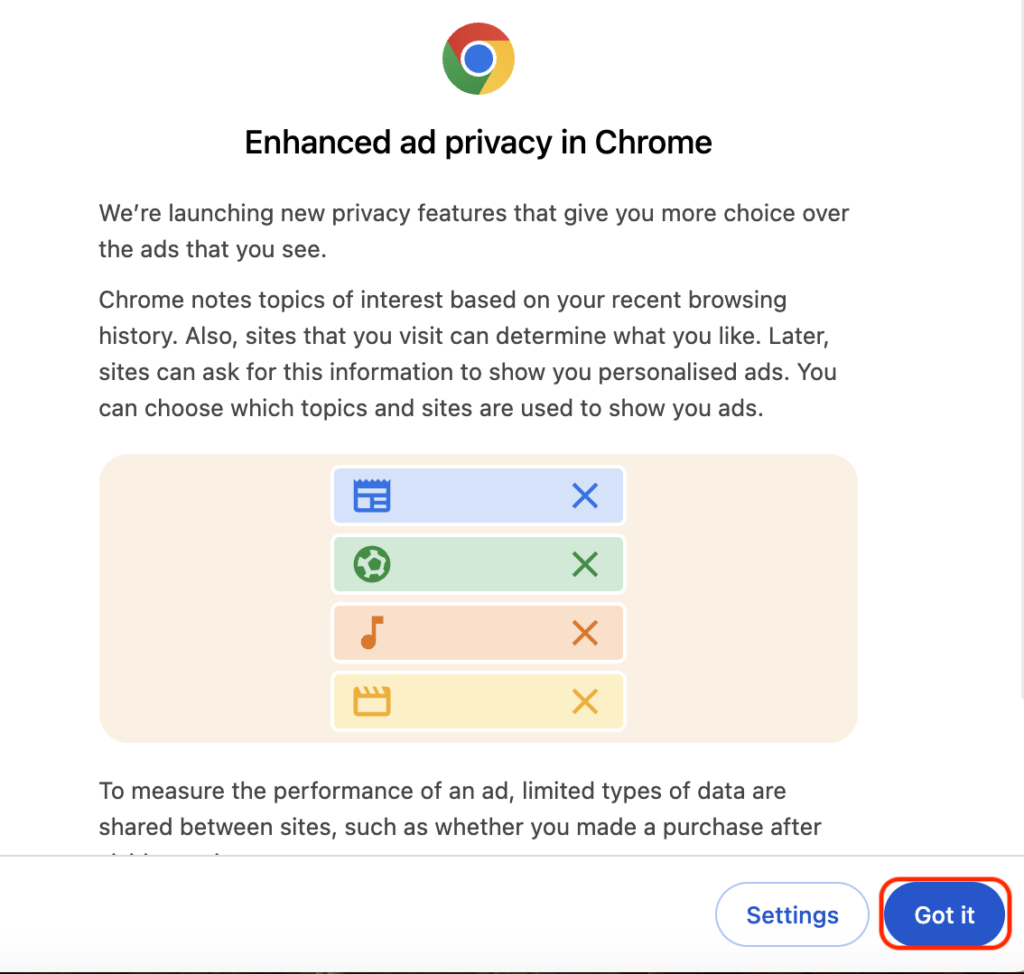
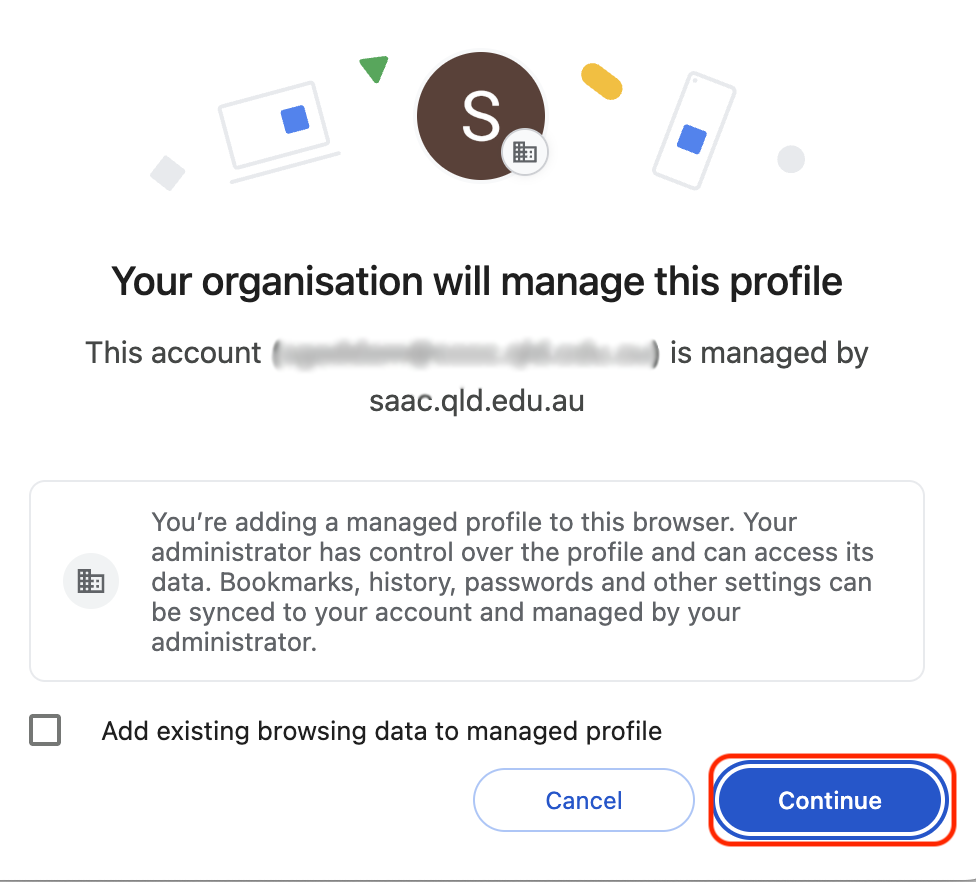
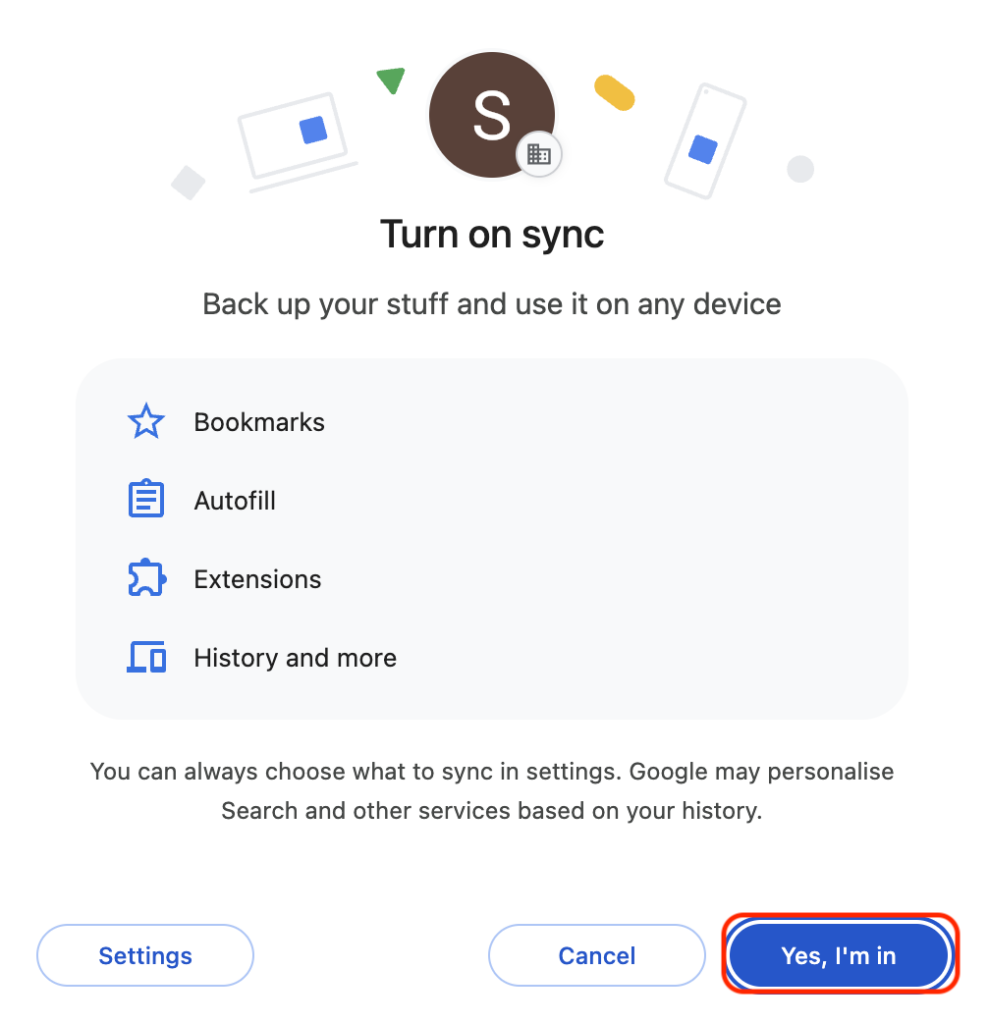
6. Now, you have successfully completed the sign-in process.
Checking the Sync is on or off
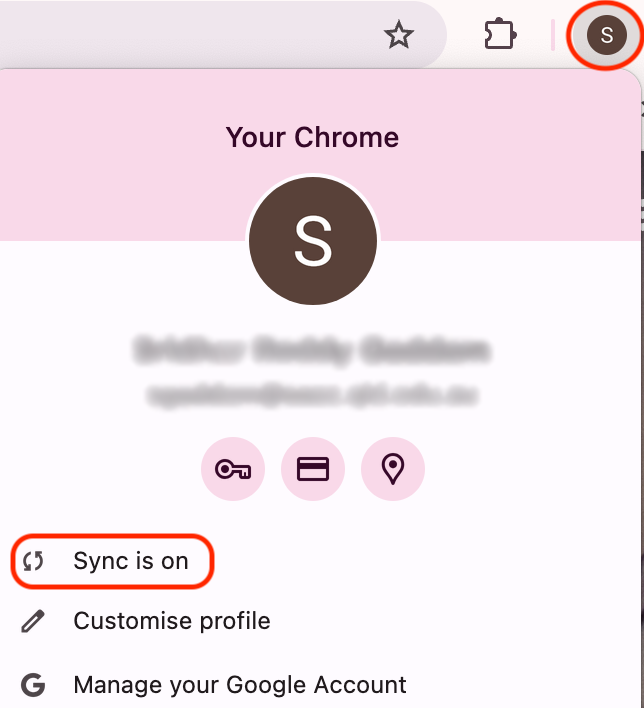
It is important to sync your profile to the Chrome browser to avoid data loss, such as bookmarks, passwords, etc.
1. You can always check whether your sync is on or off by clicking on your profile at the top right corner of Chrome.
Setting up Chrome as a default browser on MAC: #
1. Click on the settings button on your laptop, as shown in the picture below.

2. Select the Desktop & Dock option from the sidebar.
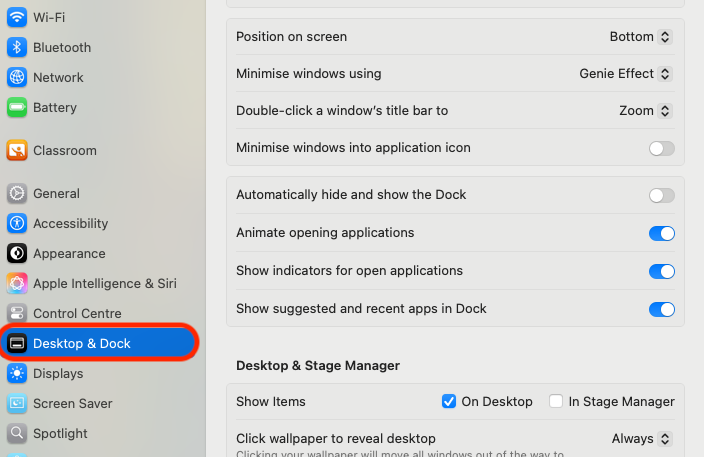
3. Scroll down until you see the Default Web browser option.
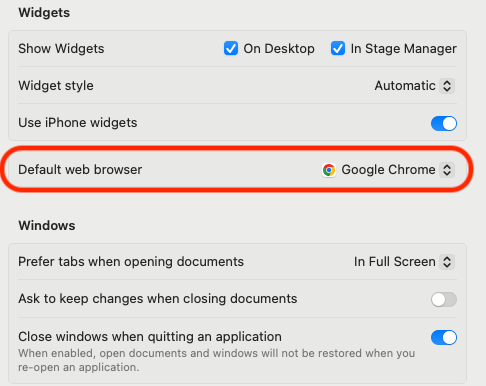
4. Select the drop-down option as Google Chrome.
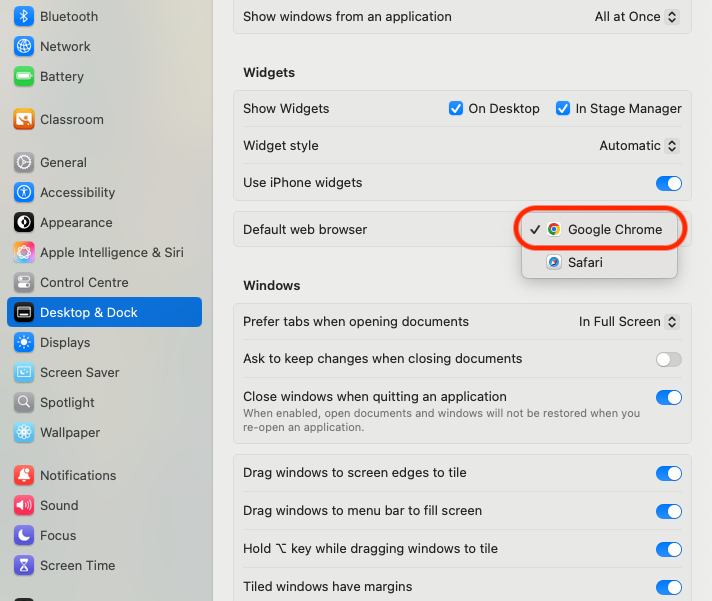
5. You have successfully chosen Google Chrome as a Default Web Browser.