
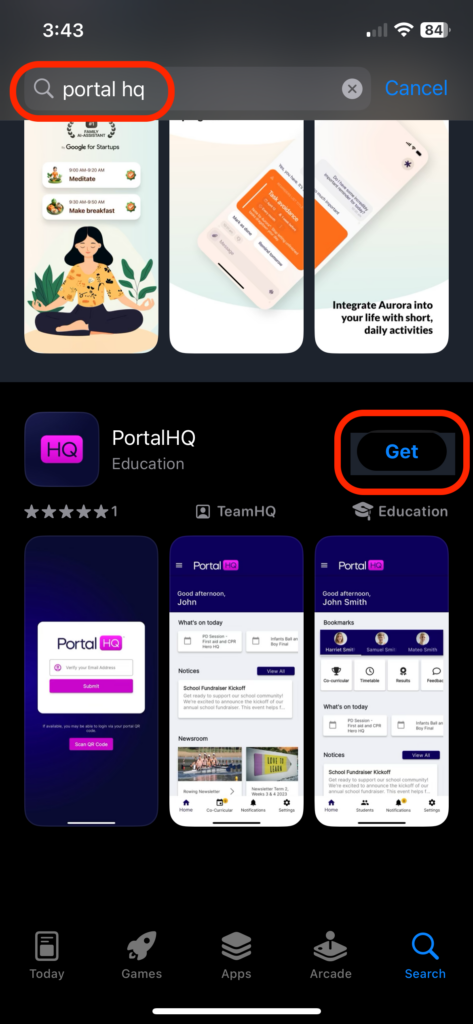
Download the App #
If you do not already have the PortalHQ app on your mobile device, this can be downloaded from from the App Store or the Google Play Store.
Marking the Roll #
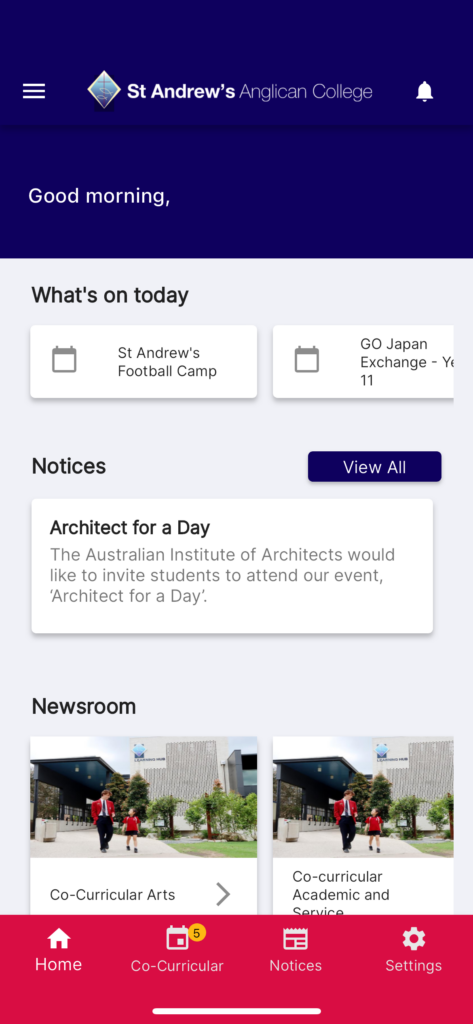
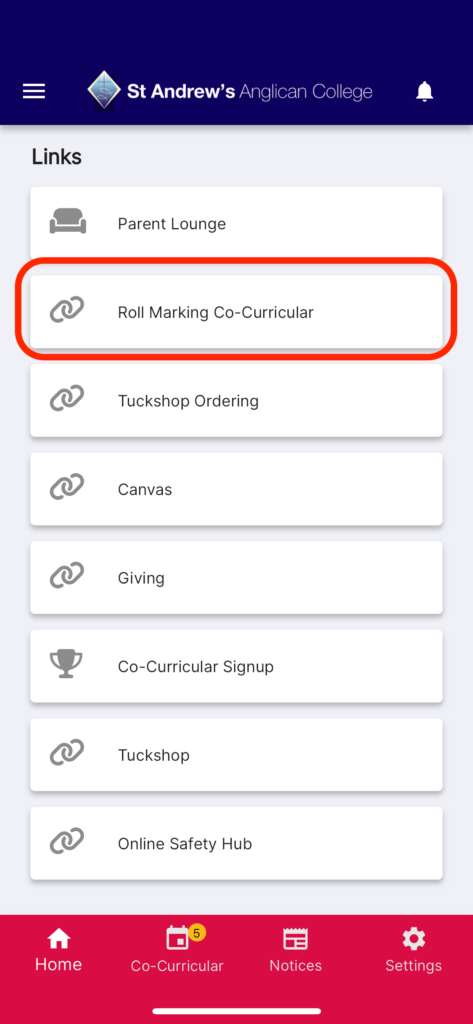
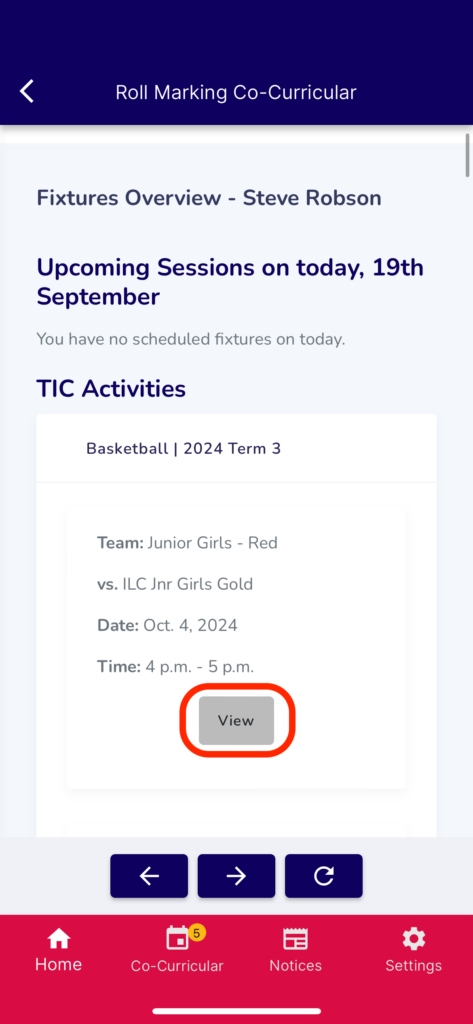
1. From the home page, scroll down and select Roll Marking Co-Curricular.
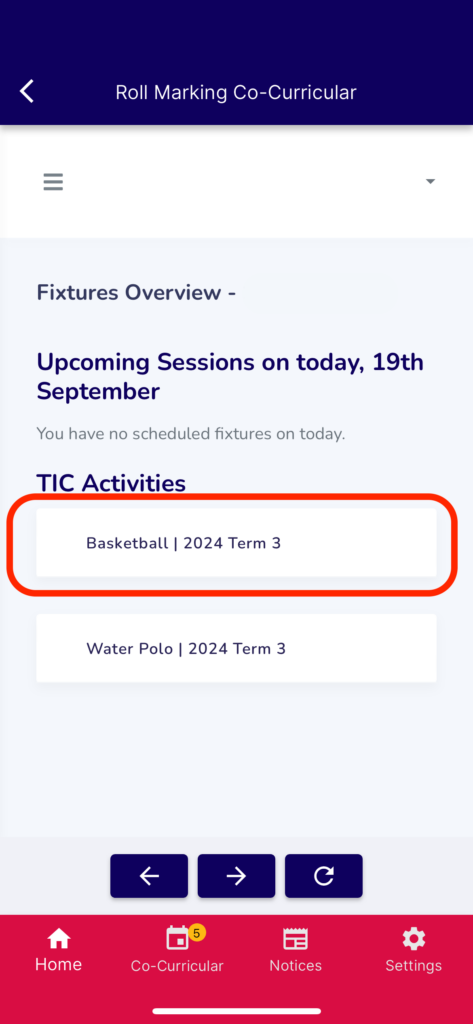
2. Once logged in, you will see a personalised view, allowing you to access the team or group assigned to you, such as Basketball | 2024 Term 3. Select the activity then view the team or group you wish to mark the roll for.
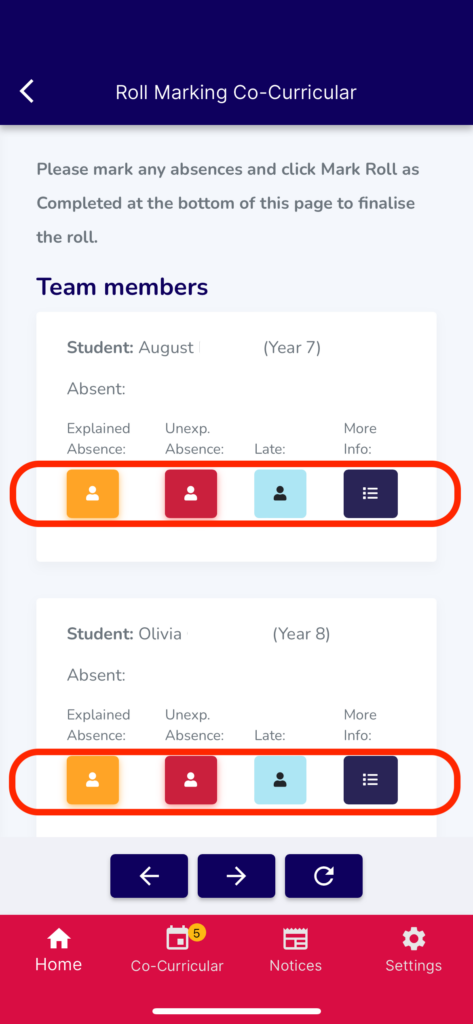
Step 3: You will see the names of your team or group members pre-filled. Mark each student’s attendance.
Students already marked as absent in TASS for the day (e.g., due to extended holidays or illness) will be indicated as absent.
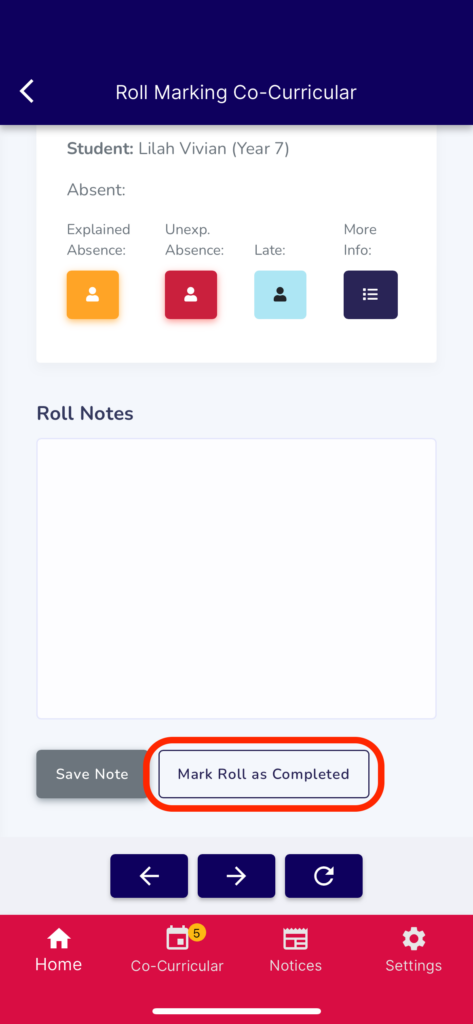
4. To submit the roll, click Mark Roll as Completed at the bottom.
You can return at any time to update the roll or mark students as late.
Marking Students Absent #
- On the roll you will see a selection box for either an explained absence or unexplained absence selection.
- The system will have pre filled / marked any students already marked absent in TASS for the day. (You can mark the student present if they turn up to the fixture or training).
- An explained absence is when you have been informed a student is not attending , or they have already been already marked as absent at school on their fixture day
- An unexplained absence is when there is no reason that the student is absent and we have not been advised they are not attending If this is the case, when you select unexplained absence for that student.
- For an unexplained absence – An automated text will be sent to the parents ( advising them of their absence) – this will be automatically sent 15 minutes after you have completed the roll ( in case they turn up late )
- Once the text has been sent – there is a process that subsequently occurs and you as the coach, do not need to follow up or action anything.
- If a student is marked as absent yet subsequently does turn up – you can go back into your roll by clicking the late button.
- If you click on ‘more info’ button – it will provide parent contact details / emergency contact details and also important medical information that is extremely helpful.
- At the bottom of the roll there is a notes section – this is for students who may be additional for that fixture or if any issues arose etc. You can highlight positives, any challenges etc.
- The data from your roll marking data will be accessible for us to track attendance and any issues.
Unexplained Absence #
- This is for students who are absent and do not have an explained absence
- They are an unexplained absence that sets a process in motion and parents will now receive a text alerting them they are absent.
- Please ensure you are mark your roll correctly.
- The text is sent to parents 15 minutes after you complete the roll – so if the students turns up you can edit this in your roll and stop the text
We will also track the logs of when a roll is marked, so please be mindful of being in time.
The text to parents will read ( it will mention the child’s name and activity)
We wish to advise that <Student Name> has not attended <Sport activity> training/fixture today. If you are unaware of your child’s absence from the sport above then please ring Steve Robson on 0416559188 as soon as possible.
Key Points #
- Please ensure your Portal HQ app is updated ( ideally turn automatic updates on)
- Please ensure your roll is accurate and correct – if you have new students in your team please email Wendy and let her know so she can update you role.
- Please add any students not on your roll, or who are filling in for your team, in to the notes section.
- Primary and Secondary roll marking responsibilities- please see below.
- Please do not share staff mobile numbers – these numbers are an emergency contact for you if you have any concerns. Please also contact Steve anytime on 0416559188
- If you are aware that a student is not attending via email or they have spoken to you – they are considered an ‘explained absence’.
- Please know I am always available on 0416559188 if you need assistance.
Emergency contacts #
As always if you have any concerns at any time please phone the following for assistance and support.
Scott Warfield (Primary) – 0488199044
Brad Bowen (Secondary) – 0407658374
Steve Robson – 0416559188
Thank you again for your commitment and professionalism. Your efforts ensure a seamless and safe experience for all students
At any time – Please pass on any feedback to SRobson@saac.qld.edu.au, or ideas to ensure the process evolves.
If you have any IT queries, or issues downloading the app. Please contact:
IT Helpdesk: (07) 5471 5552 or email helpdesk@saac.qld.edu.au