
A number of Secondary rooms are equipped with Interactive Flat Panel displays. These are easy to identify as these displays have a silver outer casing and are all BenQ panels.
These rooms do not have an AV control panel unlike the Fixed Secondary classrooms. Instead control of the display is via the physical buttons on the front of the screen, and on screen menus can be interacted with by touching the screen.
Power On/Off
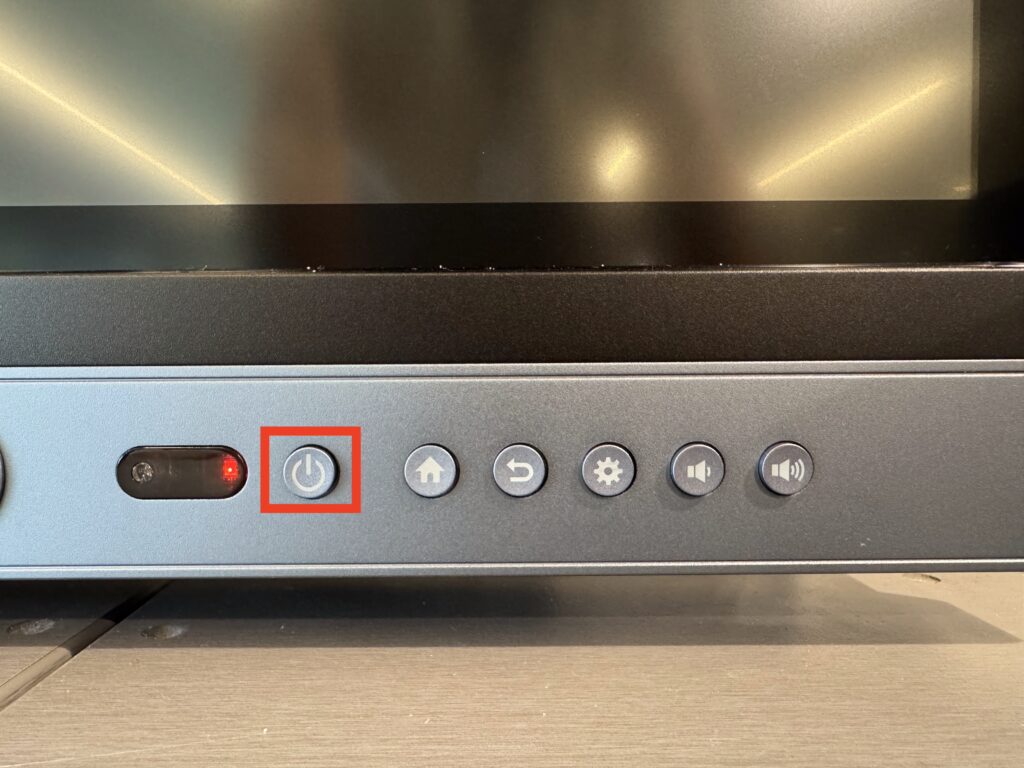
The physical power button is used to turn the screen on and off.
Volume
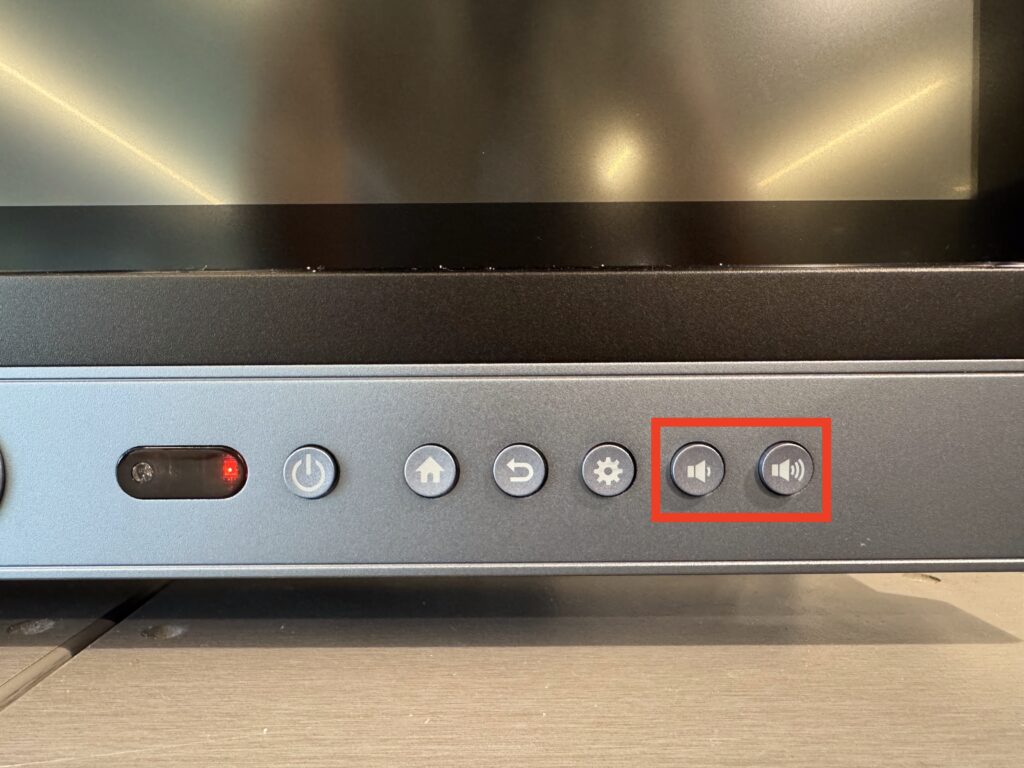
The easiest way to adjust volume is via the physical buttons.
Changing Sources
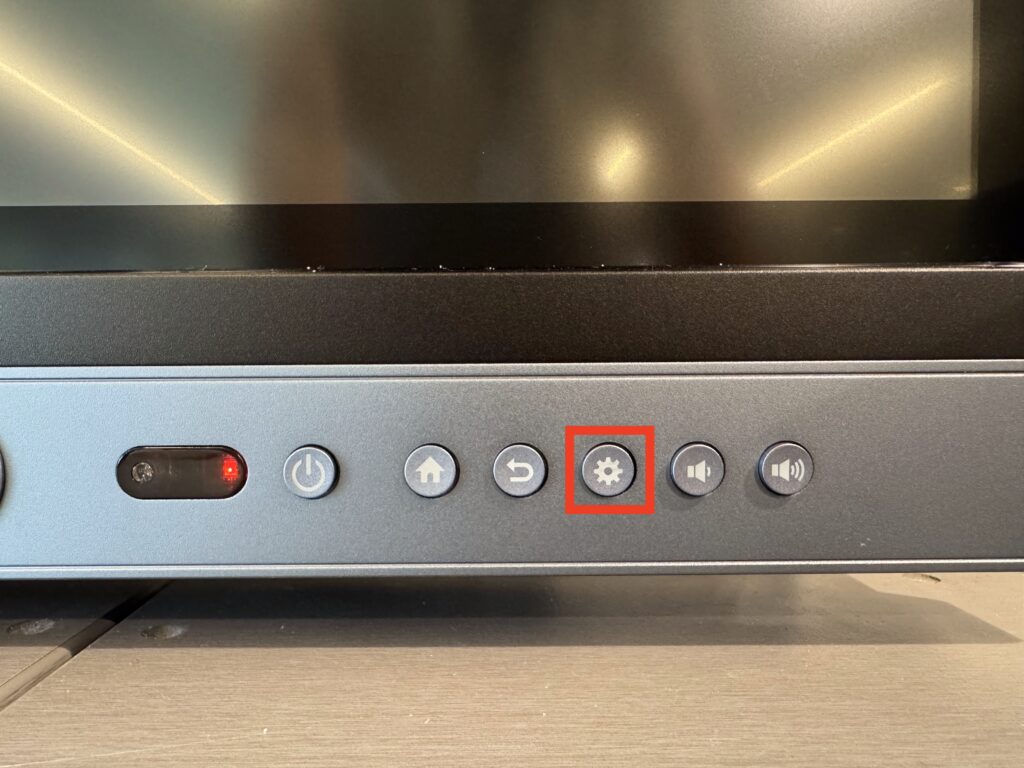
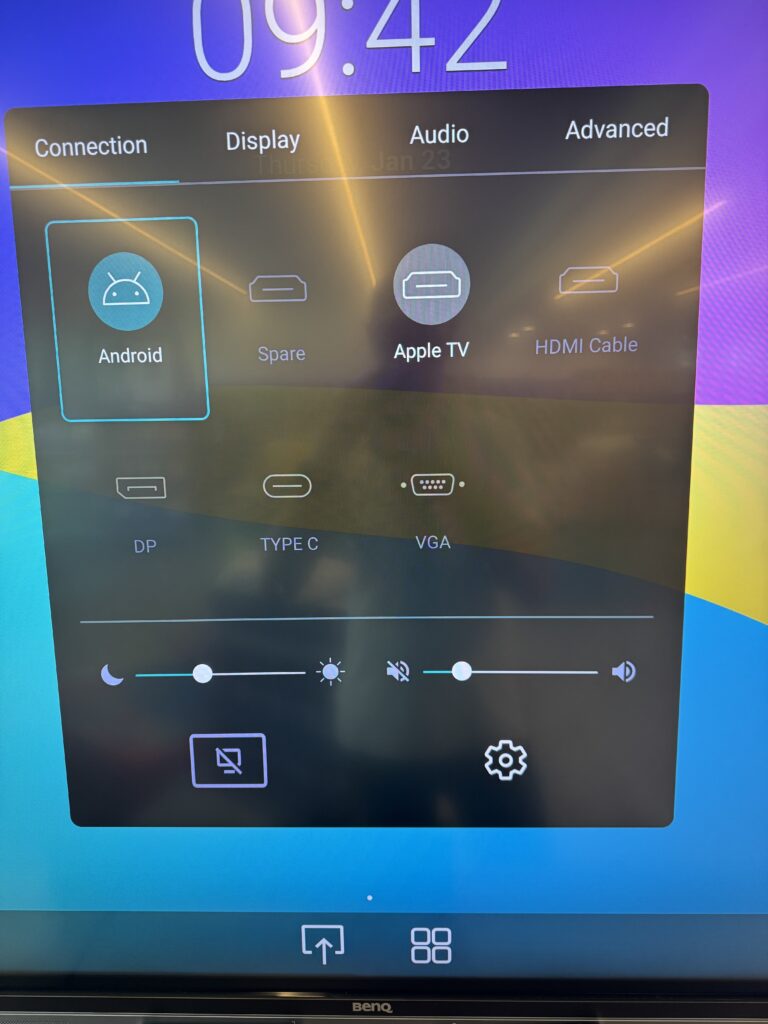
Pressing the physical Settings button on the front of the panel will open an on screen menu from which a new input source can be selected. The sources are named to make it easy to select the correct input by touching the screen – Apple TV or Cable.
Annotation
The screens have a fast and simple digital annotation tool that can be used to annotate over the content being displayed. To open this tool, hold two fingers on the screen in a V shape.
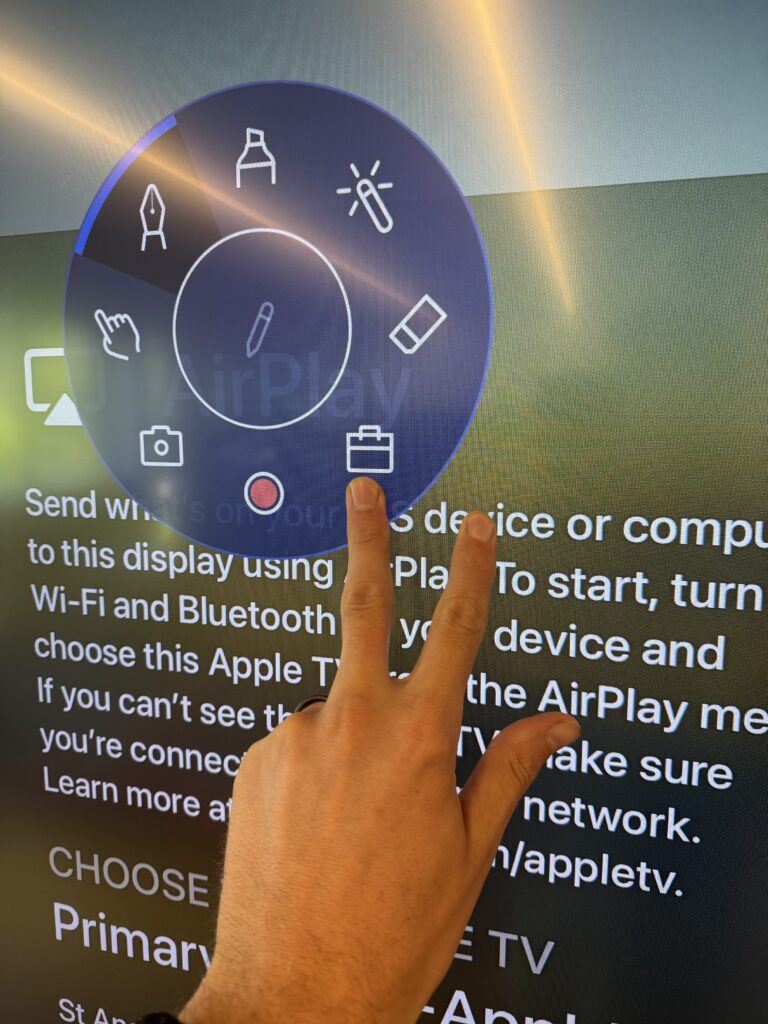
Whiteboard and other interactive features
BenQ offer online resources that cover the Interactive features of their IWB’s. Each generation of display offers different features and has slightly different user interfaces.
These resources can be accessed at the BenQ Academy or see below for a curated list
Using the Whiteboard (EziWrite 6)
https://academy.benq.com/en-us/courses/using-ezwrite-6-on-benq-board.html