
The following instructions are for staff only. If you have a guest who requires access, please see Technical Services to generate a guest voucher.
Connecting an iPhone or iPad #
Connect to MyStAndrews Wi-Fi network by installing a profile on your iPhone.
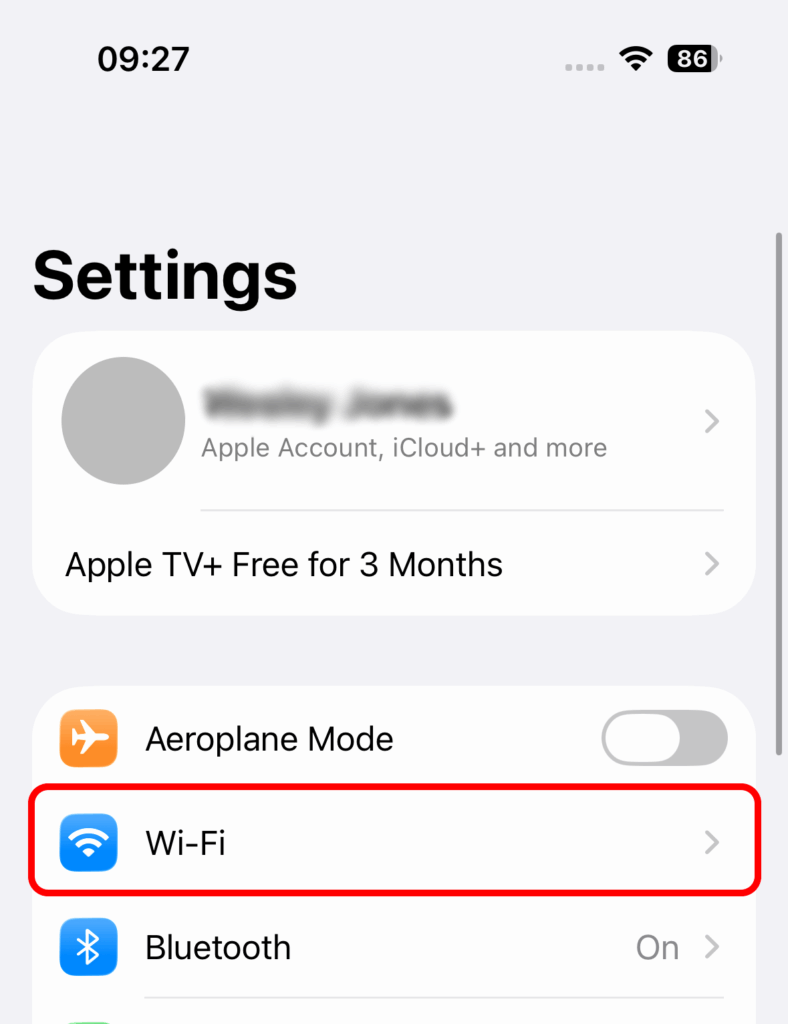
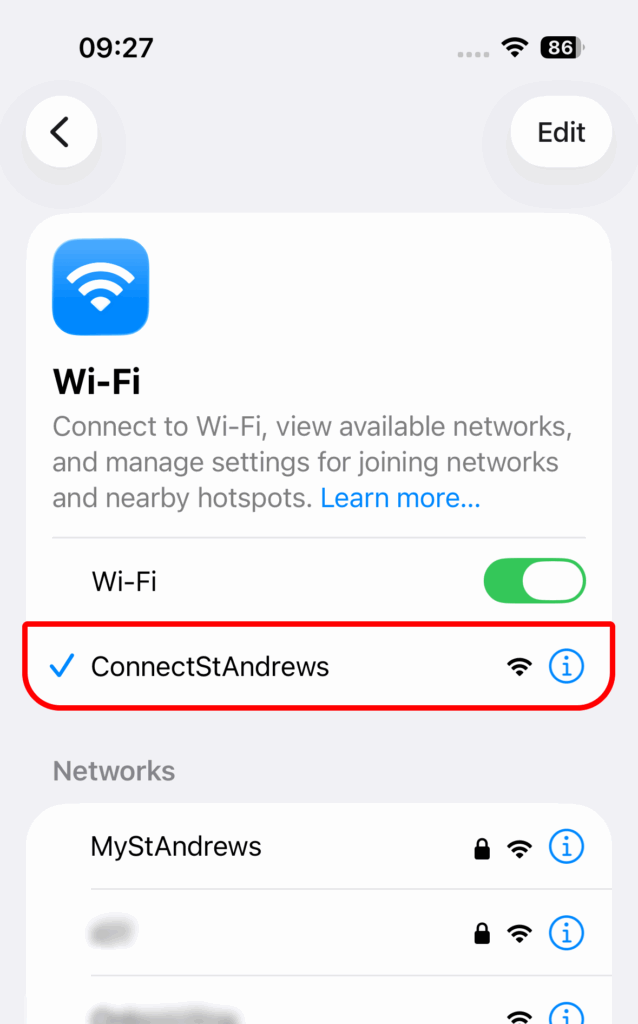
1. Go to Settings on your iPhone and select Wi-Fi. On the Wi-Fi screen, select ConnectStAndrews.

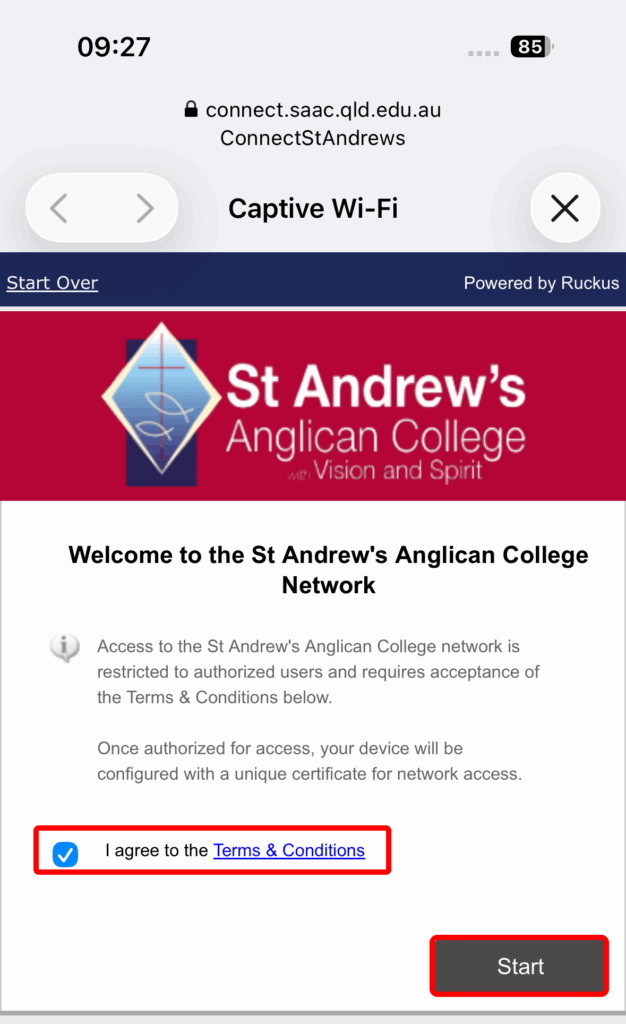
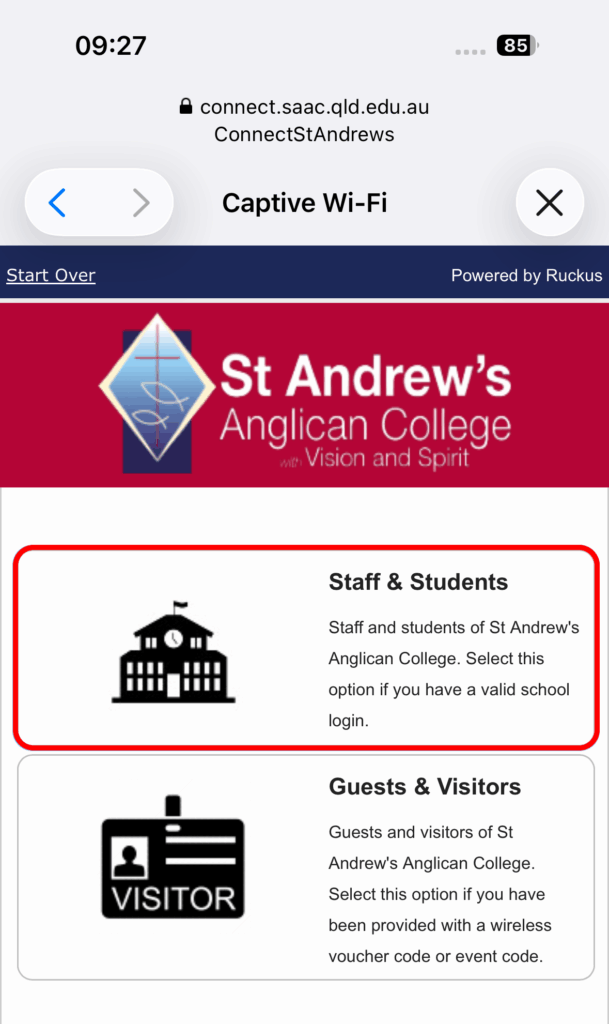
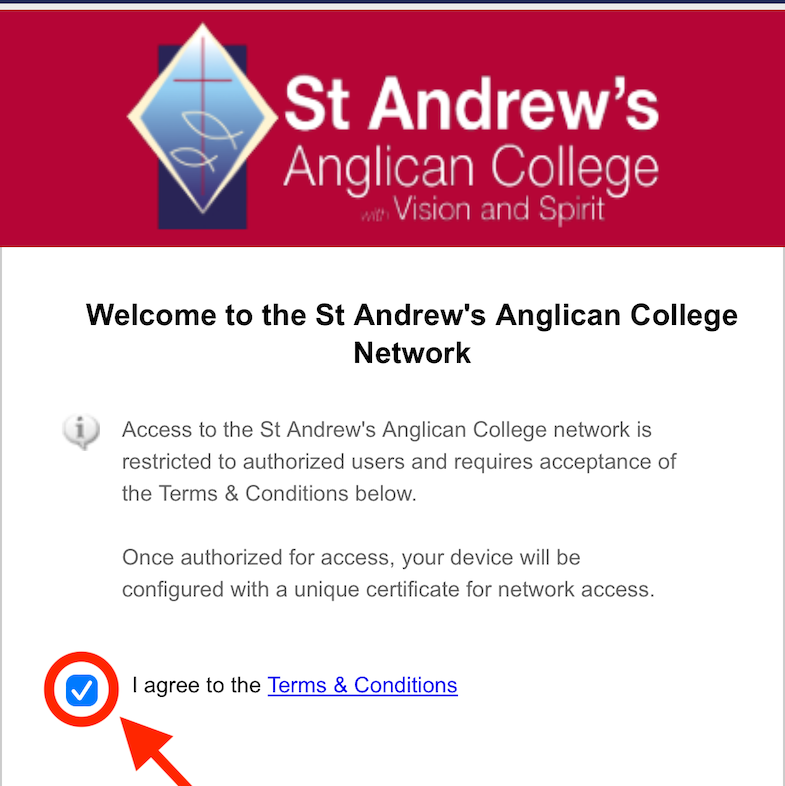
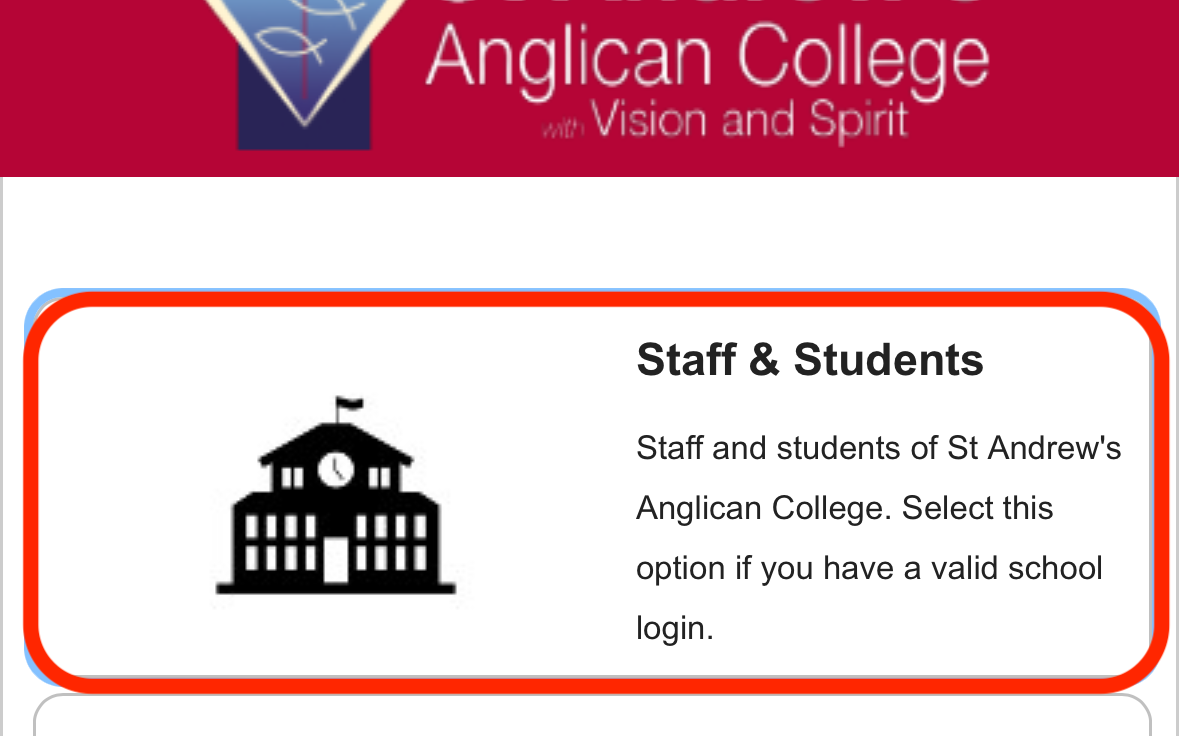
2. Once connected, a page will automatically open and you’ll have to tick the box, then select start. On the next page, select ‘Staff & Students’
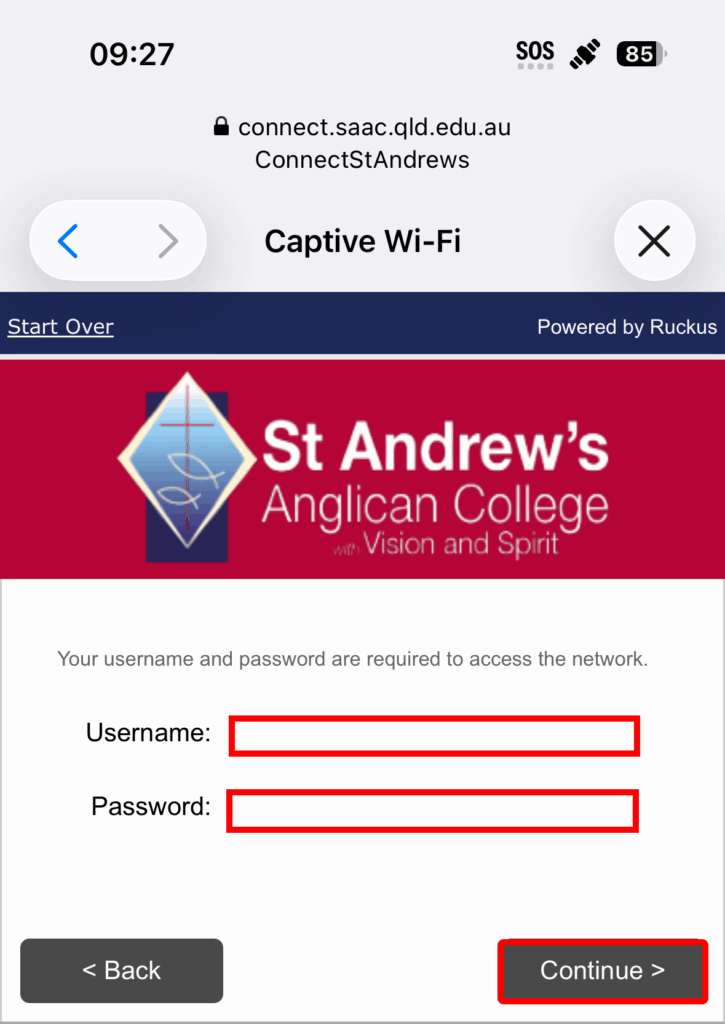
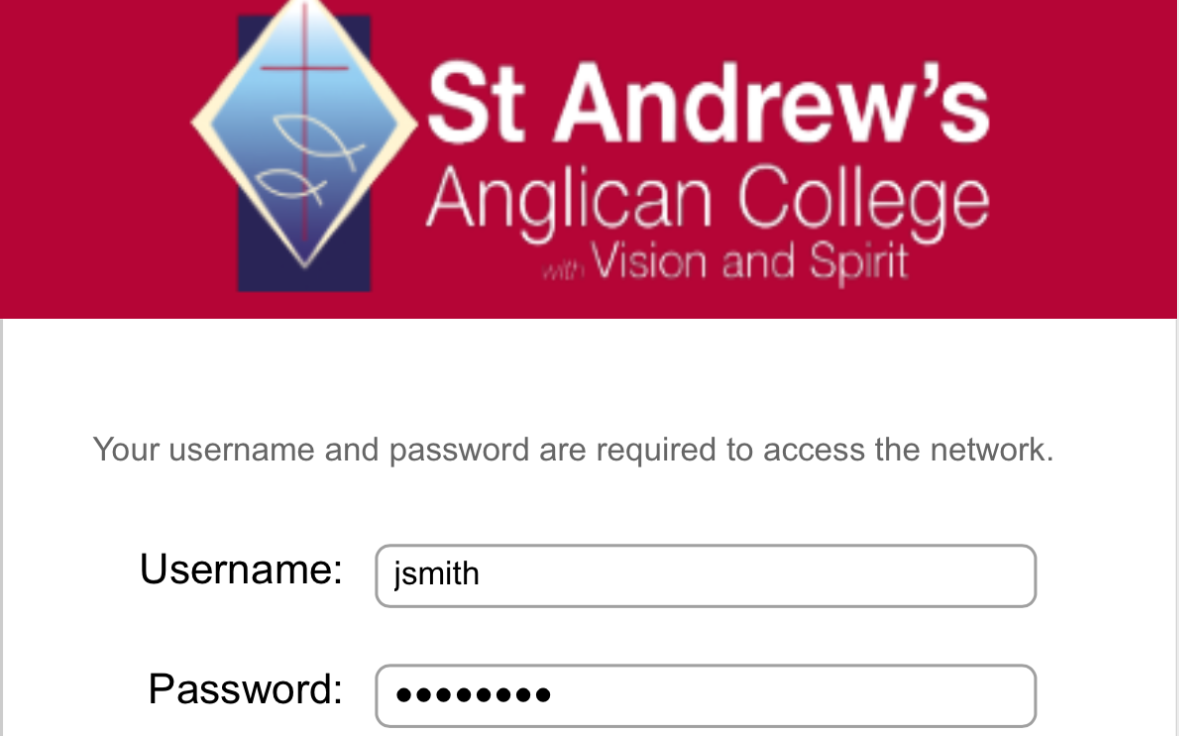
3. Enter your username and password on the sign-in screen and select Continue
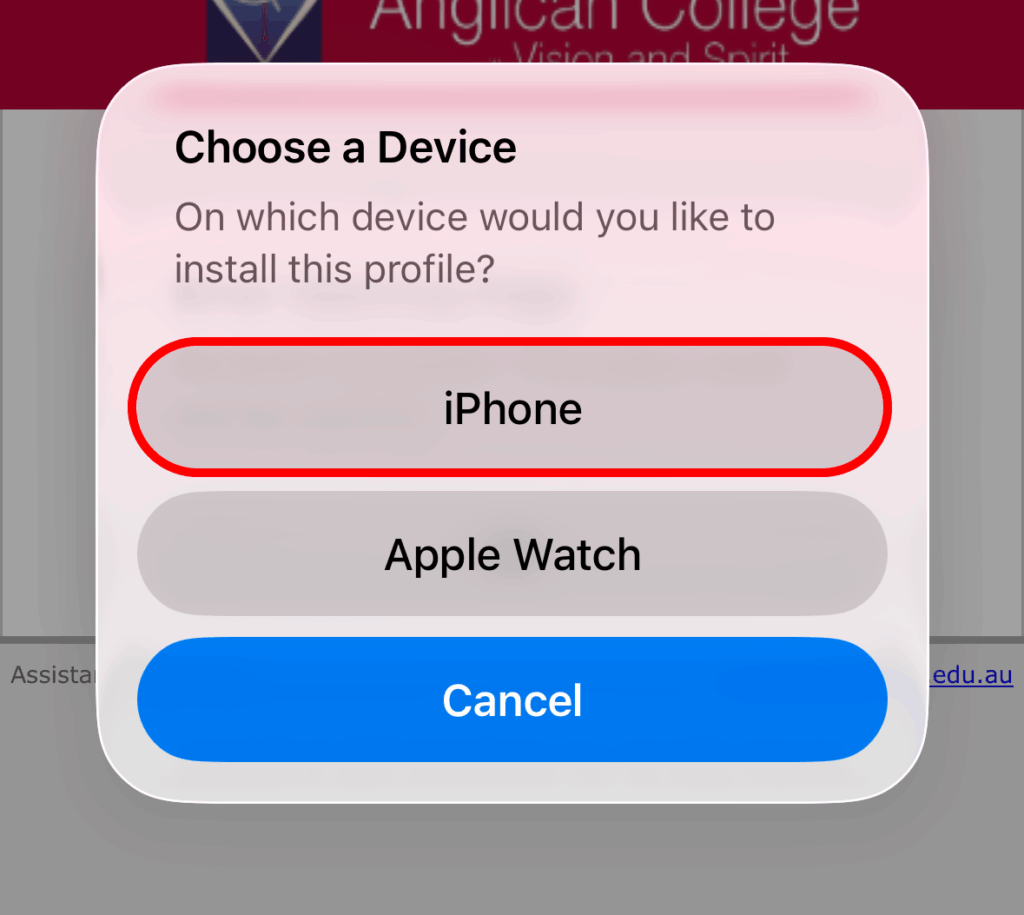
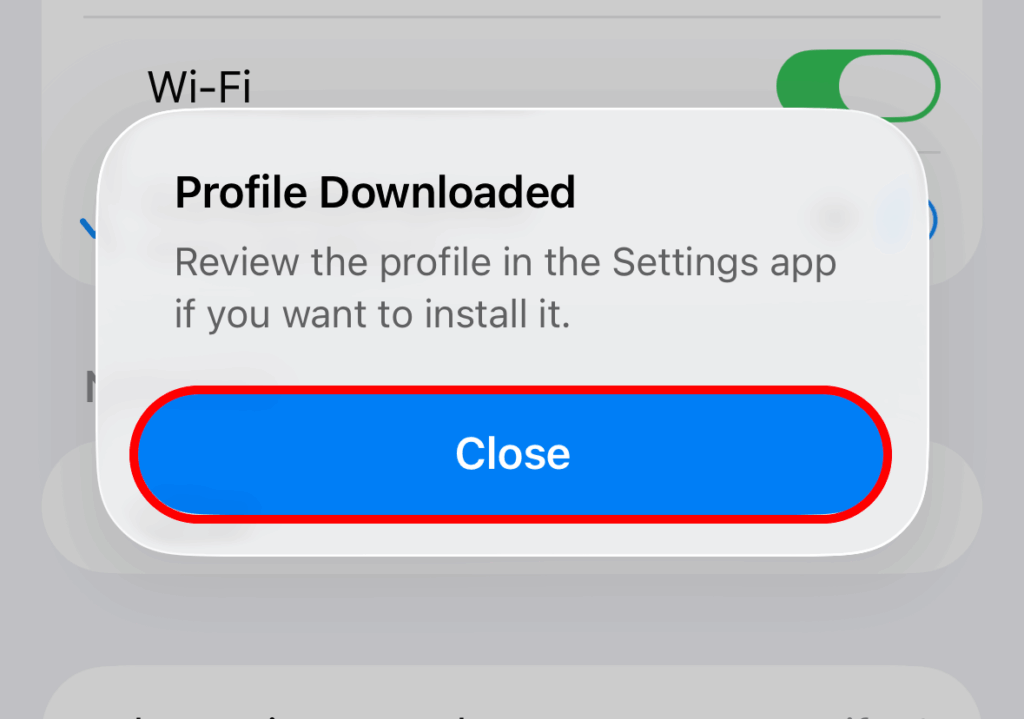
4. Select iPhone and then select Close
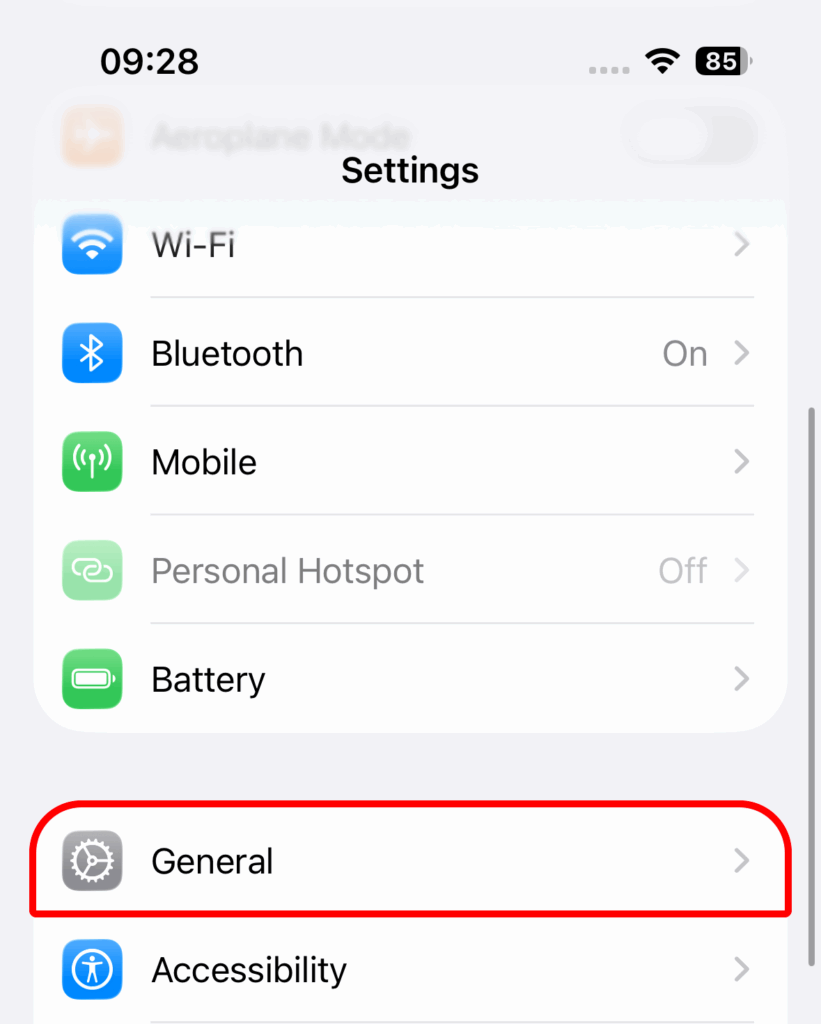
5. Return to your phone Settings and Select General.Scroll down to select VPN & Device Management or search Profiles when scrolling to the top of the page.
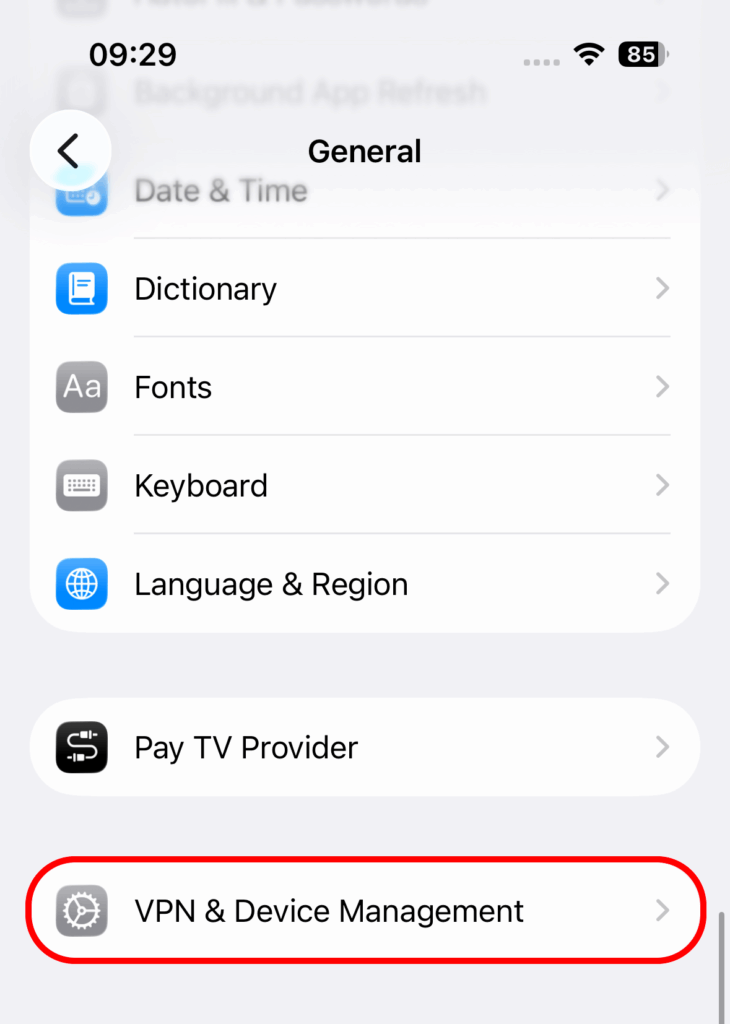
6. Select the MyStAndrews profile and select Install in the top right to download the profile
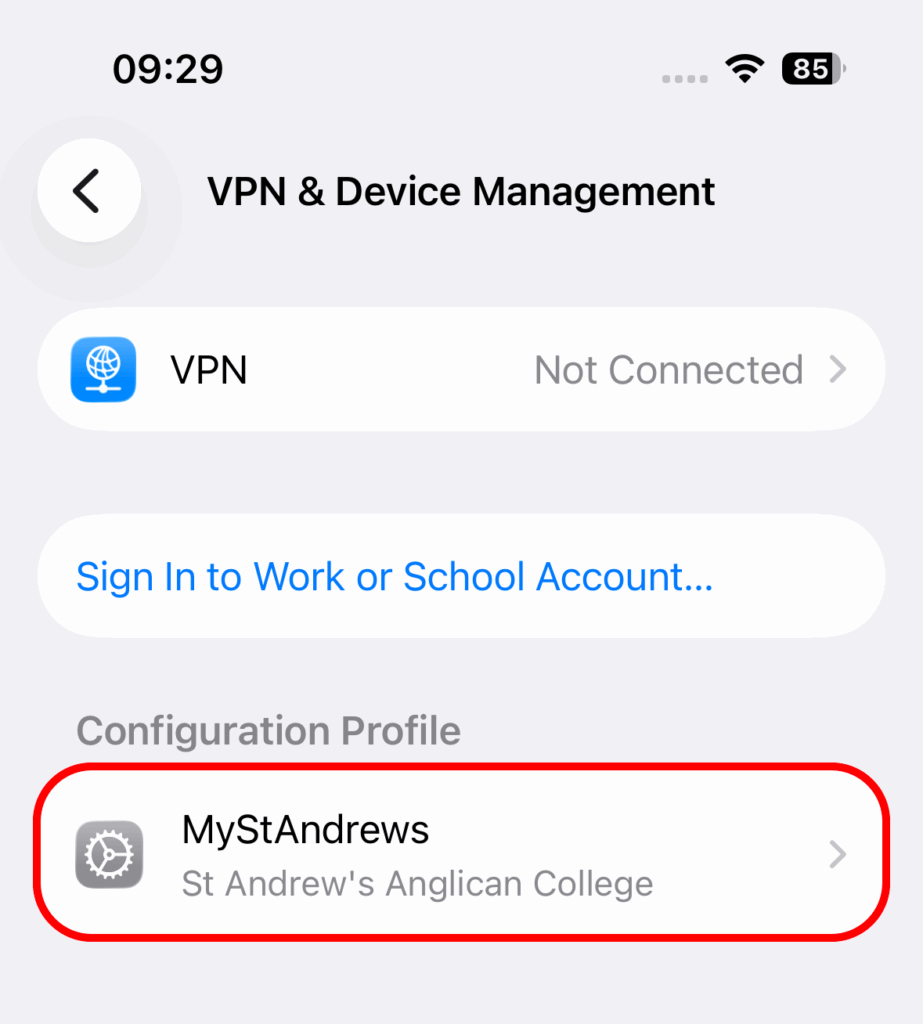
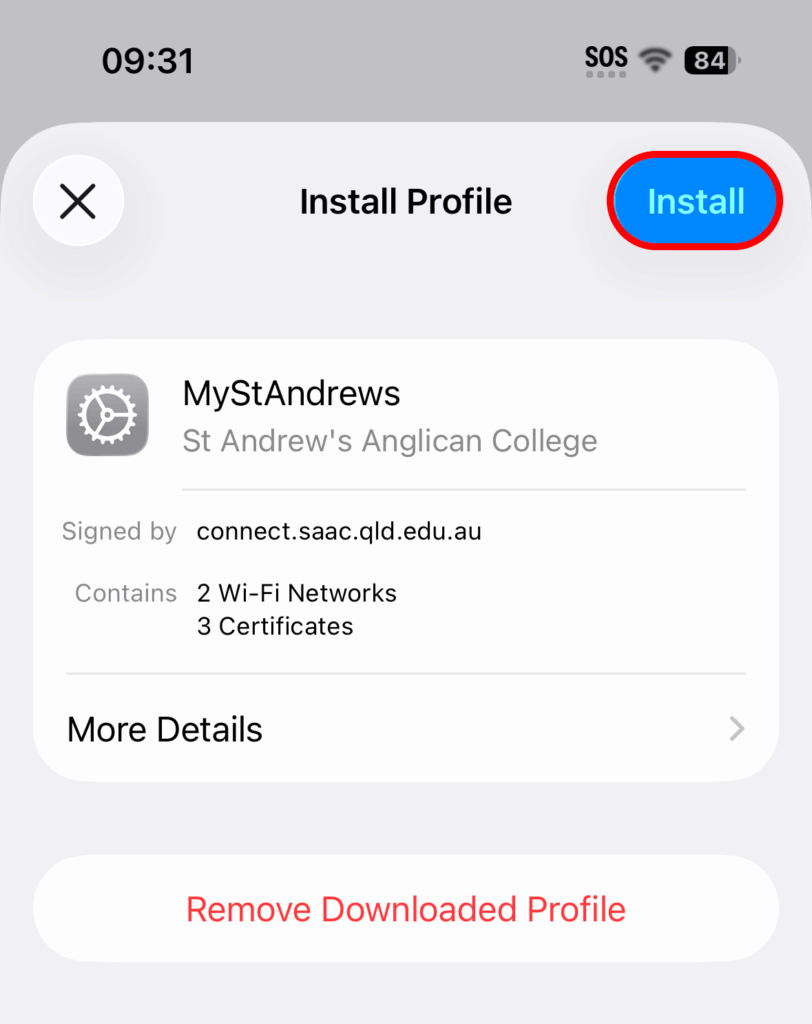
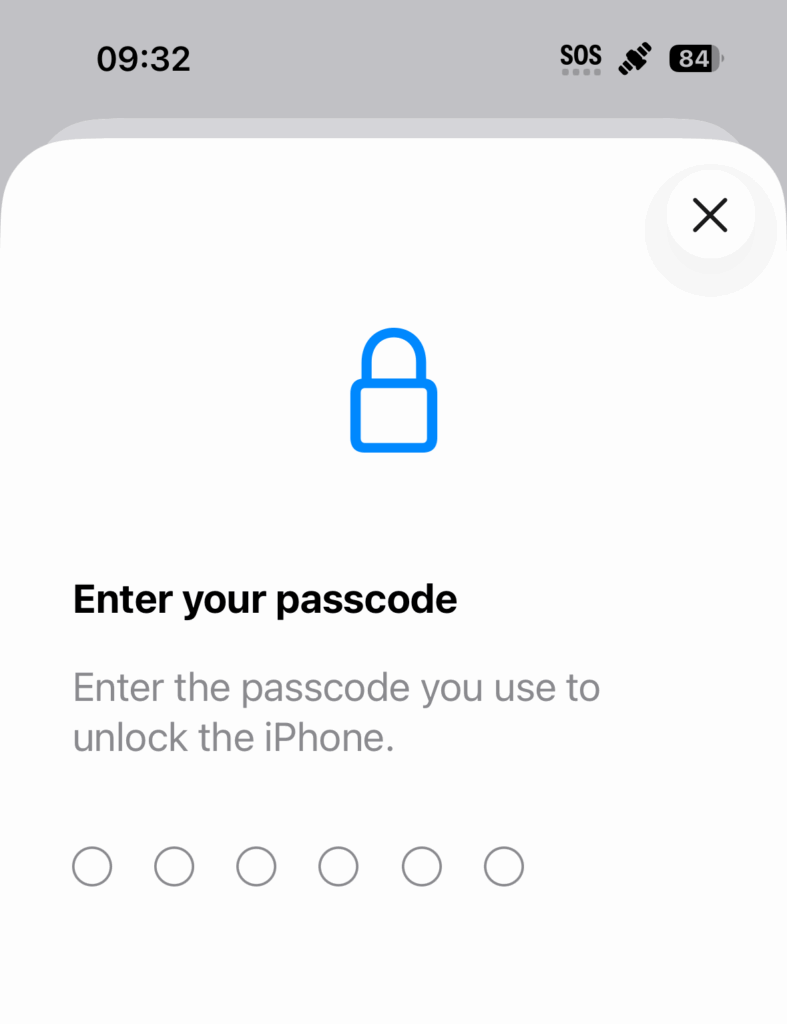
7. Enter you phone’s passcode, select install in the top right, and select Install in the middle of the screen.
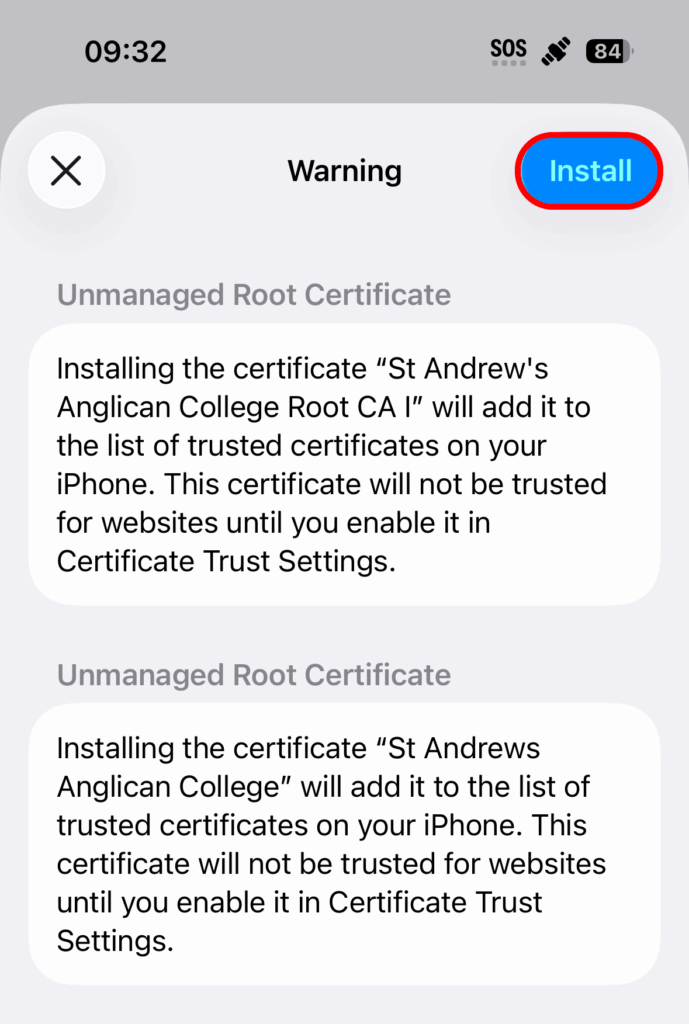
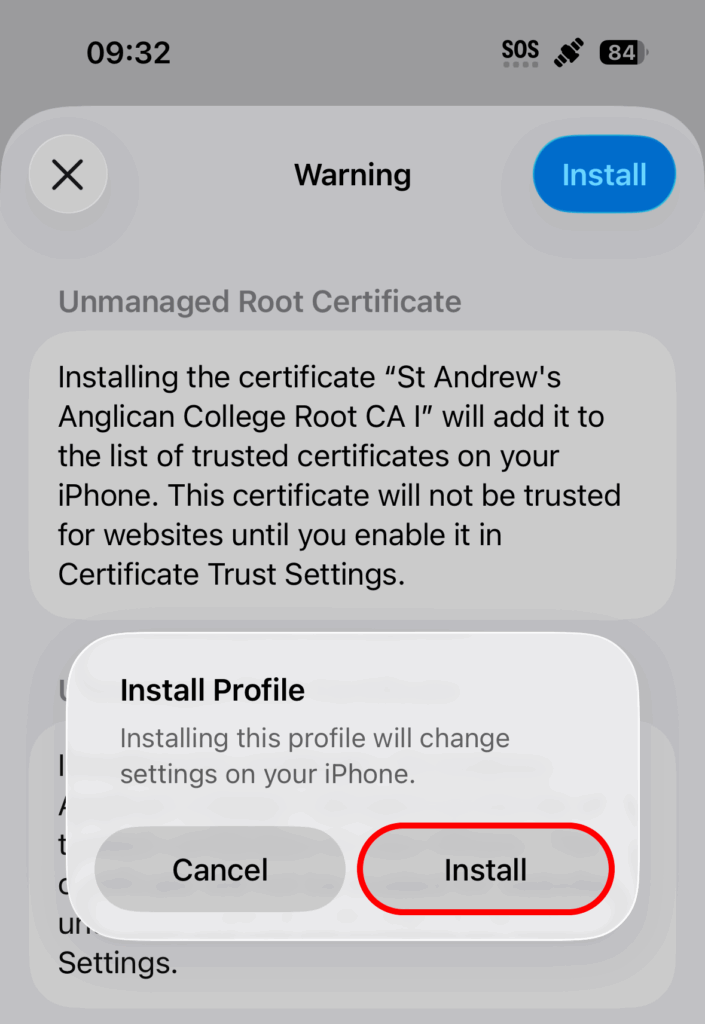
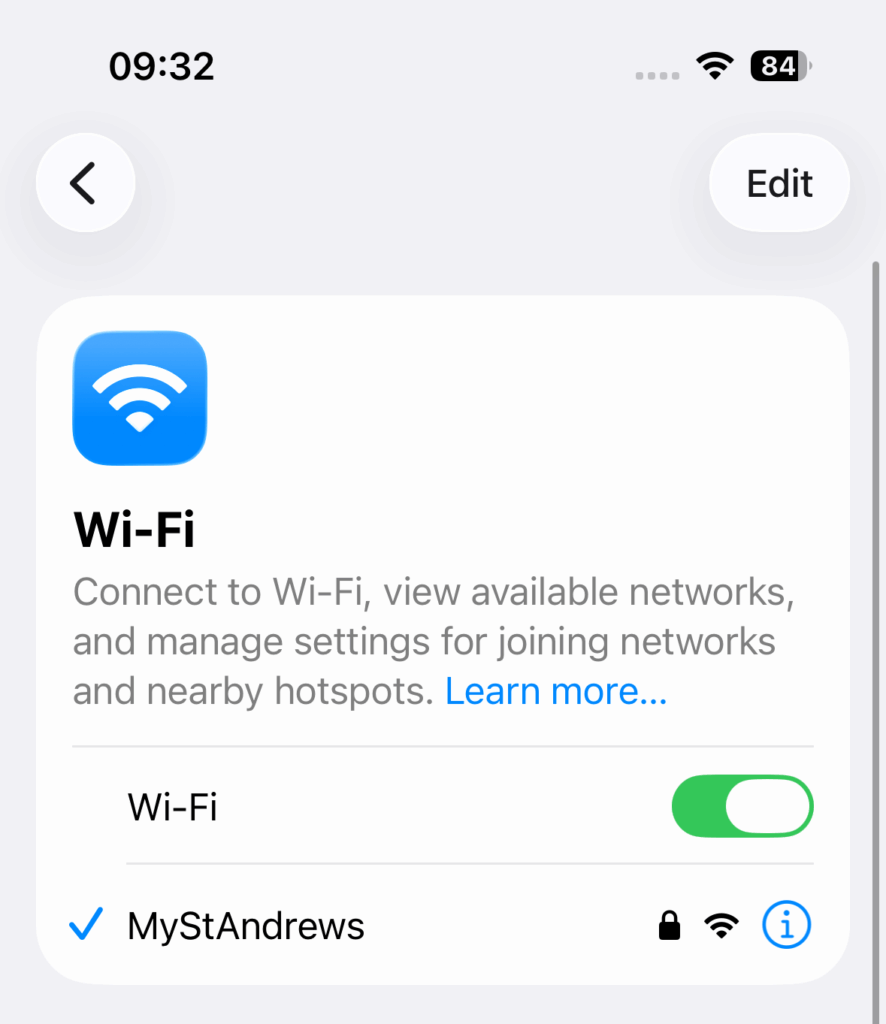
8. Make your way back to the Wi-Fi setting and you’ll see you’re now connected to MyStAndrew’s
Connecting an Android #
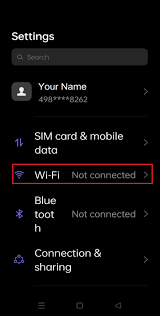
- Go to the Settings on your Android phone and select Wi-Fi. In the Wi-Fi screen, select ConnectStAndrews.
In the Wi-Fi screen the ConnectStAndrews is checked and will indicate Unsecured Network which is correct.

- Open Chrome and enter the address connect.saac.qld.edu.au.
- The entered address will direct you to the Welcome to the SAAC Network screen. Please read and consent to the Terms and Conditions, by checking the box, then select Start.
- In the next screen select Staff & Students.
- Enter your username and password in the sign-in screen, and click continue.
- In the device selection screen, Please select the Android Device option.
- Please copy the Wifi code and go to wifi connection, choose the IOT wifi and paste the code